

1 Rookie
•
16 Posts
0
5769
August 21st, 2021 17:00
Waves Popup not showing.
As the title says, when I connect my headset, my laptop doesn't detect it. Sound works but mic doesn't. I have tried:
-Reinstalling Realtek drivers like 10 times from the Dell page for my specific laptop.
-Installing drivers directly from Realtek.
-Activating Realtek HD Audio Universal Service and RtkAudUService64 on startup.
-Reinstalling Waves.
-Activating "Show pop-up dialog when device is connected" under advanced settings.
I would really appreciate any help.
No Events found!
Deluxe_gg
1 Rookie
•
16 Posts
1
August 30th, 2021 10:00
After hours of trying, I found the solution:
1. Delete Waves Maxx Audio Pro from the MS Store.
2. Delete current drivers and restart.
3. Install older drivers and restart.
4. Plug in the headset and install the newest driver on top of the old one (restart again).
5. Once the driver is installed, download Waves Maxx Audio Pro from the MS Store.
6. Open the app and then close it.
7. Unplug the headset and plug it again. The "Which device did you plug in?" popup should now appear.
Thanks for the help anyway to the people who answered :).
(If someone needs help with this, send me a dm or reply to this question and I'll be glad to help)
XPS_Man
7 Practitioner
•
2.4K Posts
•
12K Points
0
August 21st, 2021 21:00
You will have to make sure these changes are made
1. Open Task manager > Startup : WaveMaxx should be enabled. (If WaveMaxx is missing reinstall audio driver)
2. Open RUN >> MSCONFIG > Services : WavesAudio and Reatel should be checked
3. Open settings > privacy > Background apps : WaveMaxx should be allowed to Background.
Deluxe_gg
1 Rookie
•
16 Posts
0
August 22nd, 2021 10:00
Thanks for your answer! By the way, I have two Waves MaxxAudio on my laptop: the one from the Microsoft Store and the one that came integrated with the Realtek driver from the Dell website. With that being said:
1. Waves MaxxAudio Service Application (WavesSvc64.exe) is enabled on startup.
2. Realtek Audio Universal Service and Waves Audio Services are checked.
3. MaxxAudioPro from the Microsoft Store is allowed to run in the background, though the MaxxAudio that came with the Realtek driver is not available on this list.
bacillus1
2 Intern
•
415 Posts
2
August 22nd, 2021 11:00
open MaxxAudioPro from start>MaxxAudioPro
click on the upper left picture and you should see this pic below
click on the advanced arrow and check the box so that you get the choice of input when you plug in your headphones or headset.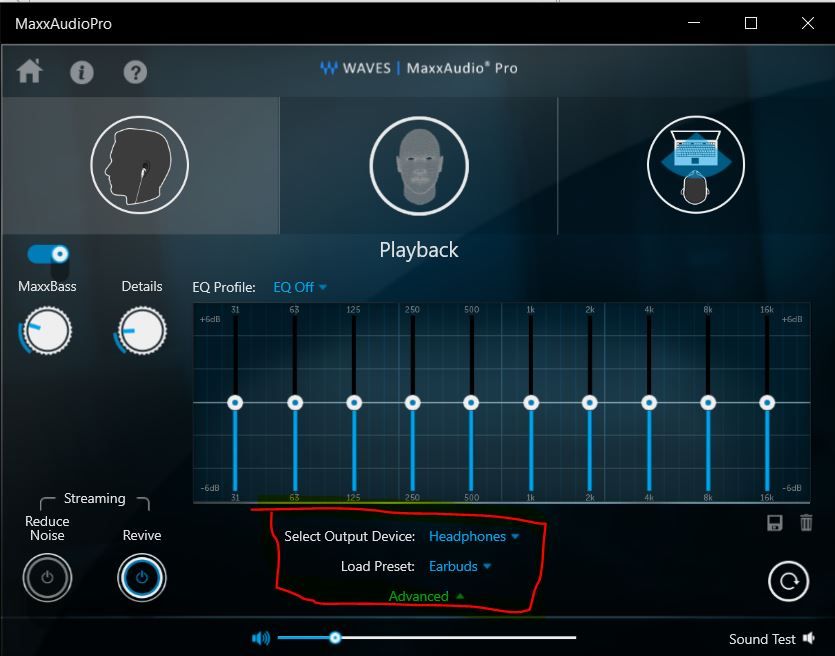
Deluxe_gg
1 Rookie
•
16 Posts
1
August 22nd, 2021 12:00
Thanks, but as I already said, I have tried activating "Show pop-up dialog when device is connected" under advanced settings and nothing happens even after restarting.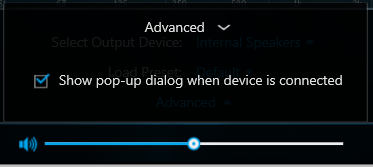
Deluxe_gg
1 Rookie
•
16 Posts
0
August 22nd, 2021 19:00
Dell G5 15 5587... is that what you're asking for?
XPS_Man
7 Practitioner
•
2.4K Posts
•
12K Points
0
August 22nd, 2021 19:00
Remove Waves Audio Maxx installed through store. It may be conflicting
Pause windows updates while uninstalling the device
Do a clean uninstall of Drivers from Device manager > Sound > Realtek : Right click uninstall. Check the box "Remove Driver from this device"
Go to control Panel > program and features and uninstall Realtek Audio
Reboot : Let windows load the drivers : Test the headphones.
Else download and install Drivers from
https://dl.dell.com/FOLDER05488563M/4/Realtek-High-Definition-Audio_H00J4_WIN_6.0.1.8642_A03_02.EXE
Last option : is to use Microsoft's High definition driver over Realtek or Factory image the computer.
XPS_Man
7 Practitioner
•
2.4K Posts
•
12K Points
0
August 22nd, 2021 19:00
Machine model number ??
XPS_Man
7 Practitioner
•
2.4K Posts
•
12K Points
0
August 22nd, 2021 21:00
Open Device manager > Sound > Realtek Audio
Right Click on it > Update driver > Browse my Computer > Let me Pick > choose High Definition device
This will over write Dell's driver with stock microsoft drivers.
Deluxe_gg
1 Rookie
•
16 Posts
0
August 22nd, 2021 21:00
Removed Audio Maxx from the store. Disconnected from internet during this whole process. Deleted the drivers and reinstalled them too from the link provided, everything in order. I did this 2 times, one with Audio Maxx from the store installed, and another time without it, still no changes. What changed is that instead of showing "Speakers/Headphones (Realtek Audio)" it now shows "Speakers/Headphones (2 - Realtek Audio). The popup still doesn't appear.
So, how do I use Microsoft's High Definition driver?
Deluxe_gg
1 Rookie
•
16 Posts
0
August 22nd, 2021 21:00
Thanks, I'll try tomorrow and I'll let you know how it goes.
Deluxe_gg
1 Rookie
•
16 Posts
0
August 23rd, 2021 13:00
After clicking "Let me pick", I don't have "High Definition Device" as an option:
DELL-Cares
Moderator
•
27.8K Posts
•
472 Points
0
January 30th, 2022 22:00
Hello, I see you are looking for technical assistance. If you need our help, you can start a Private message with us and we will be happy to assist you.
jsttt
1 Message
0
January 30th, 2022 22:00
I did it but then when i used driver reviver it stopped working now i have to do it again
DavidNyan10
1 Rookie
•
6 Posts
1
April 16th, 2023 03:00
For people in the future who still cannot solve this:
1. First, download Waves Central from the following link (Or google "Waves Central download" if you don't trust random links)
https://cf-installers.waves.com/WavesCentral/Install_Waves_Central.exe
2. Install the exe by running it as administrator. Some errors *may* occur, but it's fine, ignore or dismiss the errors.
3. Download and install this:
https://dl.dell.com/FOLDER06427065M/3/Waves-MaxxAudio-Pro-Application_M85RR_WIN64_2.0.54.0_A04.EXE
4. Reboot your laptop and it will be fixed
I do not know why the second link works, but it does, so great I guess. It does open a command prompt window, which scared me a bit, but the exe is from the official Dell website, so it should be good.
[Edit: If the links ever expire, here's a MEGA (perma)link]
https://mega.nz/folder/t9FgHaxQ#WFG-gKkaYIBnWHOYNqVqSQ
If it still doesn't work, try these:
1. Check for updates through NVIDIA Geforce Experience
2. Check for updates through Intel Driver & Support Assistant
3. Check for updates through Windows Updates
4. Check for updates through Dell Support Assist
**It is important you do these in ORDER, or else NVIDIA or Intel might replace newer drivers with older ones because they're not updated yet**
5. After all that, delete ALL audio drivers you can find through "Device Manager". ALL of them, EVERY single one, audio drivers, drivers that have "Audio" in their names, all of them, uninstall and DELETE.
6. Reboot
7. Check Dell Support Assist for updates (It is important you do not install any other updates from any other updaters, even Windows). If it says no updates available, ignore it. Else, install the update.
8. Go to https://www.dell.com/support/home/en-us?app=drivers and look for your product through product ID or service tag or let website detect or etc. Just get your product and install ALL audio drivers available by searching "Audio" in the Driver search bar.
9. Install them and follow instructions (you may need to reboot like 3 times through the installation process)
10. Reboot
11. Go to step 1 of my first solution (Waves download stuff) and try that.