

Unsolved
2 Posts
0
1093
March 19th, 2023 07:00
Touchpad issues with Latitude 3490
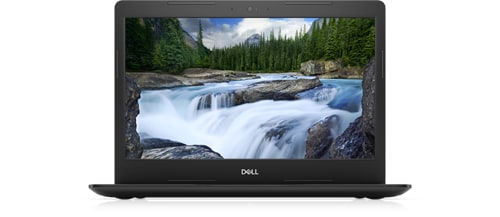
Latitude 3490
I have Dell's Latitude 3490, everything else works fine but touchpad. There were some minor hanging sessions with touchpad about 4 months ago, but they were insignificant. The time span of these kept getting longer but rookie fixes like shutting down, cleaning temporary files would do the trick. Now the touchpad works only on blue moons that too with added hanging effects. the details of problem are here:
- buttons are not affected at all. (I guess no hardware issue thus)
- it works slightly better in Linux(dual OS), but if processor load increases, same problems rise up as in windows.
- doesn't work in BIOS, even touchpad option is not listed there.
PS; I saw on reddit that a similar issue was with latitutude 7*** series and dell released a firmware update to fix it.
what I have tried:
- all basic fixes
- downgraded BIOS to 1.14(it is from 2021 when no such problem existed) from 1.23-- No changes seen
- windows image repair and new installation.
I'm out of my wits here, will be grateful for any help.
AdrianG001
6 Operator
•
4K Posts
0
March 20th, 2023 04:00
Restart your laptop
You can first try restarting your laptop. This may undo any memory issues that can lead to the touchpad not working on your Dell. If you have a mouse connected via USB or Bluetooth®, disconnect it before restarting your laptop.
Turn on the touchpad with your keyboard
Some Dell laptop models let you turn the touchpad on or off when you press F9. It's called a touchpad function key. If your Dell has one, it's easy to turn off the keyboard by accident. To find out whether that's your problem, try pressing F9 and check your touchpad.
Check the touchpad settings
If your Dell doesn't have a touchpad function key, you can access the setting directly. Here's how:
Type “touchpad settings" in the search bar on the bottom left of the screen.
Make sure the touchpad is turned on. For extra peace of mind, check the Touchpad sensitivity setting. If it's set too low, that may be your issue.
In case you changed some of these settings, you can change them back by scrolling to the bottom of the touchpad settings and resetting them.
Check the touchpad settings in BIOS
The Basic Input/Output System (BIOS) is the software responsible for booting up your laptop. But sometimes it malfunctions during updates or due to viruses, and that may be the reason your mousepad isn't working.
To turn it back on, follow these steps:
In the search bar on the bottom-left of the screen, type "advanced startup" and click Change advanced startup options.
Under Advanced Startup, select Restart Now.
Find the Internal Pointing Devicesetting. You can find it in your advanced settings. Make sure it's turned on.
140iqconstructionworker
2 Posts
0
March 21st, 2023 10:00
Thanks for your effort, but I must regretfully reply that I had already tried all the fixes you've suggested and have mentioned them in the original thread as well.