

Unsolved
This post is more than 5 years old
3 Posts
0
29092
October 3rd, 2012 06:00
Windows 8 - OpenGL
I have an Inspiron 1764 running a 1st gen core i5 processor with Intel HD graphics. When I updated to Win 8, I found out that OpenGL was not supported, and the Intel control panel is not available. Will an update be released before the official release of Win 8, or will be remain with no OpenGL support for 2 year old hardware?
No Events found!
DELL-Chinmay S
6 Operator
•
1.8K Posts
0
October 3rd, 2012 07:00
Hi,
Your computer was shipped with Intel 4500 MHD graphics card. In order to access Intel control panel, you need to install the video driver compatible with Windows 8. You can click on the link: http://intel.ly/PahJT5 and click on ‘Download’ button to install drivers for Windows 8 Operating system. Once the drivers are installed, You can configure OpenGL* settings through Graphics Properties.
The OpenGL settings dialog box that displays on your computer is dependent on the graphic driver version you have installed. As an example screen shot is shown below:
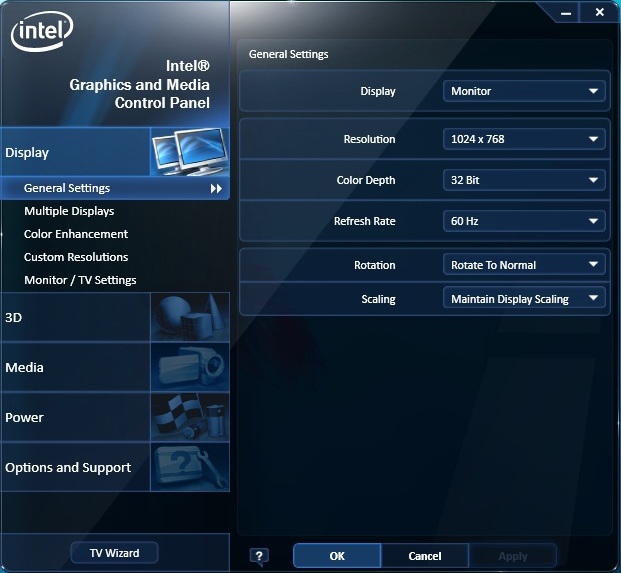
For more information you can refer to article: http://intel.ly/QFaNZt
In case the computer was shipped with ATI Radeon graphics card, you can install a compatible driver for Windows 8 and can configure settings.
Click on ‘AMD Catalyst Driver Windows 8 Release Preview ‘ and follow the prompts on screen to install the latest driver for Windows 8.
For more information on AMD Catalyst Driver for Windows 8, you can refer to link: http://bit.ly/Vg4NMY
Please reply in case you have further questions.
lukepsaila
3 Posts
0
October 3rd, 2012 10:00
Thanks, however the download mentioned above is available to:
2nd Generation Intel® Core™ Processors with Intel® HD Graphics 3000/2000
3rd Generation Intel® Core™ Processors with Intel® HD Graphics 4000/2500
As I said i'm on the 1st Generation Intel.
lukepsaila
3 Posts
0
October 3rd, 2012 13:00
Thanks, but are you sure they will be released? Intel said they don't plan on supporting 1st generation on Win 8 anymore.
I need OpenGL for other applications not necessarily for the web browser.
thanks for your help
DELL-Chinmay S
6 Operator
•
1.8K Posts
0
October 3rd, 2012 13:00
Hi lukepsaila,
Thank you for your quick response. The drivers are not currently available for the 1st generation processors as per Intel and AMD. You can try the drivers provided in previous post and see if they work. I would suggest waiting till the official release of Windows 8, when the drivers should be available.
You may also install latest version of ‘Active X’. It has the same functionality as OpenGL. When you visit a site that uses an ActiveX control, Internet Explorer asks if you want to install the ActiveX control. You can then choose to install the ActiveX control or learn about the risks. Click ‘don’t run’ if you do not trust the website and publisher.
Please reply in case you have further questions.
DELL-Chinmay S
6 Operator
•
1.8K Posts
0
October 4th, 2012 13:00
Hi,
Once Windows 8 is officially released, then associated drivers for that will be available. If you want to use OpenGL for other applications, you can try installing Windows 7 64 bit drivers in compatibility mode on your computer and see if it works.
You can download the video drivers for your computer from link: http://dell.to/QLanRr
Steps to download the drivers:
Please reply in case you have further questions.