

2 Posts
0
7262
December 29th, 2022 13:00
S3222DGM, color calibration
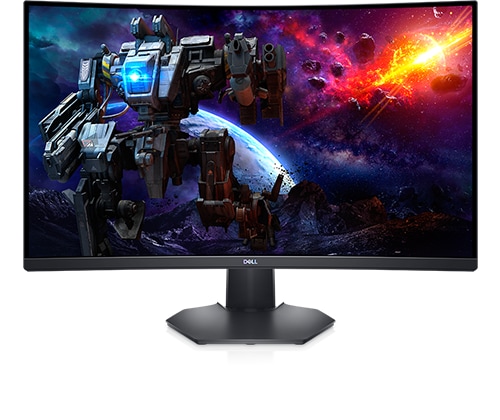
Dell 32 Curved Gaming Monitor S3222DGM
I always like to calibrate settings in my monitors to a get a better picture. Usually pretty straight forward but following the custom color suggestions from Tom's Hardware for this monitor I'm a little confused. They used these settings =
| Picture Mode | Custom Color |
| Brightness 200 nits | 81 |
| Brightness 120 nits | 53 |
| Brightness 100 nits | 41 |
| Brightness 80 nits | 29 |
| Brightness 50 nits | 12 (min. 33 nits) |
| Contrast | 74 |
| Color Temp User | Gain – Red 98, Green 100, Blue 95 |
| Row 8 - Cell 0 | Bias – Red 52, Green 51, Blue 50 |
I have no idea how you set the first five settings, the brightness in nits. I can find nothing in the monitor menu that lets you do this. What am I missing or not understanding? Any help is appreciated.
No Events found!
maelstrom45
2 Posts
1
December 30th, 2022 19:00
Well I did research and educated myself on what nits actually are in reference to displays and now I feel silly. Nits are a measure of how bright your display is at different brightness settings not a setting in the menu. So at brightness 81 on my monitor it would measure at 200 nits. Different display devices will have different nits for where the device is primarily used. Inside, outside or some of both like cell phones.