

Unsolved
1 Rookie
•
2 Points
0
154
March 19th, 2026 13:10
U3425EWE, Thunderbolt connect drops
I potentially have a fix for this problem. At my office there are all Dell U3425EWE monitors with a Thunderbolt cable. Suddenly my mac starting having problems connecting to the second screen. I found that when I go to the setting menu of the monitor itself, and change the 'Thunderbolt Daisy Chain' option in 'display' to 'Optimized', the connection started working again. This works on all the monitors I have used. Hope this helps anybody :)
Monitor settings >> Display >> Thunderbolt Daisy Chain >> Optimized
No Events found!
DELL-ChrisM2
Community Manager
•
1.7K Posts
•
7.5K Points
0
March 19th, 2026 13:08
A possible fix for the U3425WE.
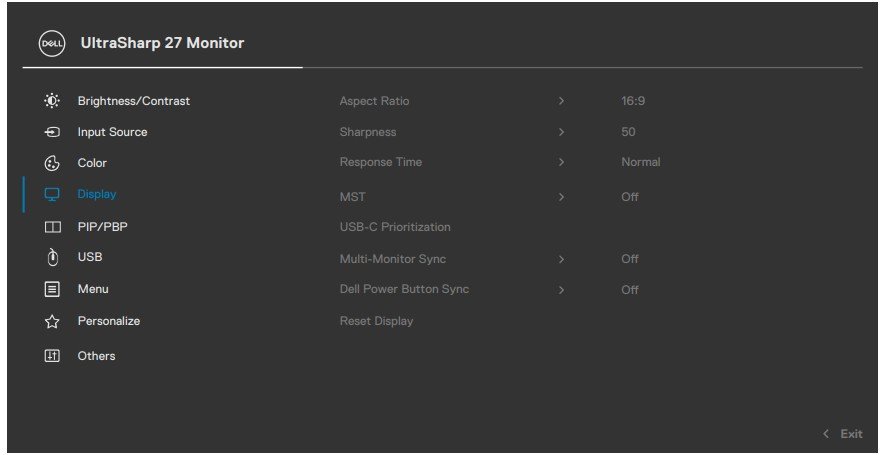
But the U2724DE does not have a Thunderbolt downstream MST port. It has a DisplayPort out MST port. This means that it does not have the Thunderbolt Daisy Chain setting in its Menu --> Display =
william954
1 Rookie
•
4 Posts
•
2 Points
0
March 19th, 2026 15:44
Nice find, this actually makes sense.
Setting Thunderbolt Daisy Chain → Optimized changes how the monitor allocates bandwidth and handles the display stream. In Balanced or other modes, the link can prioritize stability or compatibility, which sometimes causes drops especially with macOS.
“Optimized” typically:
Allocates bandwidth more efficiently for display
Reduces handshake issues with macOS
Improves stability in daisy chain setups
That’s why your second screen starts working again.
So this is a solid workaround for anyone facing random Thunderbolt drop issues on this monitor.