

Unsolved
1 Rookie
•
1 Message
0
525
May 9th, 2023 12:00
Dell All-In-One 7460
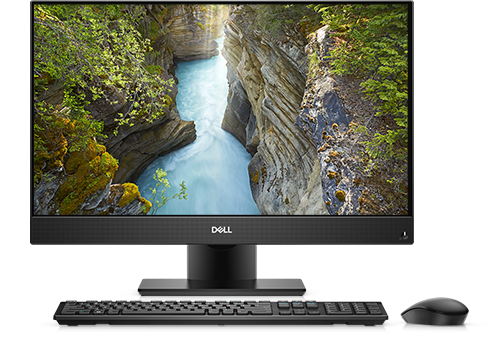
OptiPlex 7460 All-In-One
Hi,
I have a Dell All-In-One 7460 with the Intel 630 display adapter. Is it possible to run three displays, including the AIO?
I already have 1 U2412 from the display port, but can't get the other U2412 working from either the HDMI ports (one is input and the other is output, if i recall).
Would appreciate some assistance.
Thanks + regards,
Eben
No Events found!
DELL-Jesse L
Moderator
•
17.9K Posts
•
69K Points
0
September 6th, 2023 09:09
EbenLaub,
To receive assistance from Dell chat support, they need to verify the warranty status and ownership. Then you must troubleshoot with them. Click the "Get help now" icon on the right to start a live chat session.
Gatto Sama
1 Rookie
•
93 Posts
0
September 6th, 2023 14:55
The Dell OptiPlex 7460 All-In-One is designed to support multiple displays, but the exact number of displays it can handle simultaneously can depend on various factors, including the specific model and configuration of your computer. Typically, the OptiPlex 7460 All-In-One should be able to support up to three displays, including the built-in display and two external displays.
Here's how you can set up multiple displays:
Built-In "margin: 0;">DisplayPort: You mentioned that you have already connected one external monitor (U2412) using the DisplayPort. This is a standard way to connect a monitor to your computer.
HDMI Ports: The OptiPlex 7460 All-In-One typically has HDMI ports for connecting additional monitors. However, it's important to note that not all HDMI ports on a computer are necessarily output ports. Some models may have one HDMI input for connecting external devices like gaming consoles or Blu-ray players and another HDMI output for connecting to additional monitors.
To connect a second external monitor using HDMI, ensure you are using the HDMI output port, not the input port. If you have only one HDMI output, you might need to use an adapter or a different type of display connection for the third monitor, such as a USB-to-HDMI adapter, depending on your specific needs.
Here are some steps to troubleshoot the issue with the second U2412 monitor:
Double-check that you are using the correct HDMI output port on your computer.
Ensure that the HDMI cable you are using is in good condition and properly connected to both the computer and the monitor.
Check the display settings on your computer. Right-click on the desktop and select "Display settings." Make sure that the second monitor is detected and configured correctly.
If the second HDMI port is still not working, you may need to consider using a different type of video output or an adapter, such as a DisplayPort-to-HDMI adapter, to connect the third monitor.
Ensure that the drivers for your graphics adapter are up to date. Visit the Dell support website to download and install the latest drivers for your Intel 630 display adapter.
If you continue to experience issues with connecting the third monitor, you may want to consult Dell's technical support or refer to the user manual for your specific OptiPlex 7460 model for further guidance.