

Unsolved
1 Rookie
•
8 Posts
2
21170
February 13th, 2023 06:00
HDMI port stops working after sleep.
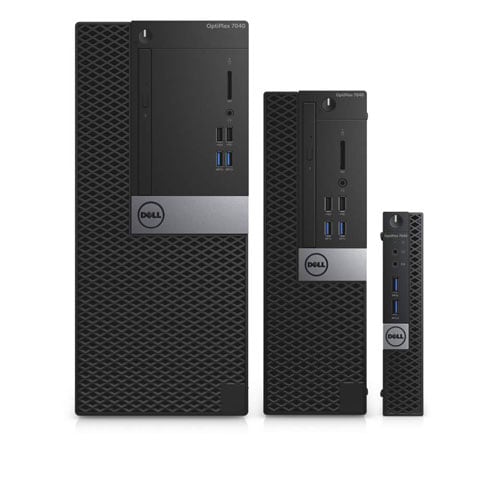
OptiPlex 7040
So I have 2 monitors, one using the display port, one using the HDMI port. When the computer wakes from sleep, the HDMI port is inactive. If I use Windows display app it thinks only one monitor is connected.
I switched the BIOS setting ti Intel HD graphics and if I use the Intel display app, it can detect the second monitor and it's fine until it goes to sleep again. I saved the profile but it won't load the profile until you detect the second monitor, then it isn't needed.
I have not tried both display ports because I only have the one cable.
No Events found!
ewongsmx
2 Intern
•
176 Posts
2
February 13th, 2023 06:00
@dmconsulting
This issue with the HDMI port not working after sleep is a common problem and can be caused by various factors, such as outdated or incorrect drivers, incorrect power settings, or hardware issues. Here are some steps that you can try to resolve the issue:
Update the Graphics Driver: Make sure that you have the latest graphics driver installed on your computer. You can download the latest driver from the manufacturer's website.
Change Power Settings: Go to the Control Panel > Power Options > Edit Plan Settings and change the setting for "Turn off the display" to "Never."
Disable Fast Startup: Go to Control Panel > Power Options > Choose what the power buttons do > Change settings that are currently unavailable > Uncheck "Turn on fast startup."
Check for Hardware Issues: If the problem persists, try disconnecting the HDMI cable from the computer and monitor and then reconnecting it. If this doesn't work, try using a different HDMI cable.
Uninstall and Reinstall the Graphics Driver: If all else fails, try uninstalling the graphics driver and then reinstalling it.
If none of these steps resolve the issue, it is possible that the HDMI port on your computer may be damaged and you may need to have it repaired or replaced.
dmconsulting
1 Rookie
•
8 Posts
0
February 19th, 2023 17:00
Windows thinks everything is up to date. I reinstalled the driver and no change. I got a display port to HDMI adapter and it seems to be working like that. Sort of a pain, but it works and that's what matters..
dmconsulting
1 Rookie
•
8 Posts
0
February 20th, 2023 06:00
Well, it seemed to be working, but now it just occasionally drops my right monitor. I just get a ',No HDMI signal " on the monitor. I can use the Intel Graphics Settings app to detect the second monitor and it's fine. Might try a display port cable, or just buy a graphics card.
Jason 1971
2 Posts
0
December 18th, 2023 16:17
I have the same problem, went through the steps and it fixed the problem, but as soon as I restarted the laptop it went back to only one monitor working and the monitor hooked up to the HDMI port isn't recognized.
Jason 1971
2 Posts
0
December 18th, 2023 16:21
@ewongsmx I don't believe it's a hardware issue. Mine is doing the same thing and with an update it will work until it restarts. If you uninstall the driver and reinstall then it will work until you restart it. If you travel for work, then you have to do this every day. Not a good work around.
weissmad
1 Message
0
March 21st, 2024 13:34
Same issue as reported - HDMI not being recognized until a reboot - very annoying. Verified cables, performed graphics driver update and no resolution. Dell Precision 5680. Hi Dell - interested in a solution/workaround!
bradthetechnut
9 Technologist
•
9.6K Posts
•
40.6K Points
0
March 22nd, 2024 00:09
@weissmad
You might want to start your own thread in the Precision forum. I can move threads, but not individual posts.
Meanwhile, I haven't seen a solution. Only workarounds I know is to try a single or dual USB to HDMI adapter or GPU card.
rachellenfa
1 Message
0
April 2nd, 2024 14:52
@weissmad I just had come issue with my hdmi port on my dell latitude 5420 and my viewsonic videprojector, i updated the graphic driver which was needed, but still not any improvment. The only way i could make my computer work with my HDMI cable hooked on the projector, is by using the dell port replicator !! this is crazy, so something might be wrong with my hdmi port on the computer, I'll nedd to test it onn a classic dell monitor with hdmi port and see if I still have the issue
(edited)
nick.newell
1 Rookie
•
1 Message
•
2 Points
0
September 5th, 2024 13:28
I have this issue as well on a Dell Latitude 5550 laptop. I have an end user who has a dual monitor setup. One monior utilizes a USB-C port connection and the other display is an HDMI TV. All drivers are up to date and the power settings configured and I just replaced the systemboard on this device so it is not the port (same issue on the old systemboard).
The only way I can get the HDMI port to be recongnized and work is to have the laptop lid open and this creates three screens, which the user does not want. I am going to try installing a dell docking station and see if this resolves the issue but this is clearly a software issue. I have tried both the Dell driver and the Intel driver and they both have the same issue.
Grannawr
1 Rookie
•
1 Message
•
2 Points
0
September 6th, 2024 18:35
I just bought this dell and I get the msg from diagnostics “HDMI CABLE NOT INSTALLED. This is rediculous!!! What do I do. One monitor will work with runarounds but the other has the black screen. GIVE ME AN HP!! I just bought this in April. I’ve been busy with my grandson dying with leukemia so I haven’t been able to work on it. I am only 86 years old an I would appreciate some help!
Brunoicq
1 Rookie
•
1 Message
•
2 Points
0
October 10th, 2024 17:34
I faced similar problem. It was solved by installing the drivers not from the notebook manufacturer but from the video card chipset manufacturer.
sandifo
1 Rookie
•
2 Posts
•
8 Points
0
July 24th, 2026 20:03
Here is the fix.
Go to device manager and identify the manufacturer of the graphics card (this is very important). In my case it was AMD.
Windows seems to think an Intel chip was installed and disabled the adaptor.
Right click on the card and enable the adapter.
This should enable your second monitor.
Update the communications drivers for the adaptor.