

Unsolved
1 Rookie
•
1 Message
0
672
February 17th, 2023 14:00
Dell precision 3420 Bios Recovery ?
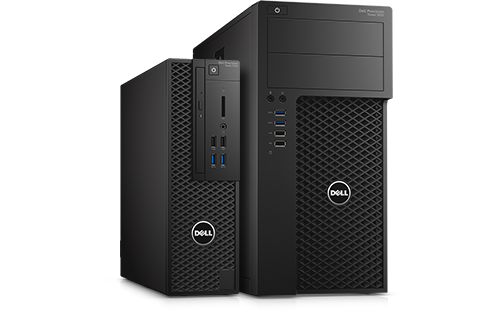
Dell Precision Tower 3420
Hello,
i need some help with my dell precision 3420.
Not sure what happened, but it is blinking 3 orange 6 white ..
According to dell support page this is due to SBIOS failed.
I already tried to recover the bios but when pressing CTRL+ESC nothing happens...just start blinking over and over again. tried usb and ps2 keyboard.
Also i cannot unpack the bios.exe , but according to manual the system can flash exe via usb
how can this machine be recovered ? it was quite expensive but is out of warranty. never had any issues with our fujitsu machines, but a salesman sold us a few dells.. now i am lost
No Events found!
ewongsmx
2 Intern
•
176 Posts
0
February 17th, 2023 15:00
@user33
To recover the BIOS on your Dell Precision Tower 3420, you can follow these steps:
Prepare a bootable USB drive with the latest BIOS file for your system. You can download the BIOS file from the Dell Support website.
Connect the bootable USB drive to the system and restart it.
Press the F12 key when the Dell logo appears to enter the boot menu.
Select the USB drive as the boot device and press Enter.
The BIOS update process should start automatically. Follow the on-screen instructions to complete the update process.
After the update process is complete, restart the system and check if the issue has been resolved.
If the issue persists, you may want to consider seeking assistance from a professional technician or contacting Dell support for further assistance.
Chino de Oro
11 Legend
•
8.5K Posts
•
46.5K Points
0
February 17th, 2023 20:00
Hello OP,
If you must recover BIOS for your system, you will need a BIOS recovery partition on your hard drive or you must have BIOS.rcv file on a USB drive. Here is the article which provides more information about BIOS recovery.
Dell computer that is shipped after December 2015 that has the Intel SkyLake chipset, supports BIOS Recovery 2.
Dell computer that is shipped after August 2016 or with the Intel Kaby Lake chipset, supports BIOS Recovery 3.
Or you can simply updating BIOS from BIOS Boot Menu, which is independent of operating system. Here is the latest BIOS firmware for precision 3420 tower, just click on download and save to a working PC, then following the instruction below for BIOS firmware update.
Updating the BIOS from BIOS Boot Menu
Note 1: Before updating the BIOS, ensure that you suspend BitLocker encryption on a BitLocker-enabled system. If BitLocker is not enabled on your system, you can ignore this step. For information about how to disable BitLocker, see How to Enable or Disable BitLocker with TPM in Windows at support.dell.com.
Note 2: Do not turn off the power or interrupt the BIOS update process during the update.
Note 3: Your system requires a restart after installing the BIOS. The restart can be deferred but must be completed to ensure that the update is installed.
Installation
1. Copy the downloaded file to a USB drive. The USB drive does not need to be bootable device.
2. Insert the USB drive into any USB port.
3. Power on the system.
4. At the DELL logo screen, press F12 to access the one-time boot menu.
5. Select BIOS Flash Update in the Other Options section.
6. Click the ... button to browse the USB drive to locate the downloaded file.
7. Select the file and click Ok.
8. Verify the existing system BIOS information and the BIOS update information.
9. Click Begin Flash Update.
10. Review the Warning message and click Yes to proceed with the update.
The system restarts and displays a Flash Progress bar at the Dell logo screen. The system restarts again when the Flash update is complete.
Brad L (retired)
11 Legend
•
2.7K Posts
0
February 24th, 2023 21:00
Did you have any luck with this?
omfaos
1 Rookie
•
3 Posts
•
2 Points
0
May 18th, 2025 21:52
@DELL-Brad L NO BRO PLS HELP ME :/