

This post is more than 5 years old
1 Rookie
•
13 Posts
0
13056
October 27th, 2012 11:00
Windows 8 Incompatibility with my Bluetooth Device???
Hello All:
Well I foolishly bit the bullet yesterday eve & updated my Dell Inspiron 1012 netbook to the Window 8 OS. Unfortunately, my Widcomm blurtooth device which did work with my previous Windows 7 was reported as incompatible with Windows 8 and, as such, does not work now. Has anybody out there experienced the same problem & know of any fix to this problem?
Dazed & Confused in Calgary
No Events found!
DELL-Saurabh A
4 Apprentice
•
710 Posts
0
October 28th, 2012 05:00
Hi bhoffe,
The Bluetooth driver that you tried to install may not work with Windows 8 as it was built for Windows Vista 32 bit. However, you may try the following steps and install an updated driver as an administrator:
- Click the following link to download the most updated driver for the Bluetooth: http://dell.to/U6O49C (Click Get Driver)
- Save the folder (zipped folder) on the 'Desktop screen'
- Double-click the new icon on the desktop labeled R226746.exe
- The Self-Extracting window appears and prompts you to extract or unzip to C:\DELL\DRIVERS
- Click Ok
- After completing the file extraction, if the Self-Extractor window is still open, close it
- Open the following path: C:\dell\Drivers\TTW58\Win32 (Follow steps mentioned below)
- Click 'Computer' and drive letter 'C'
- Locate folder 'dell' and double click it
- Locate folder 'Drivers' and double click it
- Locate folder 'TTW58' (If such a folder is not visible, look for the folder 'Win32' to open directly)
- Locate folder 'Win32' and double click it
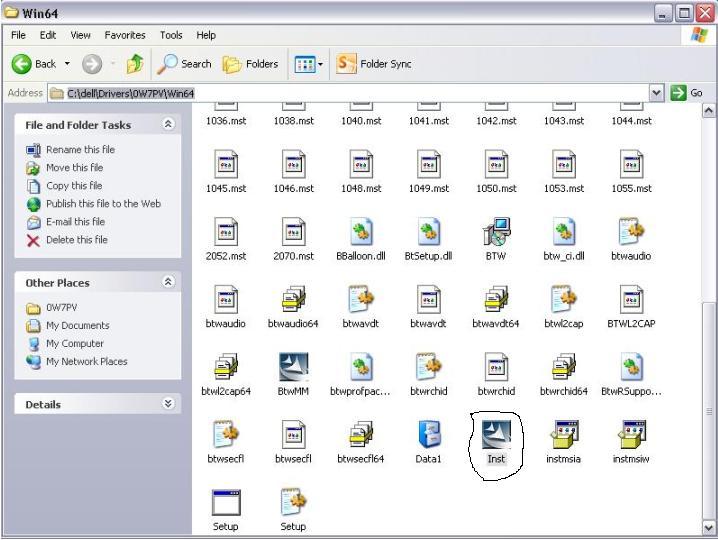
- Locate file Inst (Refer to the image below)
- Right click file 'Inst'
- Click 'Run as an administrator'
- Click 'Yes' to continue if prompted with 'User access control' message
- Follow through with the installation as per the screen instructions
- Finish the installation and check for the Bluetooth functionality
- If issue persists, try using the 'setup' file to install drivers in compatibility mode (Next Step)
Install 'Setup.exe' file in 'compatibility Mode'
- Navigate to C:\dell\Drivers\TTW58\Win32 (If such a folder is not visible, look for the folder 'Win32' to open directly)
- Right click ‘Setup’ file and click ‘Properties’
- Click “Install in compatibility mode’
- Click on Application and select ‘Troubleshoot Compatibility’
- Next, click on ‘Troubleshoot Program’
- Click on Program worked in earlier versions of Windows
- Click on ‘Windows 7’
- Click on ‘Start the Program’
- Do not hit ‘Next’ until the installation completes
- Once the installation completes, click on ‘Next’
Hope this helps. Please reply if you have any further questions. I would be glad to help.
Philip_Yip
11 Legend
•
16.1K Posts
•
65.9K Points
0
October 28th, 2012 19:00
If you have followed the advice above please uninstall the driver and restart your computer.
The Windows 8 Bluetooth 380 driver will install the driver for the 365 module. This may be found here:
http://ftp1.dell.com/folder00865420m/1/
NShortland
1 Rookie
•
8 Posts
0
October 30th, 2012 07:00
I've hit the same problem with my Inspiron 1545 after upgrading to Win 8. The Bluetooth device is no longer visible in Device Manager. Even stranger, my Microsoft Notebook 5000 bluetooth mouse still works (poorly). There is a delay when I move the mouse after a period of inactivity as if the bluetooth system has to wake up.
Nick in Cork.
Philip_Yip
11 Legend
•
16.1K Posts
•
65.9K Points
0
October 30th, 2012 08:00
Try the driver here:
http://ftp1.dell.com/folder00865420m/1/
DELL-Royan S
6 Operator
•
3.8K Posts
0
May 21st, 2013 07:00
This thread has been locked due to inactivity. For assistance, with the same or a different issue, please click New Post on the top right to start a New Thread.