How to disable sleep and configure lid power settings for Ubuntu or Red Hat Linux 7 for Dell laptops
Summary: Follow the steps outlined in this article to disable sleep or to configure the lid power settings for a Dell laptop with Ubuntu or Red Hat Linux 7 installed.
This article applies to
This article does not apply to
This article is not tied to any specific product.
Not all product versions are identified in this article.
Instructions
Disable sleep and configure lid power settings for Ubuntu or Red Hat Linux 7
Disable sleep:
NOTE: This method to disable sleep should also work on other Linux operating systems that use systemd for managing services.
- Open a Terminal following the steps below for your specific operating system:
- Open a Terminal for Ubuntu (Figure 1):
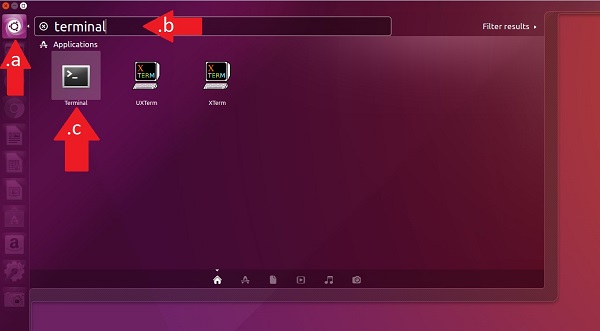
Figure 1: Open Terminal for Ubuntu - Open a Terminal for Red Hat Enterprise 7 using the keyboard command of Ctrl + Alt + T.
- You can also open a Terminal in Red Hat Enterprise 7 by going to the Applications menu, selecting Utilities, then Terminal from the list (Figure 2):
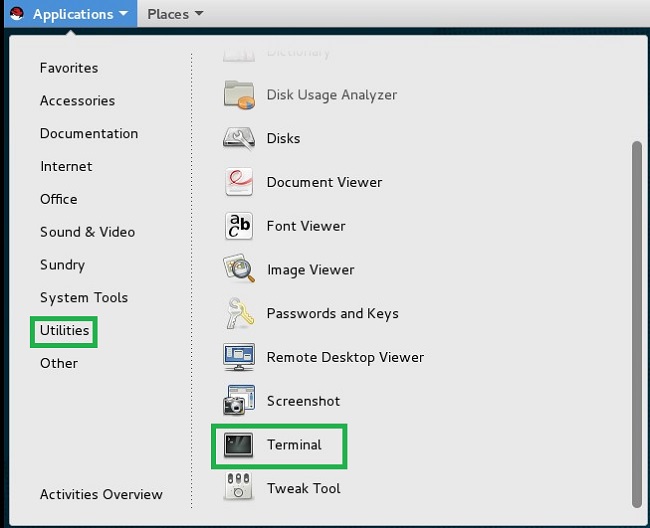
Figure 2: Open Terminal from Applications/Utilities menu - You may also be able to open a Terminal in Red Hat Enterprise 7 from the main Applications menu (Figure 3):
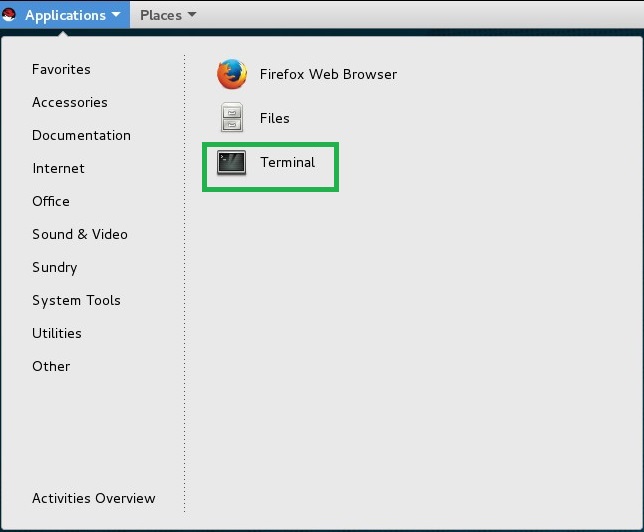
Figure 3: Open Terminal from Applications menu
- Open a Terminal for Ubuntu (Figure 1):
- After opening a Terminal, run the following command: # systemctl mask sleep.target suspend.target hibernate.target hybrid-sleep.target
Enable sleep:
- Open a Terminal .
- Run the following command: # systemctl unmask sleep.target suspend.target hibernate.target hybrid-sleep.target
Configure lid power settings:
- Open the /etc/systemd/logind.conf file for editing.
- Find the line #HandleLidSwitch=suspend.
- Remove the # character at the beginning of the line.
- Change the line to either of the desired settings below:
- HandleLidSwitch=poweroff to shutdown computer when lid is closed
- HandleLidSwitch=hibernate to hibernate computer when lid is closed
- HandleLidSwitch=suspend to suspend computer when lid is closed
- HandleLidSwitch=ignore to do nothing to do nothing
- Save the file and restart the service to apply the changes by typing # systemctl restart systemd-logind.
Article Properties
Article Number: 000179566
Article Type: How To
Last Modified: 16 Feb 2024
Version: 7
Find answers to your questions from other Dell users
Support Services
Check if your device is covered by Support Services.