Dell Vostro 7500 Usage and Troubleshooting Guide
Summary: Learn how to use and troubleshoot issues related to drivers, Windows, LCD, input devices, networking, webcam, and more on your Vostro 15 7500.
Symptoms
Cause
For help with issues such as: Wired and wireless networking, Windows, mouse, touchpad, keyboard, LCD, webcam and downloading drivers, see an expanding section below.
Resolution
For specifications, browse to the Vostro 7500 Online Manual Page, and then touch or click View PDF under Vostro 7500 Setup and Specifications. Reference the Specifications of Vostro 7500 section.
For port locations, browse to the Vostro 7500 Online Manual Page, and then touch or click View PDF under Vostro 7500 Setup and Specifications. Reference the Views of Vostro 7500 section.
To view or download the Service Manual, browse to the Vostro 7500 Online Manual Page, and then touch or click View PDF to the right of the Vostro 7500 Service Manual.
To locate your Service Tag or Express Service Code, browse to the Where is the Service Tag located? page.
For how-to's and troubleshooting information about Wired and Wireless networking, browse to the Dell Networking and Wireless Support Center.
For information about how to turn the wireless antenna on and off on a Dell Computer, reference How to Turn the Wireless Devices on a Dell Laptop On and Off.
- Using the SupportAssist application provides automatic computer updates and detects issues that can be resolved for you. Let us take the effort out of maintaining your Dell computer or tablet. For more information about SupportAssist, browse to the SupportAssist for PCs and tablets page.
- To run online hardware diagnostics to confirm that your hardware is working correctly, reference Dell Diagnostic Tools to Diagnose and Fix Hardware Problems on Your Dell Computer or Tablet. The article explains how to access the hardware diagnostics and the different kinds of tests available for your Dell computer or tablet.
- When the computer cannot access the Internet, you can run the built-in diagnostics (ePSA) on your computer. For more information, reference Resolve Hardware Issues With Integrated and Online Diagnostics (SupportAssist ePSA, ePSA, or PSA Error Codes).
This section covers the Microsoft Windows operating system that is installed on your computer. Select the appropriate section below to find out more.
- Dell Microsoft Windows Support Center
- Resolving Slow Performance and Response
- Microsoft Windows Locks Up or an Error Occurs
- Downloading and Installing Vostro 7500 Drivers
Dell Microsoft Windows Support Center
For help with using Microsoft Windows, reference the Dell Windows Support Center. You must select the operating system that you need help with.
Resolving Slow Performance and Response
When the computer stops responding or you are troubleshooting slow performance issues, perform the following steps:
- Press the Power button for at least 15 seconds to turn the computer off.
- Disconnect all devices including the keyboard, mouse, and external monitor. Peripherals also include external storage devices such as flash drives, USB devices, printers, cards, and so on.
- Press the Power button to see if the computer turns on and boots up correctly. If not, reference Dell Computer Does Not Turn On or Boot Into Windows With Errors Such as No Bootable Device.
- When the computer does boot up correctly, download and install SupportAssist. For more information about how to obtain and install SupportAssist, go to the SupportAssist for PCs and tablets page.
- Perform maintenance on your computer. For more information, reference Optimization and Maintenance of Microsoft Windows or How to Troubleshoot Slow Performance Issues.
- Start connecting external peripherals one at a time, and check to see if the computer continues to respond.
Microsoft Windows Locks Up or an Error Occurs
This link takes you to Computer Restarts or Shuts Down Intermittently, Locks Up, Stops Responding or an Error Occurs.
Downloading and Installing Vostro 7500 Drivers
For information about the drivers available, browse to the Vostro 7500 Drivers Page.
This article provides information about how to download drivers for Dell computers, Drivers and Downloads FAQs.
This section covers the hardware that is installed on your computer. Select the appropriate section below to find out more.
- Keyboard, Mouse, and Touchpad Issues
- Touchscreen Issues
- Computer Fails to Start or There is No Video
- Setting the BIOS Back to its Defaults
Keyboard, Mouse, and Touchpad Issues
Reference the following Dell Knowledge Base articles for information about how to use or troubleshoot mouse, keyboard, or touchpad issues.
- Keyboard Troubleshooting and Usage: The Definitive Guide
- Mouse Usage and Troubleshooting Guide
- Fixing Your Laptop Touchpad Not Working in Windows
- Some keys on your keyboard have two symbols on them. These keys can be used to perform secondary functions. To perform secondary functions, press Fn and the appropriate key. Press and hold the Fn key, and then press the Esc key to switch the primary behavior of the function keys (F1-F12) between two modes - multimedia key mode and function key mode.
- When the computer is powered on, the battery LED also acts as the hard drive activity light. Press and hold the Fn key, and then press the H key to switch between the battery and the hard drive activity light function.
For information about how to turn the touchpad on or off, reference Disabling or Enabling the Touchpad on a Dell Laptop.
Touchscreen Issues
Reference How to Troubleshoot Touch Screen or Touch Panel Issues for information about resolving Touchscreen issues.
Computer Fails to Start or There is No Video
If you experience a situation in which the computer does not start at all, or if it does turn on (lights turn on and fans are spinning) but the computer does not show any image, look at the Battery LED (located on the left side of the computer, Figure 1) for a blinking amber or white pattern to determine failures listed in Table 1.
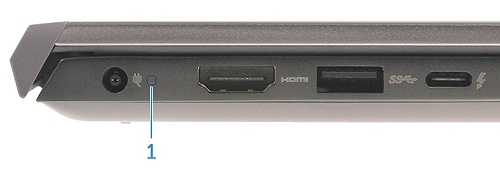
Figure 1: Battery charge and status LED location
The blinking patterns consist of two sets of numbers that are represented by a group of amber blinks and then a group of white blinks.
First Group: The LED blinks with an amber color one to nine times, followed by a brief pause with the LED off for 1.5 seconds.
Second Group: The LED blinks with a white color one to nine times, followed by a longer pause before the next cycle starts again with the LED off for 3 seconds.
For example: For a No Memory Detected Error (2,3). The battery LED blinks two times with an amber color, followed by a pause and then blinks three times with a white color. The battery LED will pause for three seconds before the next cycle repeats itself again. Each LED blink takes 0.5 seconds.
The computer does not shut down when displaying the diagnostic error codes.
Diagnostic error codes always supersede any other use of the LED. For instance, on laptops, battery codes for low battery or battery failure situations are not displayed when the diagnostic error codes are being displayed.
| Blinking Pattern Amber | Blinking Pattern White | Component | Description |
|---|---|---|---|
|
1
|
1
|
TPM Detection Failure | System board failure (included BIOS corruption or ROM error) Try to flash the BIOS to the latest version. For more information, browse to Dell BIOS Updates (Reference the How do I update BIOS using a USB flash drive? section). |
|
1
|
2
|
Unrecoverable SPI Flash Failure | System board failure (included BIOS corruption or ROM error) Try to flash the BIOS to the latest version. For more information, browse to Dell BIOS Updates (Reference the How do I update BIOS using a USB flash drive? section). |
|
1
|
3
|
Short in Hinge Cable tripped OCP1 | System board failure (included BIOS corruption or ROM error) Try to flash the BIOS to the latest version. For more information, browse to Dell BIOS Updates (Reference the How do I update BIOS using a USB flash drive? section). |
|
1
|
4
|
Short in Hinge Cable tripped OCP2 | System board failure (included BIOS corruption or ROM error) Try to flash the BIOS to the latest version. For more information, browse to Dell BIOS Updates (Reference the How do I update BIOS using a USB flash drive? section). |
|
1
|
5
|
i-Fuse Failure | System board failure (included BIOS corruption or ROM error) Try to flash the BIOS to the latest version. For more information, browse to Dell BIOS Updates (Reference the How do I update BIOS using a USB flash drive? section). |
|
1
|
6
|
EC Internal Failure | System board failure (included BIOS corruption or ROM error) Try to flash the BIOS to the latest version. For more information, browse to Dell BIOS Updates (Reference the How do I update BIOS using a USB flash drive? section). |
|
2
|
1
|
CPU | CPU failure |
|
2
|
2
|
BIOS ROM failure | System board failure (included BIOS corruption or ROM error) Try to flash the BIOS to the latest version. For more information, browse to Dell BIOS Updates (Reference the How do I update BIOS using a USB flash drive? section). |
|
2
|
3
|
Memory | No memory (RAM) detected |
|
2
|
4
|
Memory | Memory (RAM) failure |
|
2
|
5
|
Memory | Invalid memory installed |
|
2
|
6
|
Chipset | System board or chipset error |
|
2
|
7
|
LCD | LCD failure |
|
2
|
8
|
LCD-Power rail failure | System board failure (includes BIOS corruption or ROM error) Try to flash the BIOS to the latest version. For more information, browse to Dell BIOS Updates (Reference the How do I update BIOS using a USB flash drive? section). |
|
3
|
1
|
RTC power failure | CMOS battery failure |
|
3
|
2
|
PCI / Video | PCI or video card or chip failure |
|
3
|
3
|
BIOS recovery image | Recovery image not found Try to flash the BIOS to the latest version. For more information, browse to Dell BIOS Updates (Reference the How do I update BIOS using a USB flash drive? section). |
|
3
|
4
|
BIOS recovery image | Recovery image found but invalid Try to flash the BIOS to the latest version. For more information, browse to Dell BIOS Updates (Reference the How do I update BIOS using a USB flash drive? section). |
|
3
|
5
|
Power rail | Power rail failure Try to flash the BIOS to the latest version. For more information, browse to Dell BIOS Updates (Reference the How do I update BIOS using a USB flash drive? section). |
|
3
|
6
|
BIOS recovery | BIOS Recovery Image not found while performing autorecovery Try to flash the BIOS to the latest version. For more information, browse to Dell BIOS Updates (Reference the How do I update BIOS using a USB flash drive? section). |
|
3
|
7
|
ME Error | Management Engine error during boot. Try to flash the BIOS to the latest version. For more information, browse to Dell BIOS Updates (Reference the How do I update BIOS using a USB flash drive? section). |
For additional help with your computer, Contact Technical Support.
When the battery LED does not blink with an amber or white pattern, perform the following steps:- Press the power button for at least 15 seconds to turn the computer off.
- Disconnect all devices including the keyboard, mouse, and external monitor. Peripherals also include external storage devices such as flash drives, USB devices, printers, cards, and so on.
- Remove the AC adapter from the computer and unplug the AC adapter from the electrical outlet.
- Make sure the connections on the power cable and AC adapter are firmly pressed together.
- Insert the AC into the computer and a good electrical outlet (not on a surge protector or power strip).
- Press the Power button to see if the computer turns on and boots up correctly. If not, reference Dell Computer Does Not Turn On or Boot Into Windows With Errors Such as No Bootable Device.
- Start attaching devices one at a time and testing to see if the computer turns on.
Setting the BIOS Back to its Defaults
There are times when changes to the settings in the System Setup (BIOS) prevent the computer from booting into Windows or connect to the Internet. Setting the BIOS back to its defaults may help fix these issues.
- Reboot the computer.
- When you see the Dell logo during POST, press the F2 key to enter the setup screen.
- On the System Setup screen, click Load Defaults.
- Confirm that BIOS Defaults is selected, and then click OK when asked.
- Click OK on the Warning window when asked.
- Click Exit. The computer restarts.
This section covers the hardware that is installed on your computer. Select the appropriate section below to find out more.
- Black, Blank, or Dim LCD Screen
- Diagnose and Resolve USB Port Issues
- Hard Drive Usage, Understanding, and Troubleshooting
- Resolving Audio Issues
- Power and Battery Charging Information and Resolving Battery Issues
Black, Blank, or Dim LCD Screen
For information about troubleshooting a laptop LCD Screen, reference How to Troubleshoot Display or Video Issues on a Dell Laptop.
Diagnose and Resolve USB Port Issues
For help with resolving USB port issues, reference How to Troubleshoot USB Port When it is Not Working.
Hard Drive Usage, Understanding, and Troubleshooting
For information about hard drive issues and help with resolving them, reference Understanding and Troubleshooting the Hard Disk Drive (HDD) or Solid-State Drive (HDD or SSD) on a Dell Computer.
Resolving Audio Issues
For information about and help with resolving audio issues, reference the Speakers and Headphones Support site.
Power and Battery Charging Information, and Resolving Battery Issues
Battery Charge and Status LED
The battery charge and status LED indicator is located at the left side of the computer Figure 2. Reference Table 2 for the description of the LED.
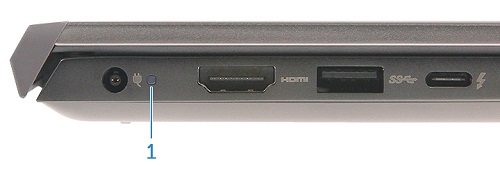
Figure 2: Battery Charge and Status LED Location
| LED Behavior | Description |
|---|---|
| Alternately blinking amber light and white light | An unauthenticated or unsupported non-Dell AC adapter or battery is attached to your laptop |
| Constantly blinking amber light | Battery below specified low battery level |
| Light off | Battery in full charge mode with AC adapter present |
| White light on | Battery in charge mode with AC adapter present |
- S0 (ON) — Computer is turned on.
- S4 (Hibernate) — The computer consumes the least power compared to all other sleep states. The computer is almost at an OFF state, expect for a trickle of power. The context data is written to a hard drive.
- S5 (OFF) — The computer is in a shutdown state.
- For models with a fingerprint reader (where no power LED is on the power button), the LED illuminates white immediately once the power button is pressed.
- When the computer is powered on, the battery LED also acts as the hard drive activity light. Press and hold the Fn key, and then press the H key to switch between the battery and the hard drive activity light function.
For additional information about and help with resolving battery issues, reference the Battery Support site.
This section covers the software that may be installed on your computer. Select the appropriate section below to find out more.
Software
The Dell Windows Backup Media and Recovery Options page provides information about backing up your Windows Operating System as well as recovery options for when Windows does and does not start correctly.
The Dell Download Center provides information about software that you may have bought and software that is already installed on your computer, such as Dell Backup Solutions and Dell SupportAssist for PCs and tablets.
Some of the software sold at the time of purchase has to be downloaded once you receive your computer. You can download and install those programs by using Dell Digital Delivery. For more information, reference the following links:
A free PDF reader (Acrobat Reader DC) is available for free from Adobe
This article provides help with Microsoft Office programs, A Guide to the various Microsoft Office programs available on your Dell PC.
- The Skype software can be downloaded from the Skype
- To uninstall Skype, perform the following steps:
- Close Skype and verify that it is not running in the background.
- In the Search bar type
appwiz.cpl - Touch or click on
appwiz.cpl(Control panel item) to open the Programs and Features window. - Touch and hold or right-click Skype from the list and select either Remove or Uninstall.
- Reboot your computer and check that the application has been uninstalled.
Anti-virus
To access the Dell Security and Virus Support page, click on the following link:
Your computer comes preinstalled with an anti-virus program. For more information, reference How to Get Support for McAfee Products Sold at Dell.
More information about viruses, spyware, and malware can be found at the following links: