NetWorker: How to POST VMware VM Image Restores with REST API
Summary: This article gives a brief overview of how to perform VMware Virtual Machine (VM) image restores from the REST API.
This article applies to
This article does not apply to
This article is not tied to any specific product.
Not all product versions are identified in this article.
Instructions
This article gives a brief overview of how to perform VMware VM image restores from the REST API. The full REST API guide is available at Dell NetWorker REST API
- Query all protected VMs to get the VM UUID of the VM you are looking to restore. The syntax of the link follows:
https://NETWORKER_SERVER:9090/nwrestapi/v3/global/vmware/vcenters/VCENTER_SERVER/protectedvms
- You must collect the required VMware Managed Object Reference (MoRef) values for the specific VM you are looking to restore: The syntax of the link follows:
https://NETWORKER_SERVER:9090/nwrestapi/v3/global/vmware/vcenters/VCENTER_SERVER/protectedvms/VM_UUID/backups
The required values appear under the
vm_info line and under the vmInformation section of the output.
Example:

- Collect additional information by adding the backup ID to the
GETrequest:
https://NETWORKER_SERVER:9090/nwrestapi/v3/global/vmware/vcenters/VCENTER_SERVER/protectedvms/VM_UUID/backups/BACKUP_ID
- Use the following link syntax to POST the restore:
https://NETWORKER_SERVER:9090/nwrestapi/v3/global/vmware/vcenters/VCENTER_SERVER/protectedvms/VM_UUID/backups/BACKUP_ID/op/recover
An example of the JSON body content is replacing the values with the values collected in step 2 and 3:
{
	"recoverMode": "New",
	"datacenterMoref": "DATACENTER_MOREF",
	"datastoreMoref": "DATASTORE_MOREF",
	"computeResourceMoref": "COMPUTE_RESOURCE_MOREF",
		"disks": [
                    {
                        "datastoreMoref": "DATASTORE_MOREF",
                        "key": "2000",
                        "name": "Hard disk 1"
                    }
                ],
	"vCenterHostname": "VCENTER_NAME",
	"hostMoref": "VCENTER_MOREF",
	"vmName": "RESTORED_VM_NAME",
	"powerOn": "true/false",
	"reconnectNic": "true/false"
}
Example:
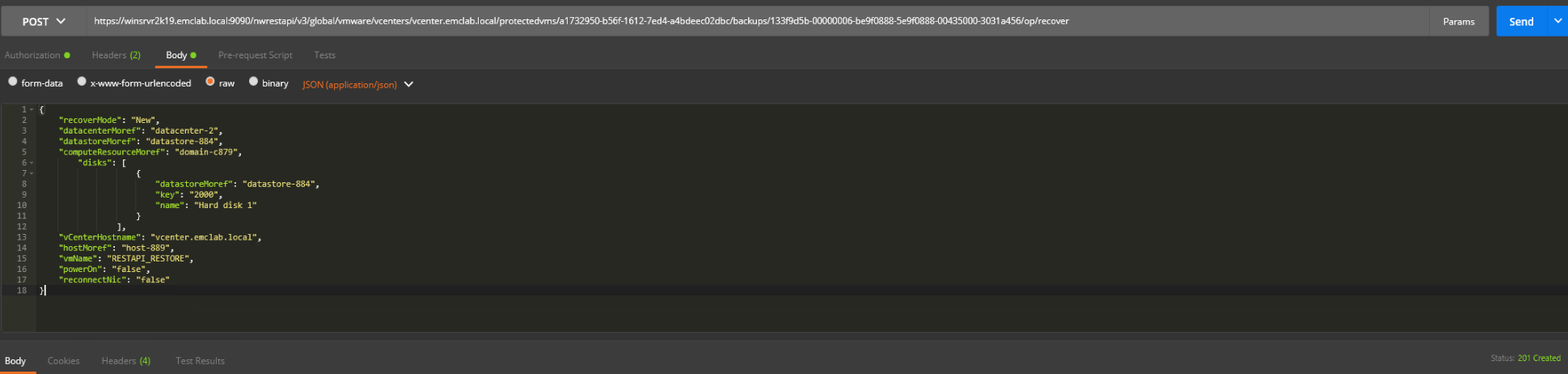
NOTE: Status 201 indicates that the request was submitted. This is an example of a full image restore in a specific environment. Properties and requirements could change based on the VMware environment.
The restore session is seen in the VMware client.
Generic Troubleshooting:
| Code | Description | Examples |
|---|---|---|
| 1XX | Informational | 100 - Continue |
| 2XX | Success | 200 - OK
201 - Created 202 - Accepted |
| 3XX | Redirection | 301 - Moved Permanently.
307 - Temporary redirect |
| 4XX | CLIENT error | 400 - Bad request
401 - Unauthorized 404 - Not Found |
| 5XX | SERVER error | 500 - Internal server error
503 - Service unavailable |
Additional Information
Logs for the restore session are found at:
NetWorker server:
- Linux:
/nsr/logs/recover/ - Windows:
[INSTALL_DRIVE]:\Program Files\EMC NetWorker\nsr\logs\recover
vProxy used for restore:
/opt/emc/vproxy/runtime/logs/recycle/vrecoverd/
Note: Once the restore is complete, it is moved to:
/opt/emc/vproxy/runtime/logs/recycle/vrecoverd/DATE
Affected Products
NetWorkerProducts
NetWorkerArticle Properties
Article Number: 000021344
Article Type: How To
Last Modified: 30 يونيو 2026
Version: 7
Find answers to your questions from other Dell users
Support Services
Check if your device is covered by Support Services.