NetWorker: Troubleshooting Issues During NetWorker Installation or Upgrade
Summary: The NetWorker Server software cannot be uninstalled following a failed installation of the NetWorker Server and NMC components, during which a rollback was triggered. As a result of the incomplete installation state, all subsequent attempts to uninstall the NetWorker software are also failing. ...
Symptoms
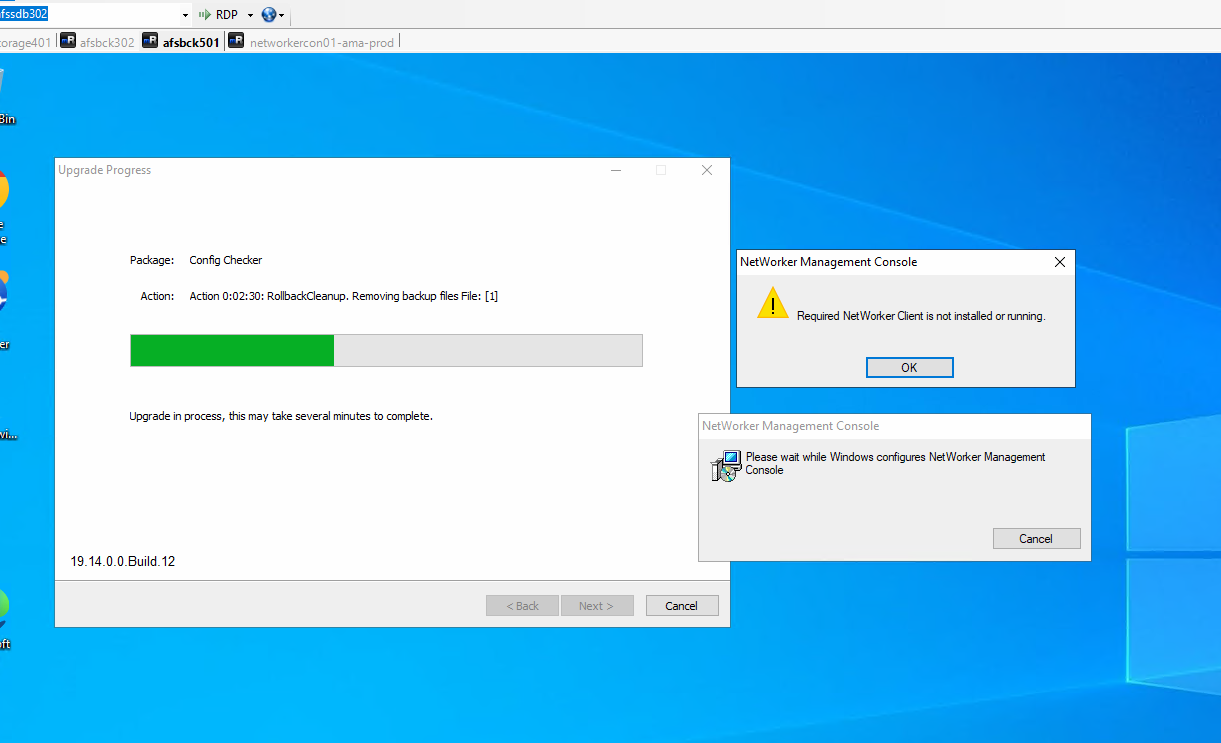
Attempts to uninstall the NetWorker Server and NetWorker Management Console (NMC) software are unsuccessful. The system presents an error message similar to the message shown below when initiating the uninstallation process:
- Upgrade rollback occurred
- Unable to uninstall the NetWorker software
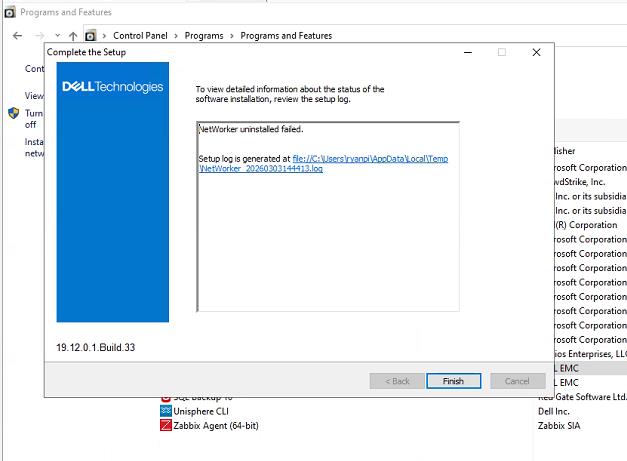
- Required NetWorker client service is not installed or not running
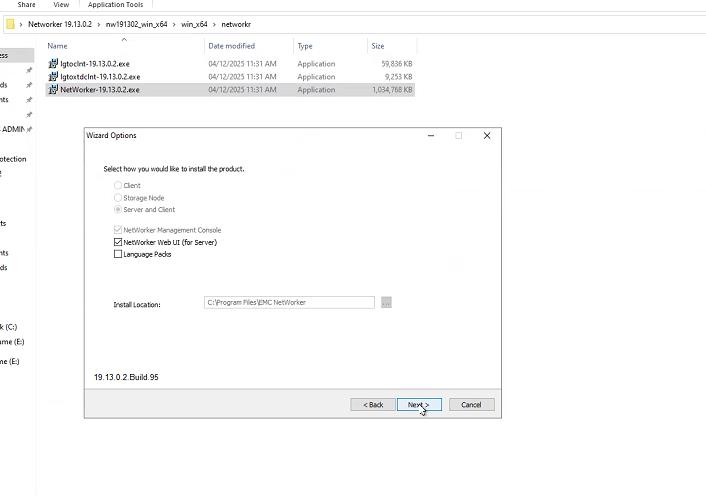
- Unable to modify the NetWorker upgrade path or an incorrect path is displayed during the upgrade
- You may also notice that NetWorker packages are not listed in Programs and Features; however, NetWorker services are still listed in the Services console. The reverse can also be true, NetWorker packages are listed in Programs and Features, but the services are not in the Services console.
Cause
The following conditions are typically associated with this issue:
- Upgrade rollback occurred
A previous NetWorker upgrade or installation did not complete successfully, resulting in a rollback. This may leave behind partial components such as registry entries, services, or installation directories. Common contributing factors include:
- Residual NetWorker components remaining from an incomplete or failed upgrade
- Active or conflicting NetWorker processes or services running during the upgrade.
- Required Windows service dependencies (for example,
nsrexecdorgstdfor NMC) failing to start during the installation process. - Antivirus or endpoint security tools blocking installer actions, preventing proper component removal or cleanup
- NetWorker was still in use during uninstallation.
If NetWorker was performing operations, such as backups, restores, or cloning, the uninstall program may be unable to stop the required services. As a result, the uninstallation process cannot proceed and ultimately fails.
Resolution
If issues occur during the NetWorker installation or upgrade process, follow these steps to fully remove residual components and prepare the system for a clean installation:
Verify the ability to uninstall NetWorker:
- Attempt to uninstall NetWorker from the Control Panel.
- If the uninstallation fails, use the Microsoft Program Install and Uninstall Troubleshooter to remove NetWorker and any remaining components identified by the tool.
Fix problems that block programs from being installed or removed - Microsoft Support

- After the tool completes its cleanup, attempt the NetWorker uninstallation again from the Control Panel.
Uninstall Java (JRE or NRE):
After all NetWorker components are fully removed, uninstall any installed Java runtime components from the system.
Uninstall Order Requirement.
- Always remove NetWorker first, followed by Java.
- Removing Java before uninstalling NetWorker may interfere with NetWorker’s ability to complete the uninstallation successfully.
- For additional details, refer to the article, NetWorker: Uninstall fails on Windows host "One or more pre-requisites were not found"
Install Java:
Install the latest compatible Java version and update Environment variables. See article, NetWorker: Runtime Environment (NRE) Releases
After uninstalling both products, install the latest supported version of Java and update the environment variables NSR_JAVA_HOME and JAVA_HOME as required.
Reference documentation:
- NetWorker:
nsrctldNSR critical JAVA_HOME environment variable might not be set correctly - NetWorker Installation Guide-Version-specific installation guides are available through Support for NetWorker | Manuals & Documents
For NetWorker versions 19.13 and later, configure OpenWebStart following the steps in article, NetWorker: How to Access NMC After Upgrading To 19.13 (or later)
Reinstall NetWorker:
Once Java has been reinstalled, environment variables updated, and OpenWebStart configured (for applicable versions), proceed with the NetWorker software installation.
If the installation fails again, collect diagnostic logs from the system’s temporary directory:
Press Win + R, enter %TEMP%, and collect all log files that contain NetWorker in their filename.
Contact Dell Technical Support once you are done with the above steps.
Additional Information
- NetWorker: How to Upgrade NetWorker and Best Practices Prior to Upgrade
- Download the NetWorker and NRE software from the Dell Support website: Support for NetWorker | Drivers & Downloads