VxRail: Using Host Profiles to Reset ESXi Root Password
Shrnutí: Logging into the ESXi host CLI as 'root' fails with the message invalid username/password or forget ESXi root password. For VxRail cluster data nodes, if management is not working to reset the root password and there is no other way of reset this ESXi root password, then consider to use host profiles to reset the root password. ...
Pokyny
Precondition:
- ESXi management accounts not working or missing as well.
- Witness node missing ESXi root password
- Consider using host profiles is the only way to reset ESXi root password.
Environment: 7.x, 8.x
- Log in to vCenter using administrator
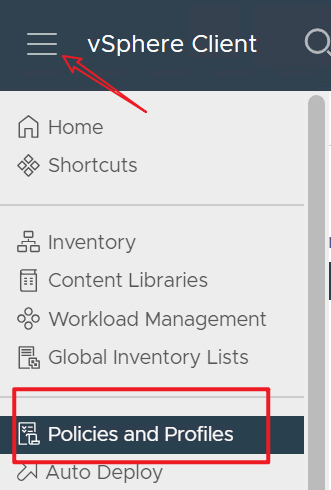
- Go to Home > Policies and Profiles > Host Profiles
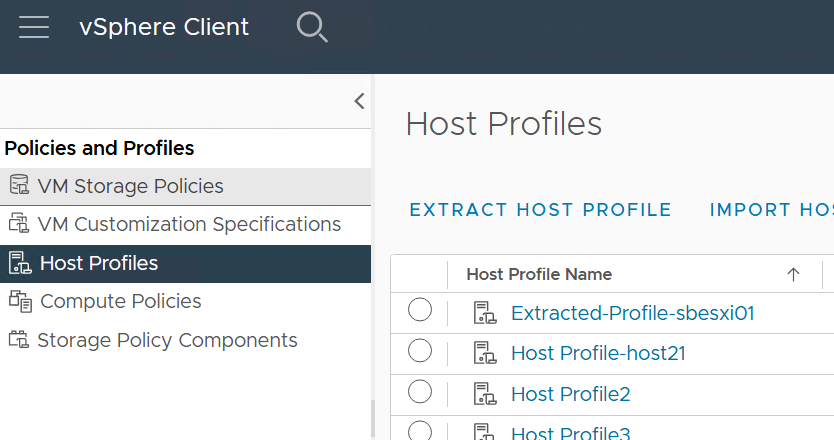
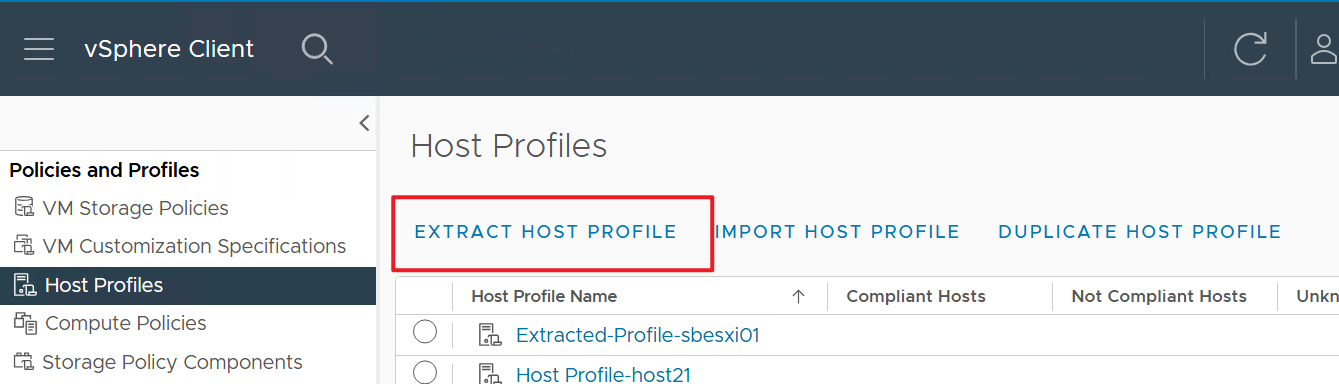
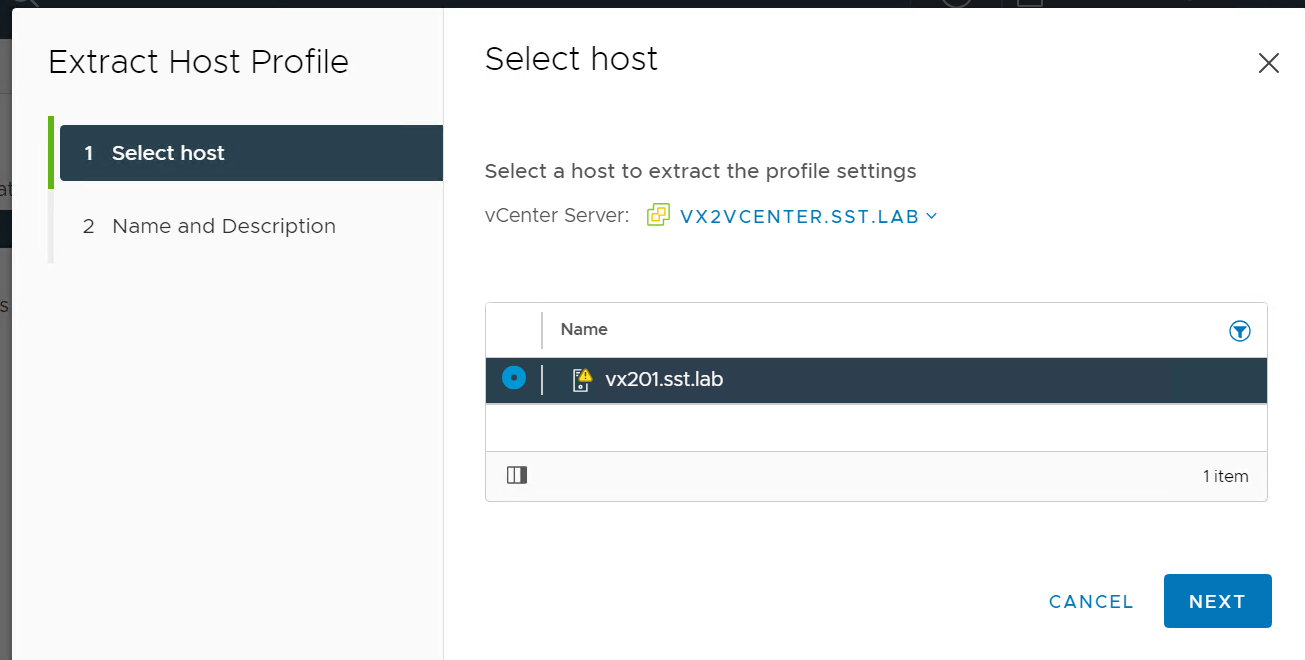
3. Click Extract profile from a host, in the Extract Host Profile wizard select the affected host, Name the Host Profile, and click Next > Finish.
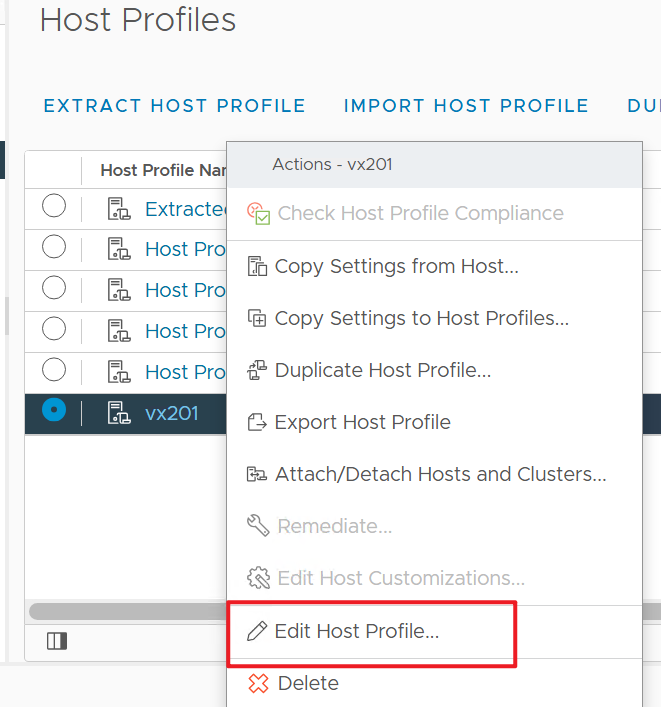
4. Right-click the new Host Profile and click Edit Host Profile.
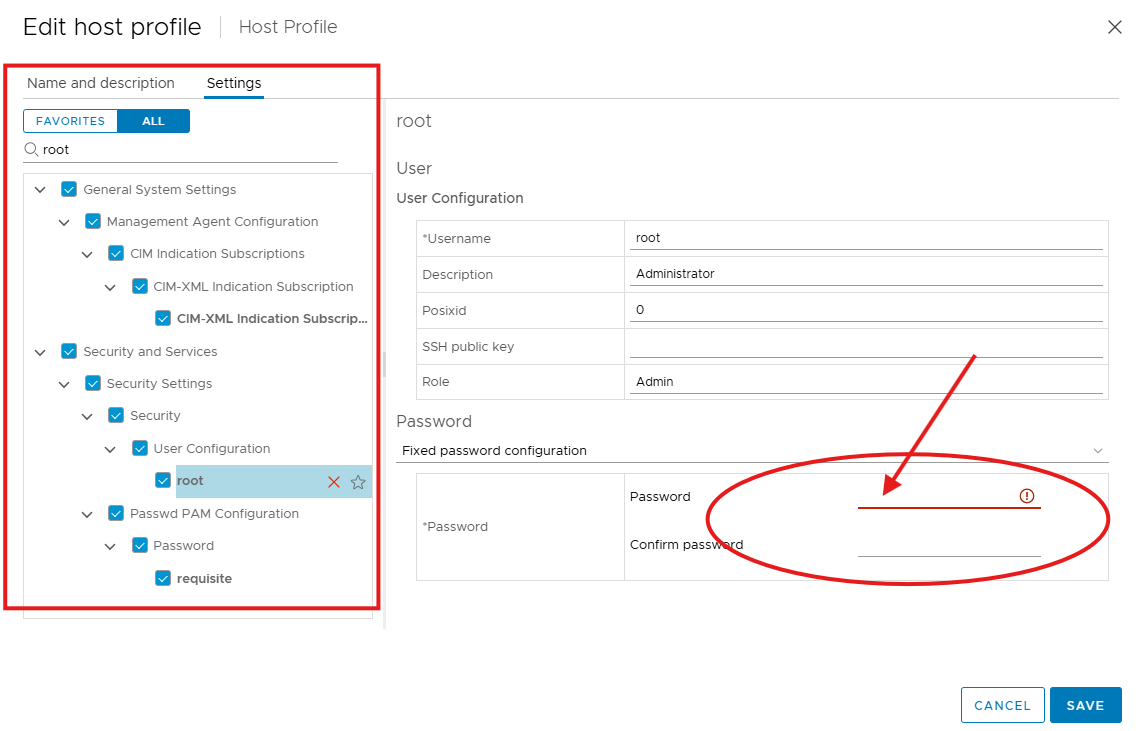
5. In the Edit Host Profile wizard, keep all boxes checked by default, type "root" in the left panel search box, select "root" from left under User Configuration.
In the "Password" drop-down list, choose "Fixed password configuration," then manually enter the new root password and click SAVE.
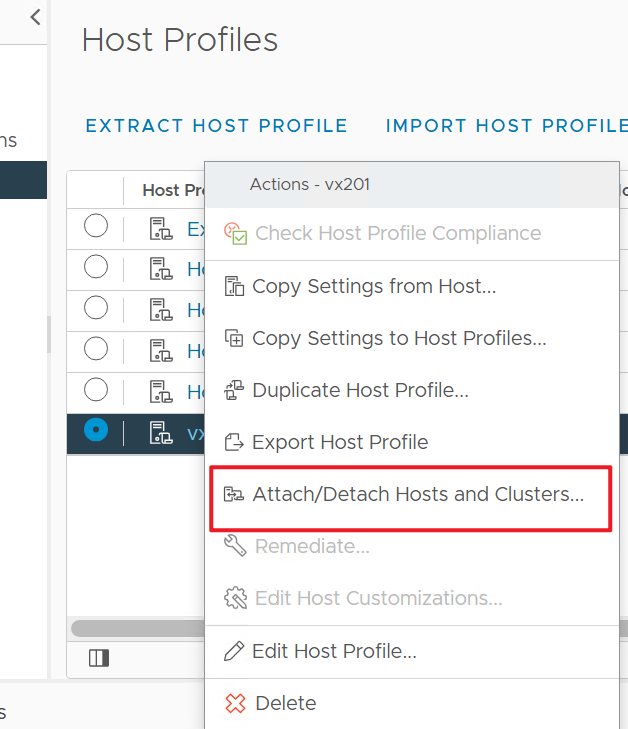
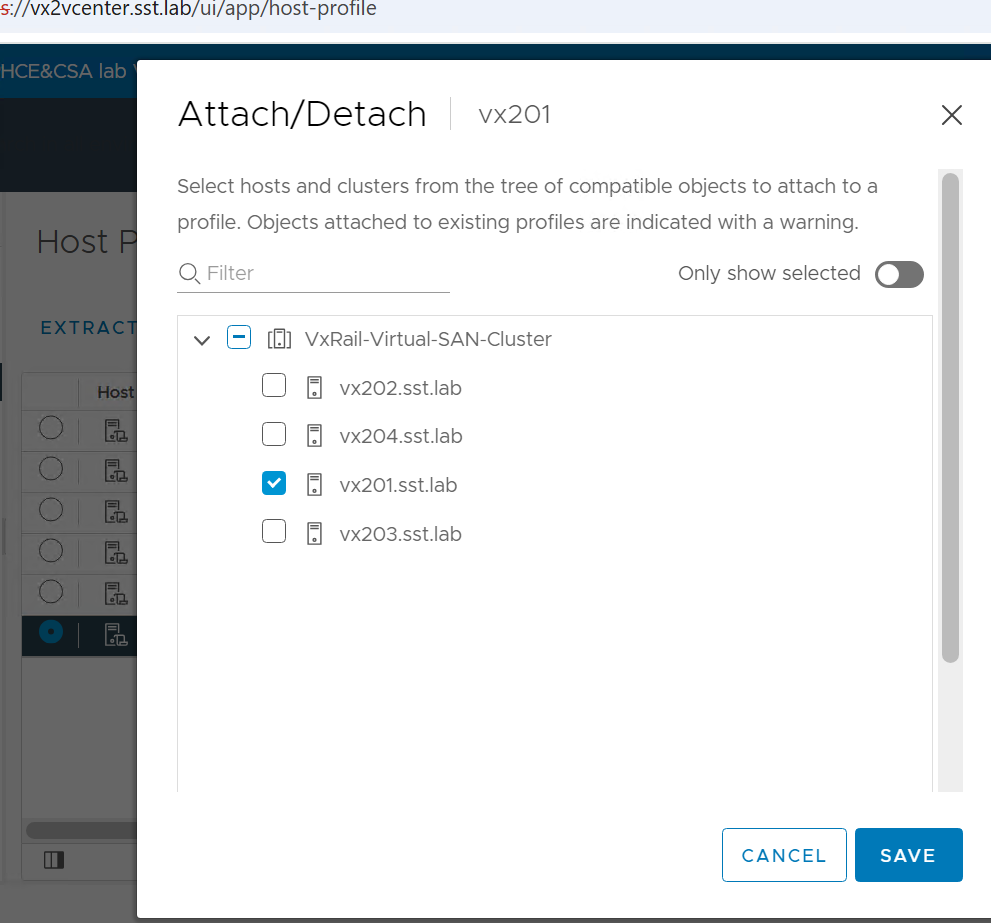
6. Highlight the new Host Profile and right click, select Attach Detach Hosts and Clusters and select the host in the wizard then click SAVE.
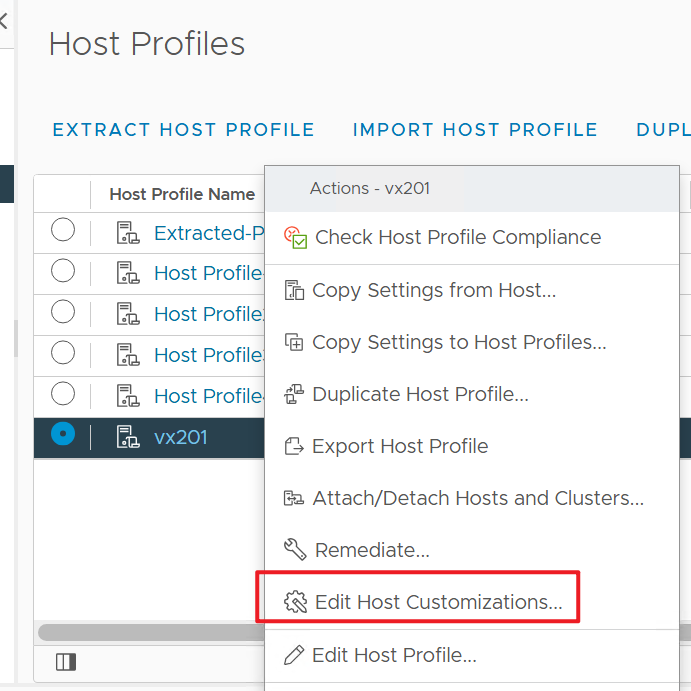
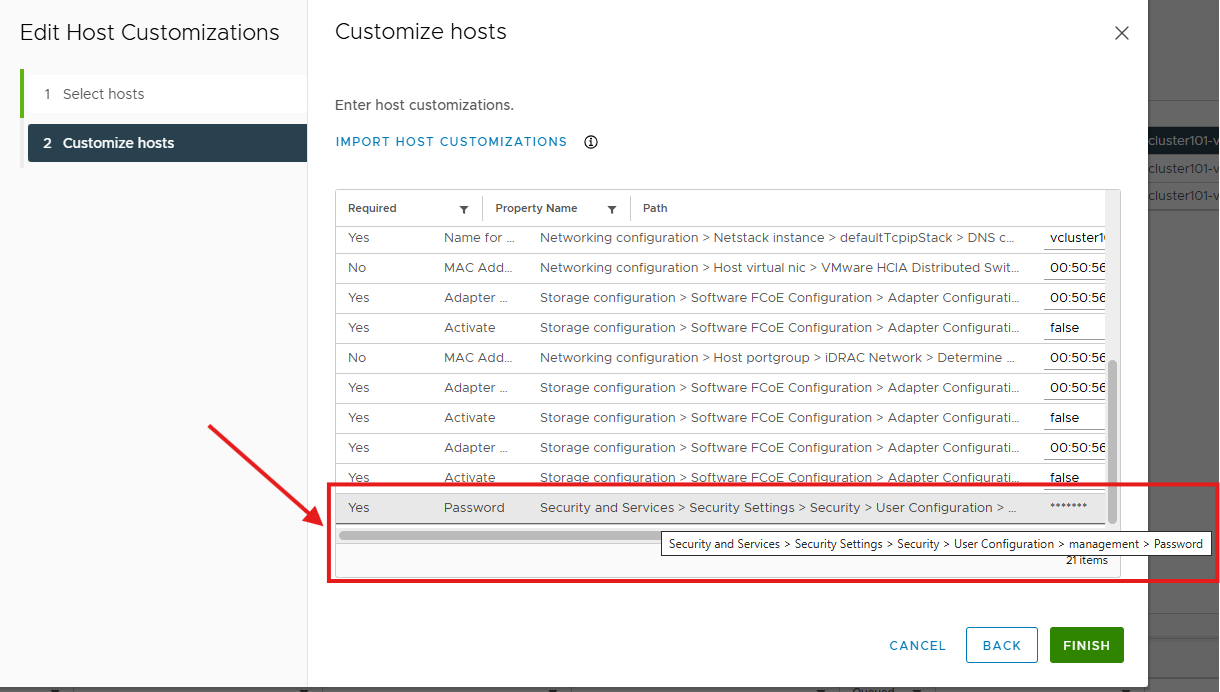
7. Right-click the host profiles, select 'Edit Host Customizations…' to double verify all the customized configurations, such as the management account. Once this is done, then 'Check Host Profile Compliance'
If your ESXi is a virtual witness ESXi host, make sure to select Edit Host Customizations and follow the wizard to double verify that the configurations are all good then click FINISH.
8. Place the host in Maintenance Mode if your host is not yet in MM. (Make sure host in MM before using "Remediate…")
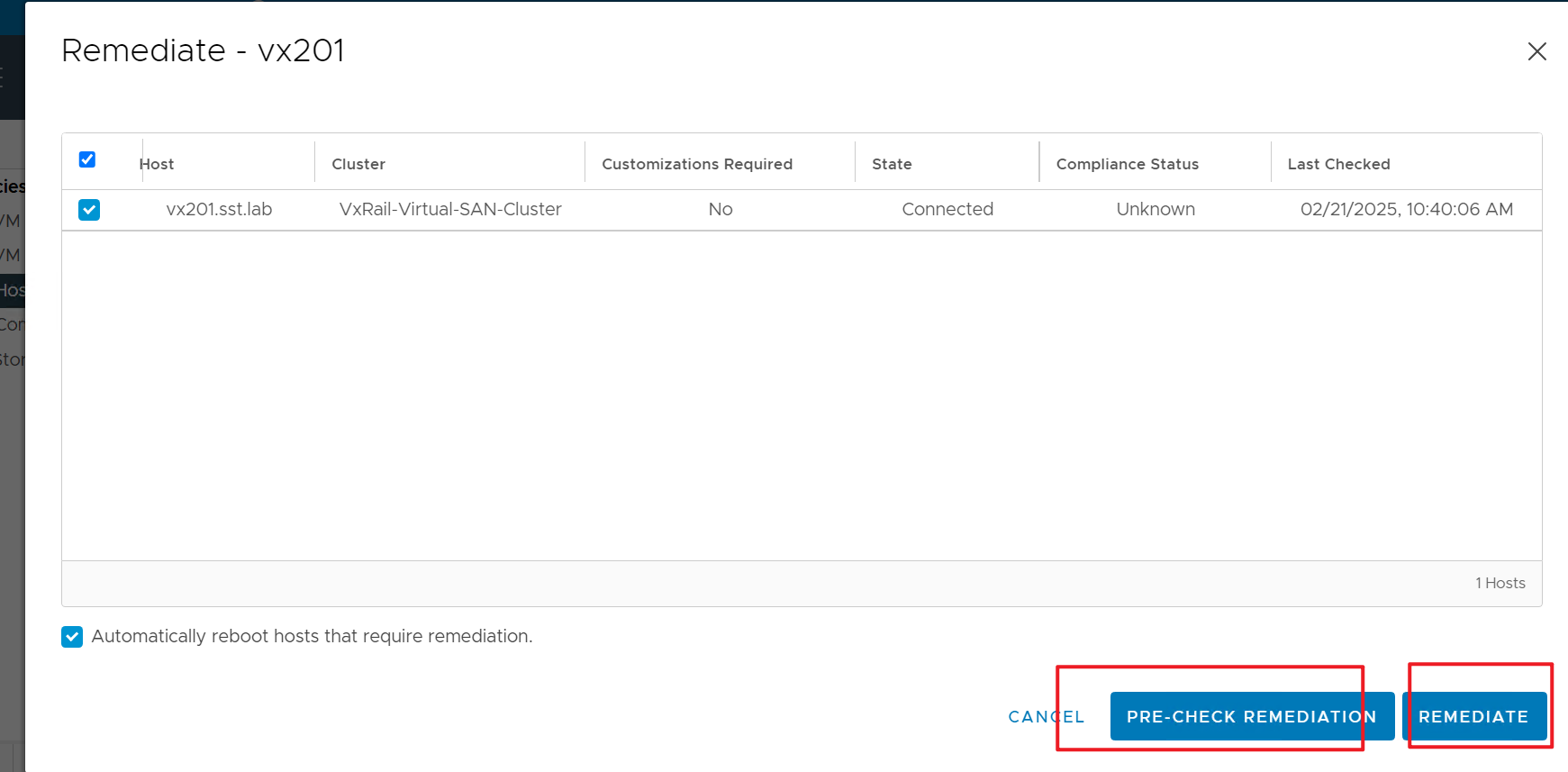
9. Once host in MM, right click the new host profiles, select Remediate In the wizard page, click "PRE-CHECK REMEDIATION" once precheck is done(monitor from recent task), then click REMEDIATE.
. 
10. To confirm success, from the Action Menu, select 'Check Host Profile Compliance'.
11. Place the host out of MM.
Sometimes, clearing the checkbox might remove the component or component element from the host. This action is displayed in the task list after the precheck remediation.
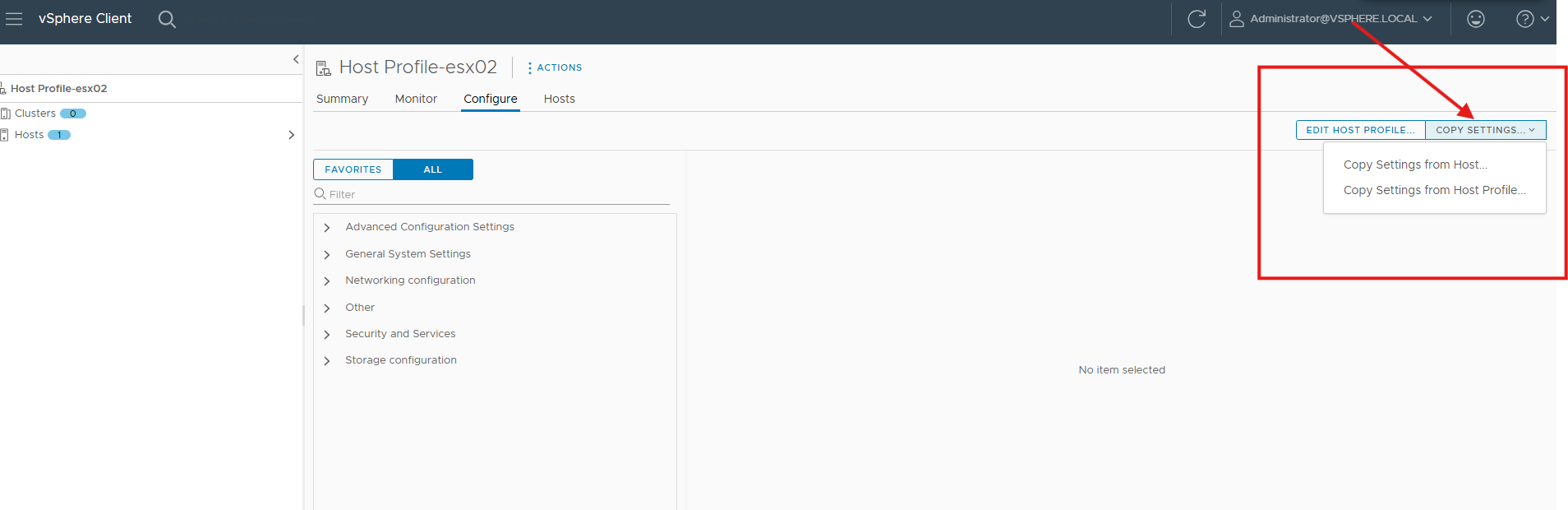
In the VxRail cluster, if clearing all the other checkbox might lead to remove ESXi management account. If so, you must re-create management/local accounts or copy management account settings by copy settings from other host or other host profiles when all the ESXi hosts sharing the same configuration and same management accounts.
Broadcom KB mentioned the same, see below links:
How Do You Manage Host Profile Policies and Policy Components
Další informace
For more information see Broadcom article: Reset host root password with Host Profile
If for some reason after applied this procedure to reset the ESXi root password, the local/management accounts are removed. re-create them or copy settings from other Hosts or host profiles if confirmed the other hosts share the same configuration and same management accounts.