EMSServiceHelper.exe does not automatically launch
Zusammenfassung: Dell Data Protection | Encryption External Media Shield (EMS) user does not receive a password prompt when attempting to access data on an encrypted CD, DVD, or USB media.
Dieser Artikel gilt für
Dieser Artikel gilt nicht für
Dieser Artikel ist nicht an ein bestimmtes Produkt gebunden.
In diesem Artikel werden nicht alle Produktversionen aufgeführt.
Symptome
Affected Products:
- Dell Data Protection | External Media Edition
- Dell Data Protection | Enterprise Edition
- Dell Data Protection | Personal Edition
Ursache
This issue may occur when the EMSServiceHelper.exe does not load properly on an encrypted endpoint or C:\Windows\System32\EmsServicehelper.exe does not exist after an upgrade.
Lösung
The issue has been resolved in 8.7.
To work around this issue, uninstall the External Media Edition application.
- Uninstall Dell Data Protection | Encryption (through Add/Remove or Programs and Features if available) if you installed Dell Data Protection | Encryption using a script that you must uninstall it using the same install media as the version installed.
Note: Decryption of data is not required.
- To uninstall External Media Edition
- Run a command line similar to the following:
DDPE_XXbit_setup.exe /s /x /v"/qn /l c:\ddpe_uninstall.log"
- Run a command line similar to the following:
- Reinstall the External Media Edition application.
Note: A temporary solution would be to overwrite the EMSServiceHelper.exe manually.
- Go to the EMSServiceHelper.exe found at C:\Windows\system32\EMSServiceHelper.exe.
- Right-click the file and choose:
- Properties
- Then click Details.
- Check the details tab for missing information such as:
- File version
- Product name
- Product version
- Copyright
- Language
- Right-click the file and choose:
Reference the figure below for an example is a corrupt EMSServiceHelper.exe file:
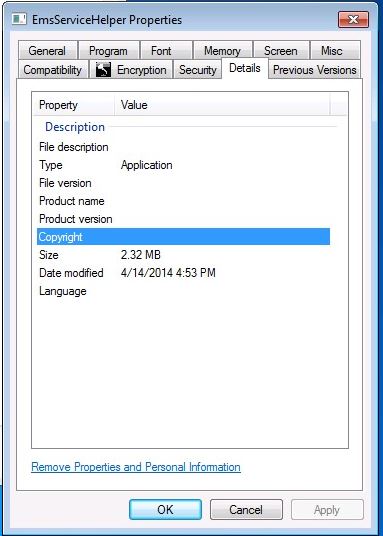
Figure 1: (English Only): Corrupt EMSServiceHelper.exe
Reference the figure below for an example of a working EMSServiceHelper.exe file:
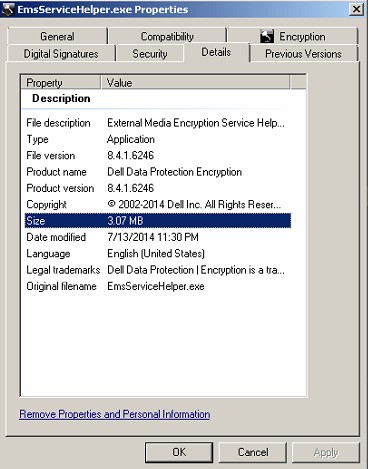
Figure 2: (English Only): Working EMSServiceHelper.exe
- Copy the EMSServiceHelper.exe file found at in
C:\Program Files\Dell\Dell Data Protection\Encryption\EMS\EMSServiceHelper.exe. - Paste it to C:\Windows\system32\EMSServiceHelper.exe to overwrite the file.
- Reboot the endpoint.
To contact support, reference Dell Data Security International Support Phone Numbers.
Go to TechDirect to generate a technical support request online.
For additional insights and resources, join the Dell Security Community Forum.
Betroffene Produkte
Dell EncryptionArtikeleigenschaften
Artikelnummer: 000130996
Artikeltyp: Solution
Zuletzt geändert: 19 Apr. 2026
Version: 10
Antworten auf Ihre Fragen erhalten Sie von anderen Dell NutzerInnen
Support Services
Prüfen Sie, ob Ihr Gerät durch Support Services abgedeckt ist.