How to subscribe to Dell Technical Advisories (DTAs) and Dell Security Advisories (DSAs)
Summary: How to subscribe or unsubscribe from Dell DTA's or DSA's.
Αυτό το άρθρο ισχύει για
Αυτό το άρθρο δεν ισχύει για
Αυτό το άρθρο δεν συνδέεται με κάποιο συγκεκριμένο προϊόν.
Δεν προσδιορίζονται όλες οι εκδόσεις προϊόντων σε αυτό το άρθρο.
Instructions
Dell Technologies issues advisories for Dell products in order to notify you about critical issues and potential impacts on their environment. Set up automated email notifications whenever a Dell security or technical advisory is issued or only when an advisory is issued for a specific product.
For steps to remediate an advisory, see Managing security and technical advisories within MyService360. A login is required for MyService360.
1. Log in to https://www.dell.com/support.
2. On the top-right corner, hover over and click Dell Preferences. The Account Settings & Preferences page is displayed.
3. Click the NOTIFICATIONS & ALERTS tab and click the Product Advisories tab.
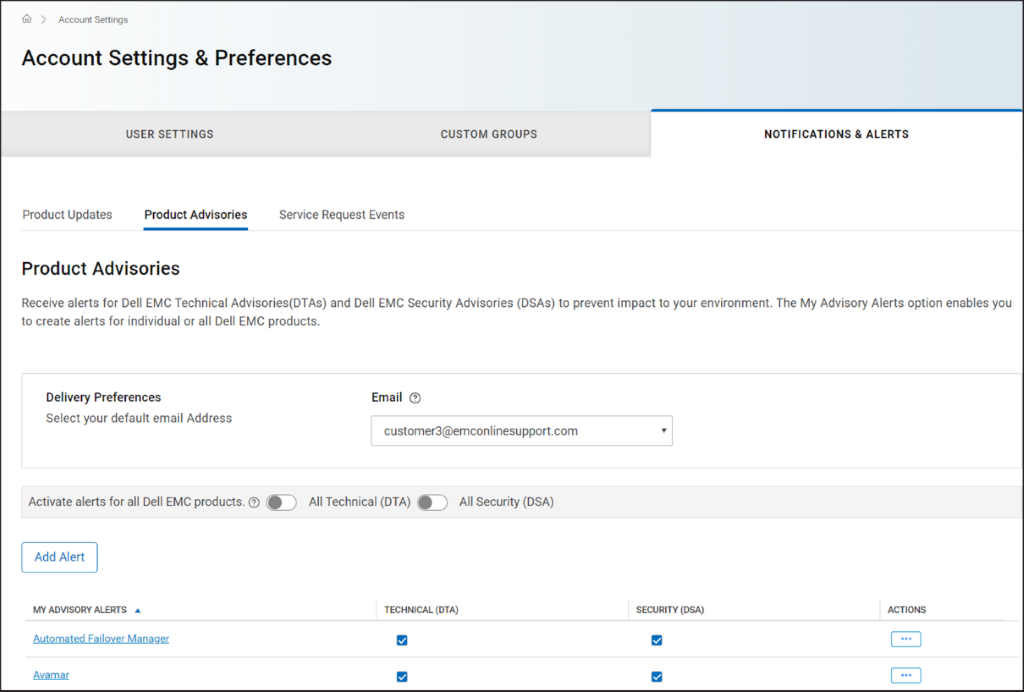
Figure 1 Product Advisories tab
4. In the Delivery Preferences pane, select the email address at which you want to receive the notifications.
5. To receive email notifications whenever an advisory is issued, perform the following:
NOTE: By default, email notifications are sent for both technical and security advisories. Depending on your requirement, you can clear the checkboxes in the TECHNICAL (DTA) or SECURITY (DSA) columns.
For steps to remediate an advisory, see Managing security and technical advisories within MyService360. A login is required for MyService360.
1. Log in to https://www.dell.com/support.
2. On the top-right corner, hover over
and click Dell Preferences. The Account Settings & Preferences page is displayed.
3. Click the NOTIFICATIONS & ALERTS tab and click the Product Advisories tab.
Figure 1 Product Advisories tab
4. In the Delivery Preferences pane, select the email address at which you want to receive the notifications.
5. To receive email notifications whenever an advisory is issued, perform the following:
- For technical advisories, turn on the All Technical (DTA) toggle switch.
- For security advisories, turn on the All Security (DSA) toggle switch.
- Click Add Alert.
- Enter a product name and click Add Product.
- The alert is created and displayed on the Product Advisories page.
Ιδιότητες άρθρου
Article Number: 000113250
Article Type: How To
Τελευταία τροποποίηση: 18 Απρ 2026
Version: 8
Βρείτε απαντήσεις στις ερωτήσεις σας από άλλους χρήστες της Dell
Υπηρεσίες υποστήριξης
Ελέγξτε αν η συσκευή σας καλύπτεται από τις Υπηρεσίες υποστήριξης.