How to Hide the Dell Encryption Management Agent System Tray Icon
Summary: This article provides information about how to hide the Dell Encryption and the Dell Encryption Management Agent system tray icons.
Symptoms
Affected Products:
- Dell Encryption
- Dell Encryption Management Agent
- Dell Data Protection | Encryption
- Dell Encryption Personal
- Dell Data Protection | Personal Edition
Cause
Not Applicable
Resolution
By default, after the installation of Dell Encryption or of Dell Encryption Management Agent, the system tray icon is displayed. It is possible to hide it following the below instructions.
Dell Encryption
To hide the Dell Encryption system tray icon, follow one of the below methods:
Command-Line Switch
- Back up the Registry before proceeding, reference How to Back Up and Restore the Registry in Windows
.
- Editing the Registry can cause the computer to become unresponsive on the next reboot.
- Contact Dell Data Security International Support Phone Numbers for assistance if you have concerns about performing this step.
To hide the Dell Encryption system tray icon during the setup, it is possible to use the switch below:
HIDESYSTRAYICON=1
Example of CLI command:
DDPE_XXbit_setup.exe /s /v"SERVERHOSTNAME=server.organization.com POLICYPROXYHOSTNAME=rgk.organization.com MANAGEDDOMAIN=ORGANIZATION DEVICESERVERURL=https://server.organization.com:8443/xapi/ HIDESYSTRAYICON=1 HIDEOVERLAYICONS=1 REBOOT=ReallySuppress /qn"
Registry setting
- Back up the Registry before proceeding, reference How to Back Up and Restore the Registry in Windows
- Editing the Registry can cause the computer to become unresponsive on the next reboot.
- Contact Dell Data Security International Support Phone Numbers for assistance if you have concerns about performing this step.
To hide on a computer the Dell Encryption system tray icon for all managed users after the original installation, follow the steps below:
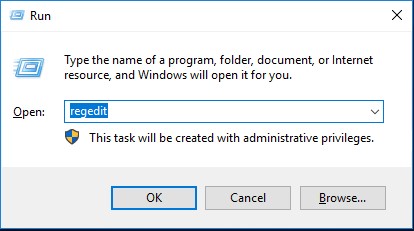
- Open the Registry Editor (regedit): Press Windows + R to open the Run dialog, enter regedit in the empty box and click OK.
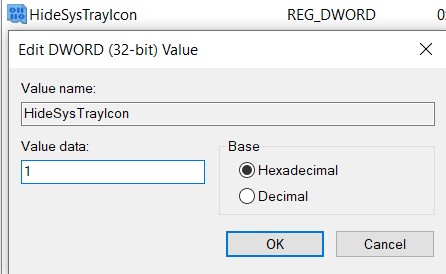
- In the Registry Editor, create the below registry setting:
HKLM\Software\Credant\CMGShield
    DWORD: HideSysTrayIcon
    Value: 1
- Close the Registry Editor and reboot the endpoint to apply the changes.
Dell Encryption Management Agent
- Back up the Registry before proceeding, reference How to Back Up and Restore the Registry in Windows
- Editing the Registry can cause the computer to become unresponsive on the next reboot.
- Contact Dell Data Security International Support Phone Numbers for assistance if you have concerns about performing this step.
To hide the Dell Encryption Management Agent system tray icon, follow the steps below.
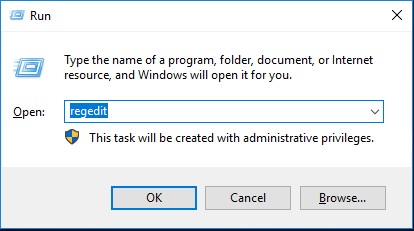
- Open the Registry Editor (regedit): Press Windows + R to open the Run dialog, enter regedit in the empty box and click OK.
- In the Registry Editor, create the below registry setting:
HKLM\SYSTEM\CurrentControlSet\Services\DellMgmtAgent\Parameter DWORD: EnableTrayIcon Value: 0 - Close the Registry Editor and reboot the endpoint to apply the changes.
To split the Dell Encryption Management Agent and Dell Encryption system tray icons, follow the steps below.
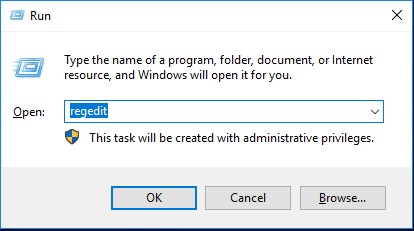
- Open the Registry Editor (regedit): Press Windows + R to open the Run dialog, enter regedit in the empty box and click OK.
- In the Registry Editor, create the below registry setting:
HKLM\SYSTEM\CurrentControlSet\Services\DellMgmtAgent\Parameter DWORD: NoDDPETray Value: 0 - Close the Registry Editor and reboot the endpoint to apply the changes.
To contact support, reference Dell Data Security International Support Phone Numbers.
Go to TechDirect to generate a technical support request online.
For additional insights and resources, join the Dell Security Community Forum.