How to Identify the Absolute Version
Summary: Learn step-by-step instructions to identify the version of Absolute by following this article.
Αυτό το άρθρο ισχύει για
Αυτό το άρθρο δεν ισχύει για
Αυτό το άρθρο δεν συνδέεται με κάποιο συγκεκριμένο προϊόν.
Δεν προσδιορίζονται όλες οι εκδόσεις προϊόντων σε αυτό το άρθρο.
Instructions
Knowing the version of Absolute allows an administrator to:
- Identify capabilities
- Determine UI differences
- Understand workflow changes
- Verify system requirements
Affected Products:
- Absolute
Affected Operating Systems:
- Windows
Versioning can be determined through the Endpoint, Installer, or Web Console. Click the appropriate method for more information.
Endpoint
- Go to:
- 64-bit operating system:
C:\Windows\SysWow64 - 32-bit operating system:
C:\Windows\System32
- 64-bit operating system:
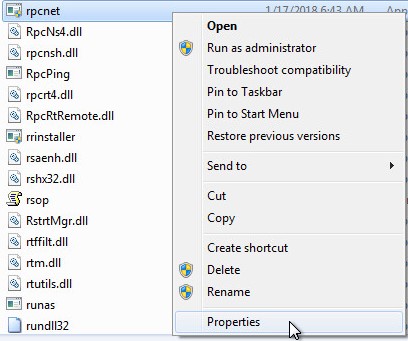
- Right-click
rpcnet.exeand then select Properties.
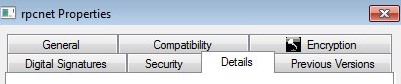
- Select the Details tab.
- Record the File version. The third number is the most important number to record. In the example, 944 is the third number.
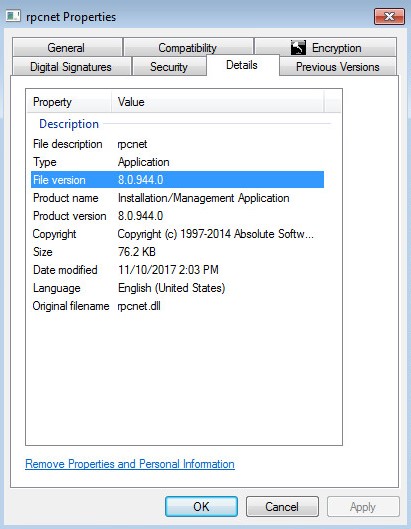 Note: The File version of your client may differ from the example.
Installer
Note: Absolute must be downloaded before proceeding with this step. For more information, reference How to Download and Install Absolute.
- Download the Absolute agent.
- In the download location, double-click
ctmweb.exe.

- In the Please enter your password field, type the default administrative password and then click Next.
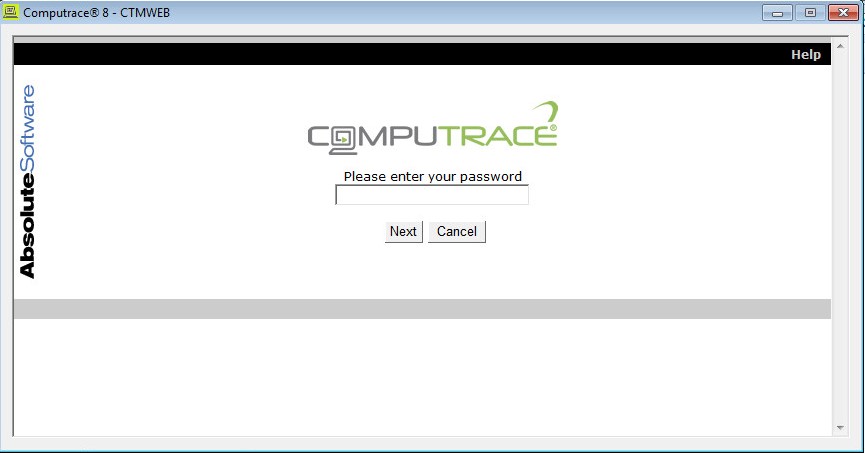 Note: The default administrative password for
ctmwebispassword. - The status page shows the Agent build. In the example, 944 is the Agent build.
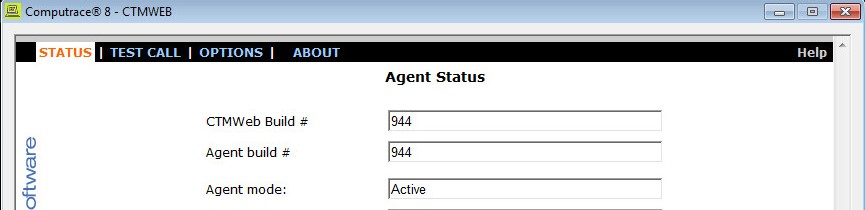 Note: The Agent build of your client may differ from the example.
Web Console
- In a web browser, go to Absolute
.
- Log in to the Absolute web console.
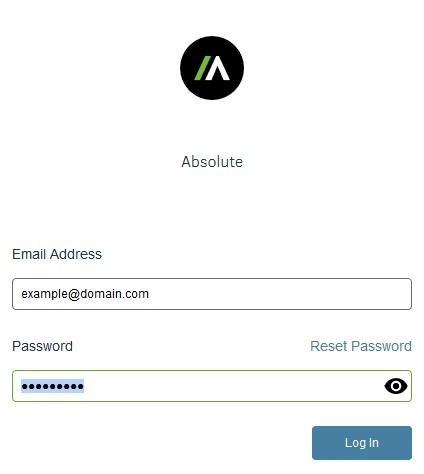
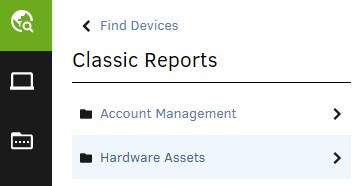
- In the left menu pane, select the Find Devices icon and then click Classic Reports.

- In Classic Reports, click Hardware Assets.
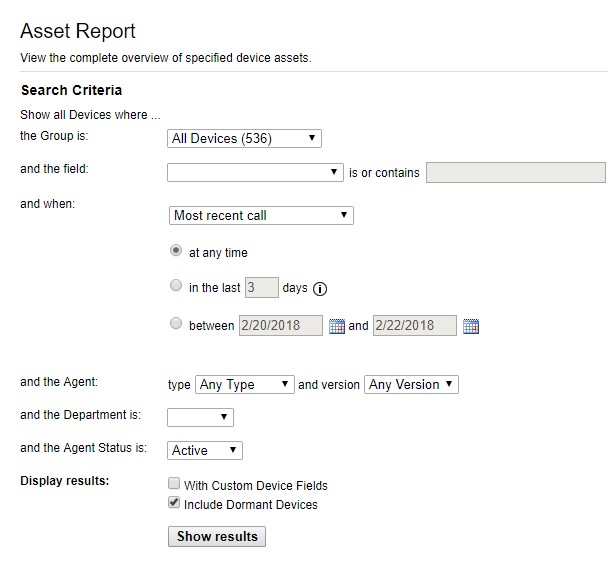
- In Hardware Assets, click Asset Report.

- In the Asset Report, click Show results.
- Locate the Agent Version for the appropriate device. In the example, 944 is the Agent Version for all three devices.
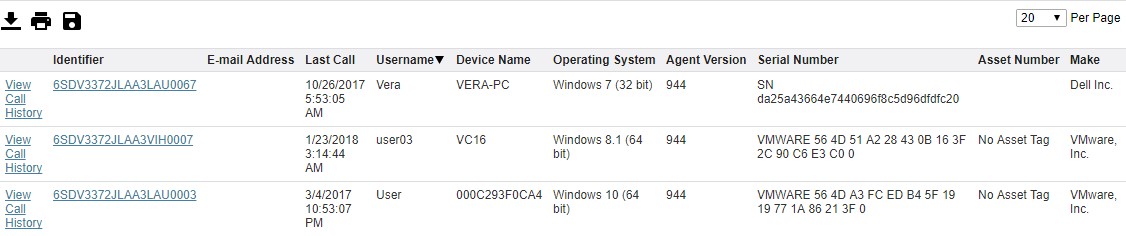 Note: The Agent Version of your client may differ from the example.
Επηρεαζόμενα προϊόντα
AbsoluteΙδιότητες άρθρου
Article Number: 000131906
Article Type: How To
Τελευταία τροποποίηση: 31 Αυγ 2026
Version: 13
Βρείτε απαντήσεις στις ερωτήσεις σας από άλλους χρήστες της Dell
Υπηρεσίες υποστήριξης
Ελέγξτε αν η συσκευή σας καλύπτεται από τις Υπηρεσίες υποστήριξης.