PowerEdge: Running Stress Tests in SLI Support Live Image.
Summary: This article shows the most basic and efficient way to run Stress Tests within SLI Support Live Image for the purposes of stressing the hardware outside of the installed Operating System. ...
Instructions
Stressapptest to stress CPU and Memory
NOTE: It is advisable to use only stressapptest. The utility stress is referenced in the SLI User Guide, but stressapptest has been maintained more recently with updates, and is advised to be used over the stress utility.
Stressapptest parameters:
The manual for stressapptest can be found here
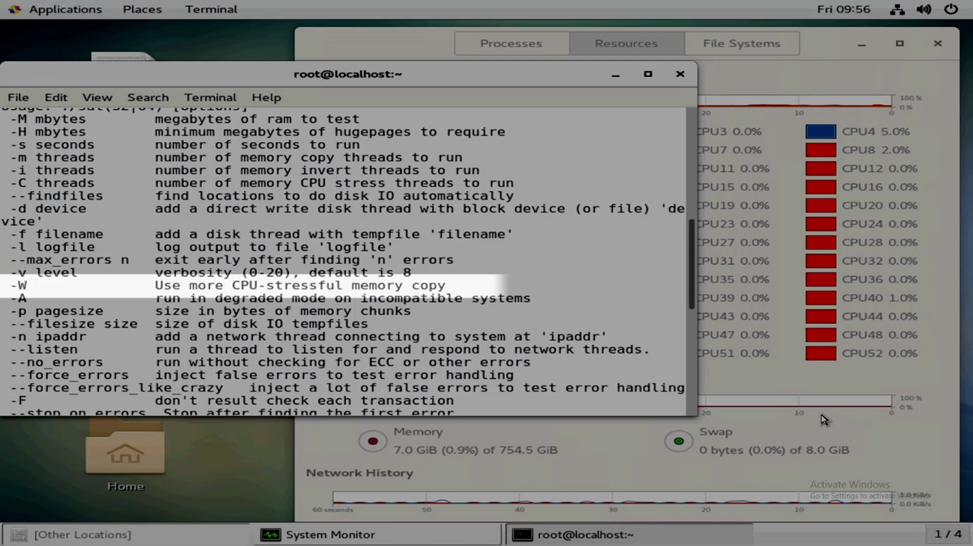
Within SLI, if you type the command with a hyphen but no defined parameter:

stressapptest -
It outputs the available parameters that can be used.
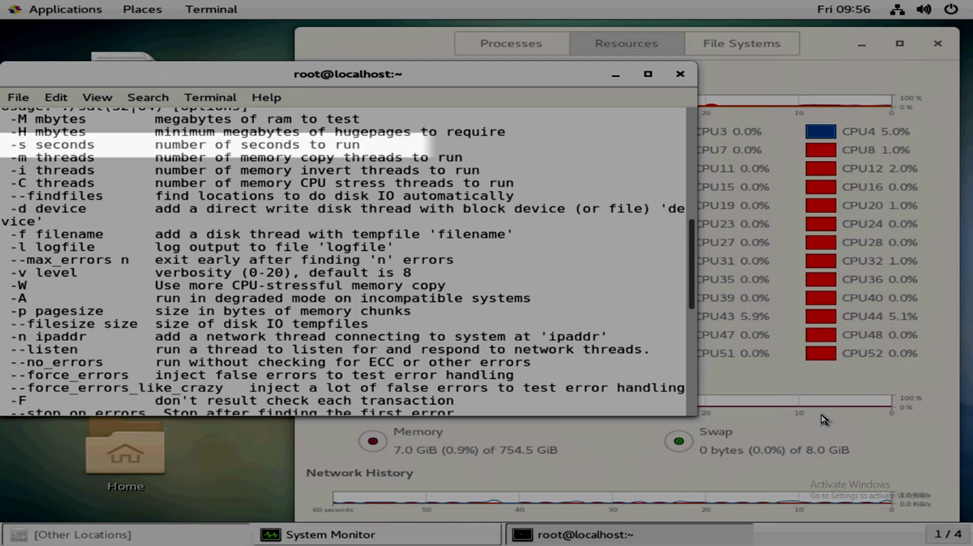
For most uses, the -W parameter causes more CPU-intensive stress, and the -s parameter can be used to specify a defined time.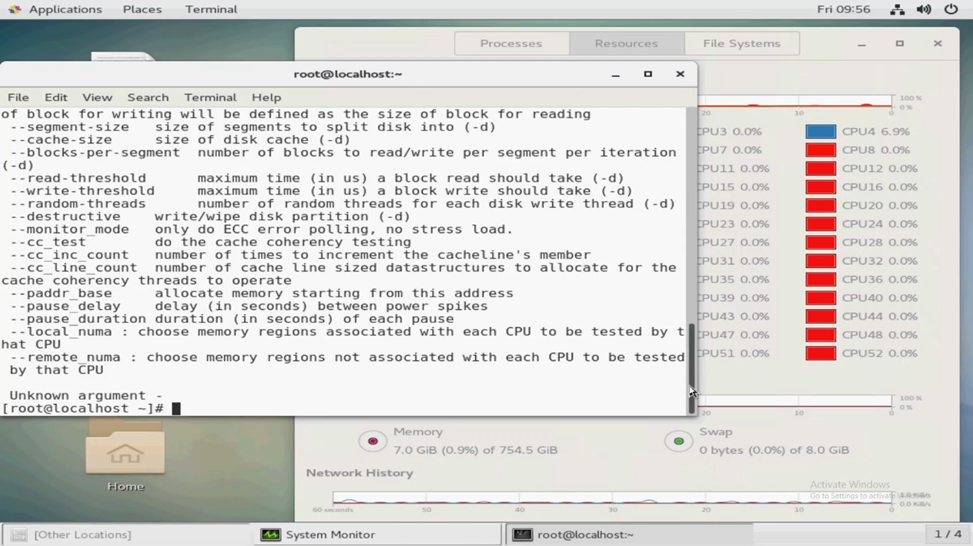
Example 1: stressapptest with no parameters
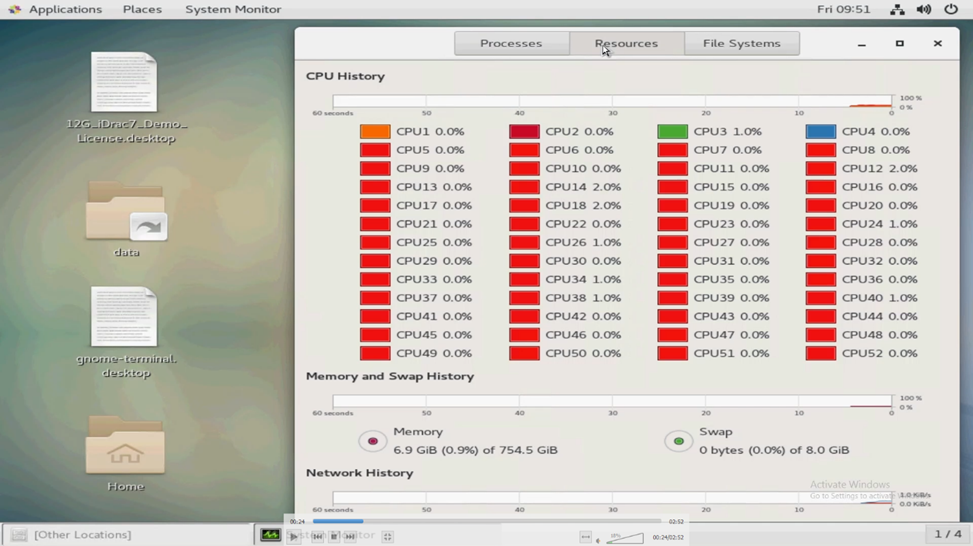
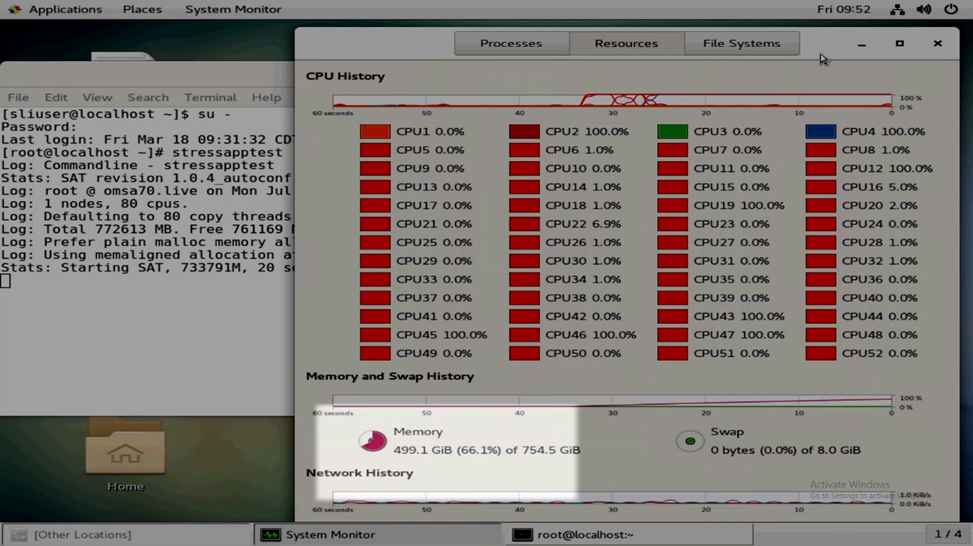
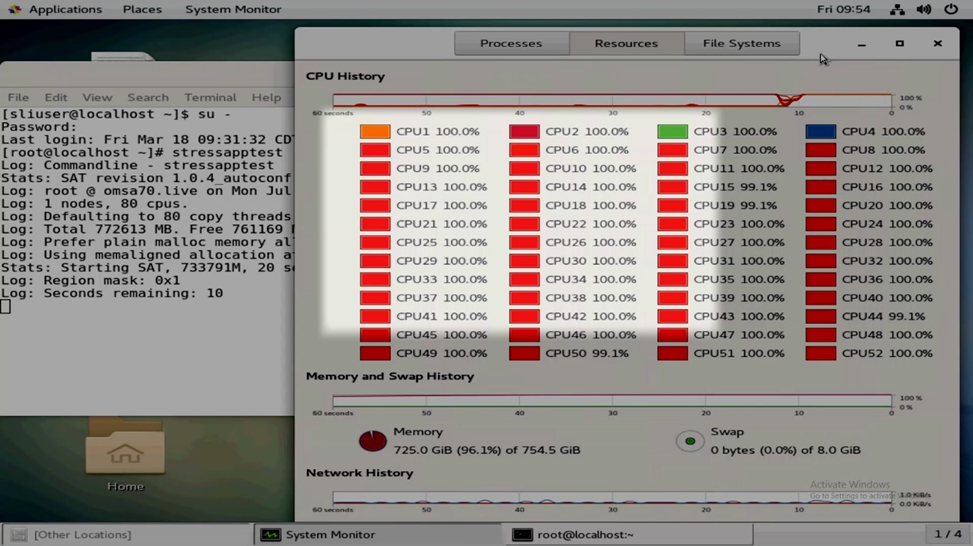
At the top left, open Applications > System Tools > System Monitor. We can use the "Resources" tab to view CPU and Memory utilization.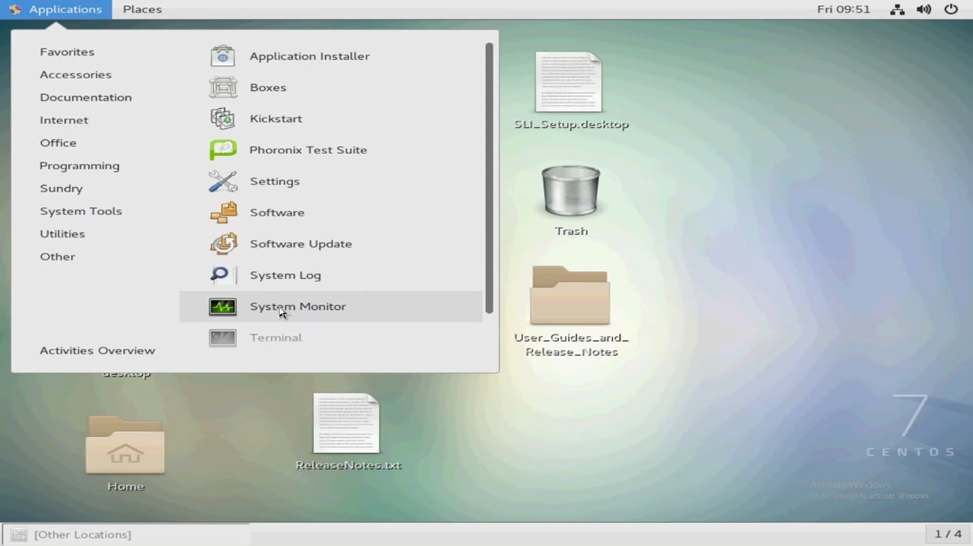
Open the terminal by right-clicking the desktop and selecting "Open In Terminal" or at the top-left Applications > Favorites > Terminal.
Change to root user and then run stressapptest with no parameters.
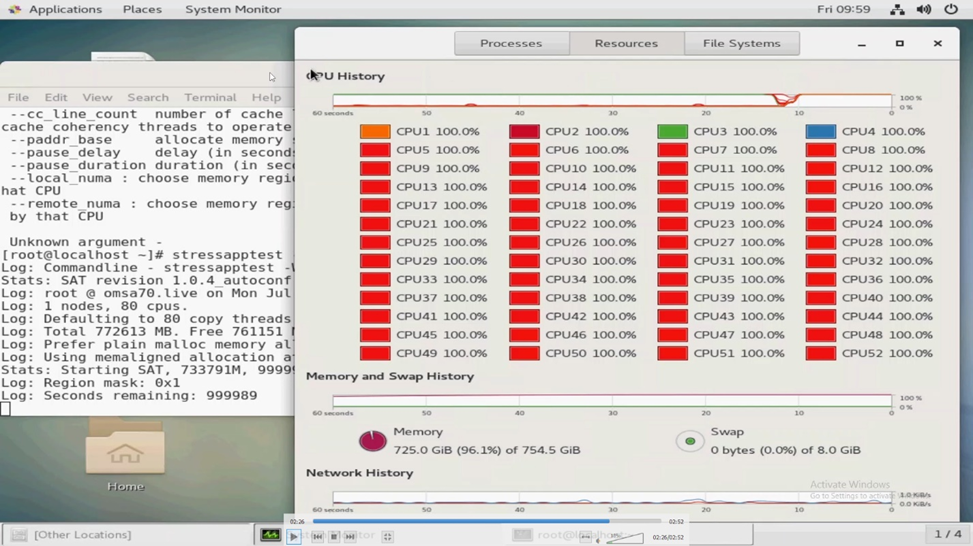
You notice that the Memory saturates as much as possible. The utility leaves some memory available for necessary functions to continue running. Once memory has been saturated for use, you notice that the CPU will spike to 100%. Because we entered no parameters, the test only runs for 20 seconds.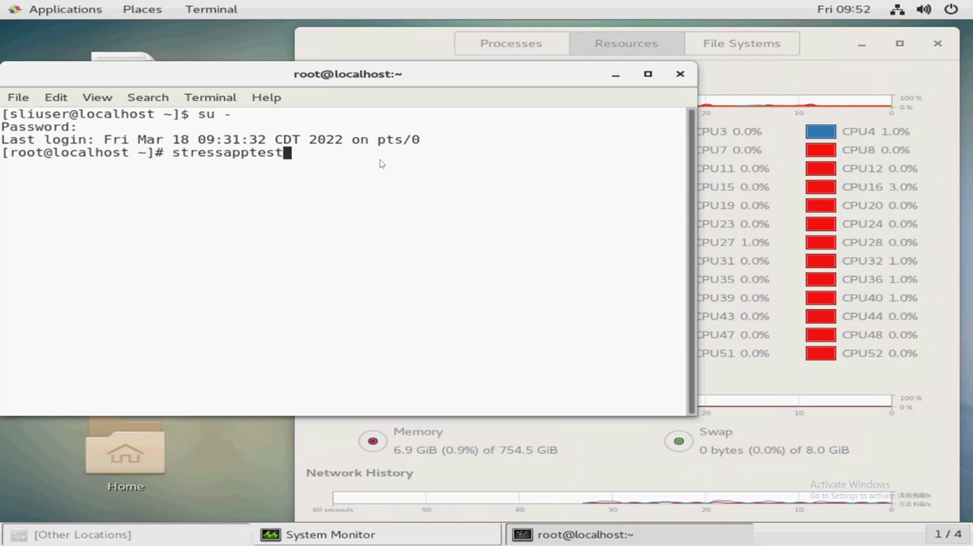
Example 2: stressapptest use for CPU and Memory with a defined length
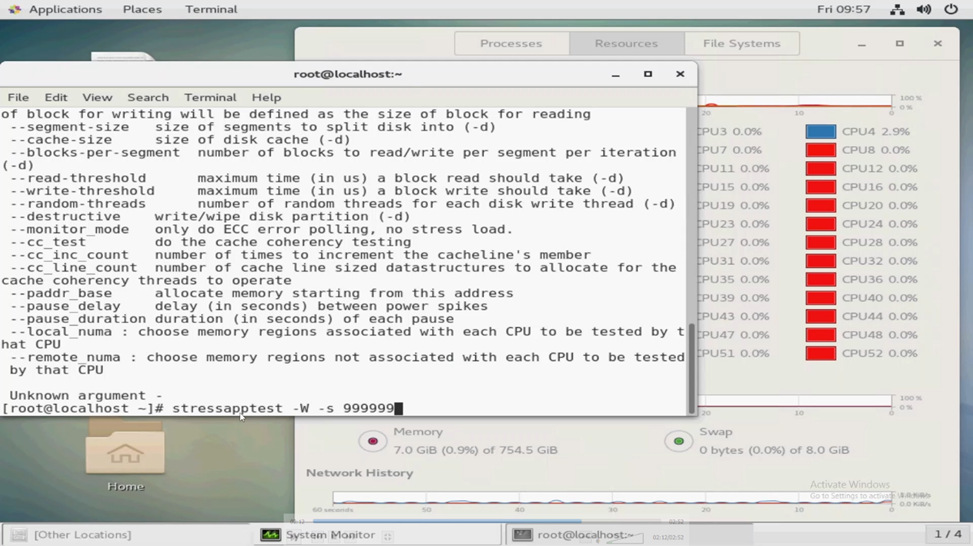
We can run stressapptest -W -s X, where X is the defined time in seconds. For example:
stressapptest -W -s 300
The above example runs stressapptest for 5 minutes.
In the below example we define a large number of seconds so the test will run for days.