Data Domain: BoostFS for Windows - Windows start-up script to make BoostFS mount persistent across reboots and user-logoff
Summary: BoostFS is a regular process that the operating system stops when the system restarts or the user logs off, and BoostFS for Windows mounts do not survive without the process. To remount BoostFS mounts during system startup, add boostfs mount commands as part of a system startup script. ...
Instructions
Add the share startup to Windows Task Scheduler for automatic execution at system startup.
1. Open windows task scheduler with admin rights and create a new task.
In General tab - provide a friendly name and description to the task, select the users and groups to provide user access.
Select the "Run with highest privileges checkbox and select radio button "Run whether user is logged on or not" and click OK.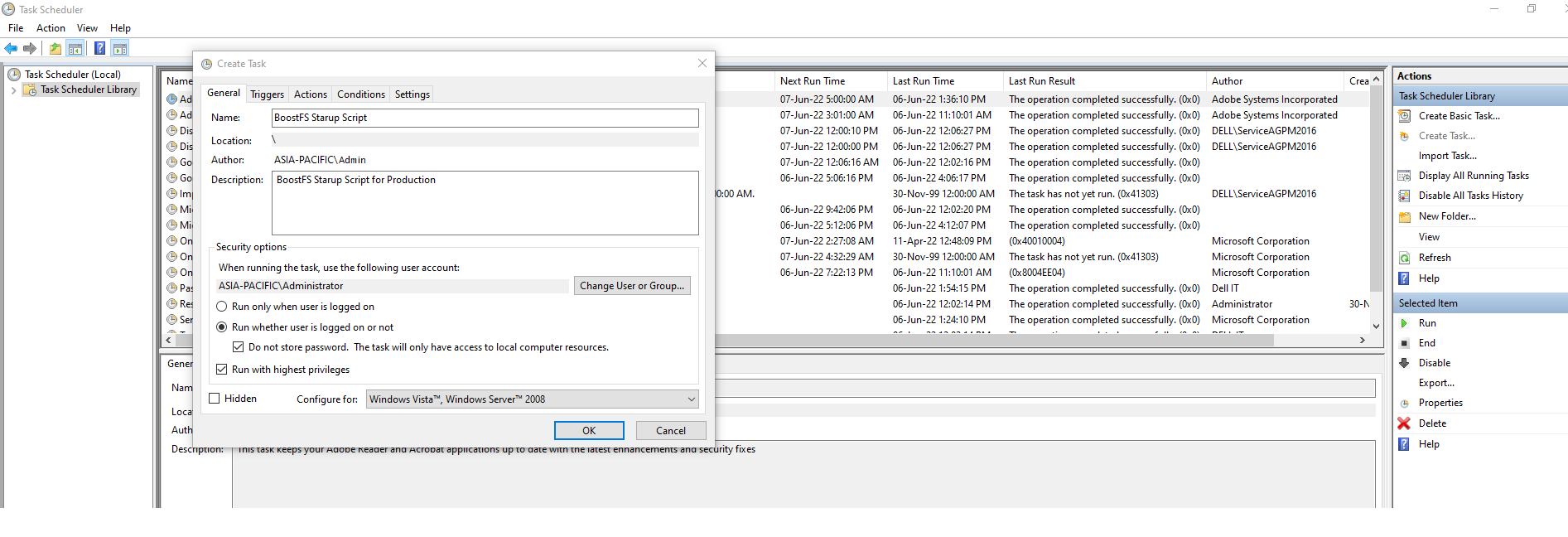
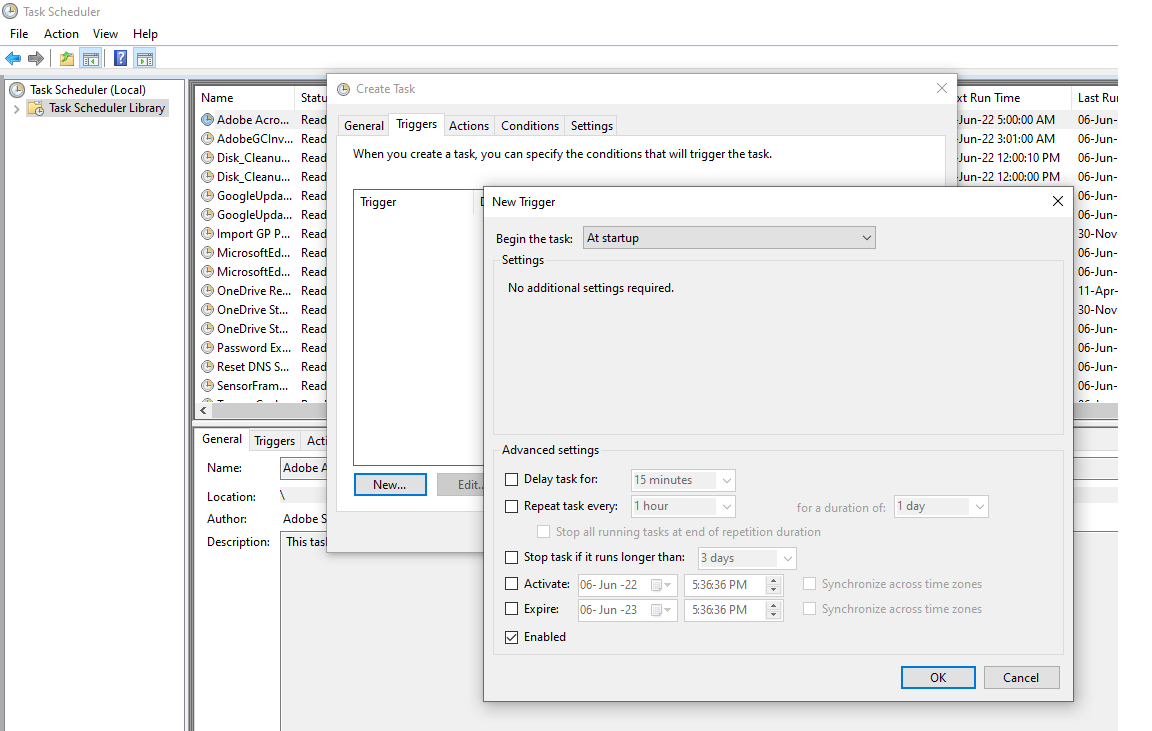
2. In Triggers Tab - click New and set "Begin the task" to "At Startup" and make sure "Enabled" checkbox is selected and click OK.
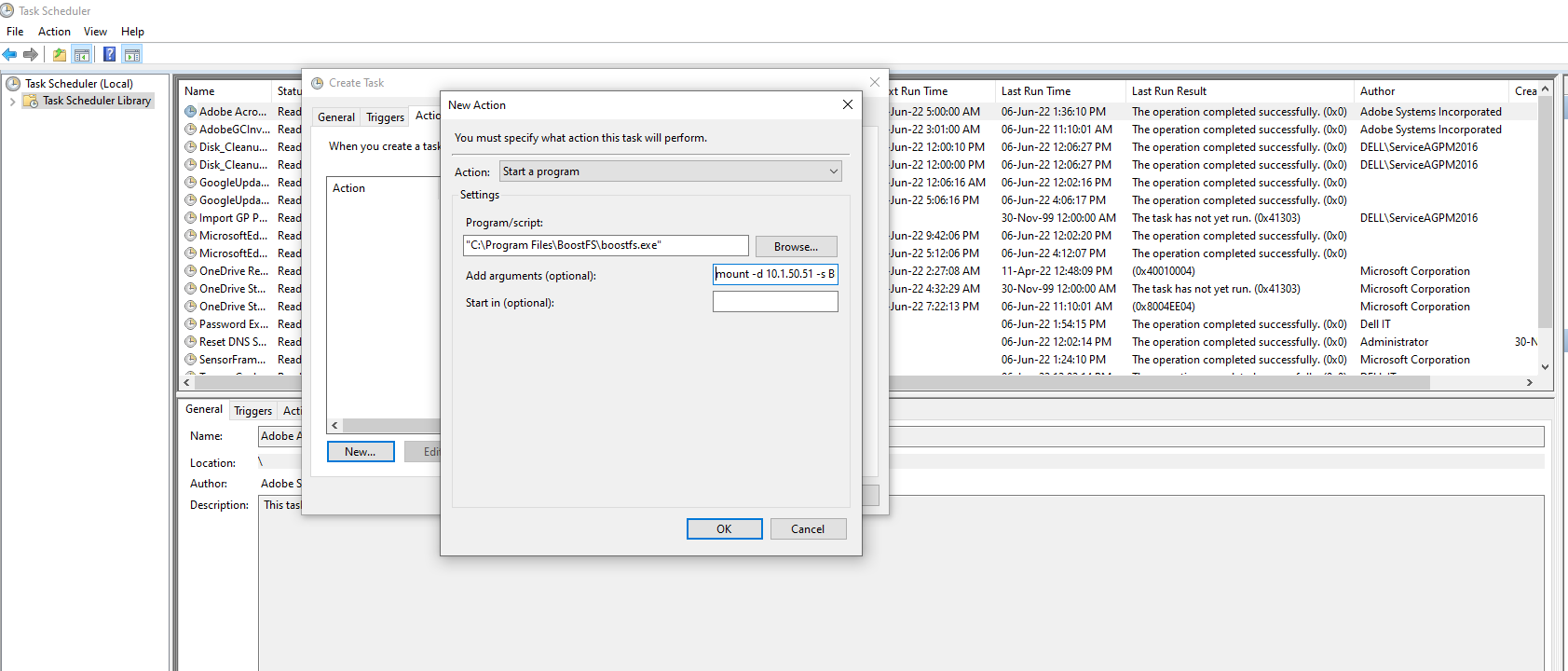
3. In Actions Tab - click New and change the Action type to "Start a program."
Under Settings, Program/script: Browse the boostfs.exe binary file location, default location -"C:\Program Files\BoostFS\boostfs.exe."
Under Add arguments (optional): select the mount command used to mount boostfs and click OK.
mount -d <data-domain-system> -s <storage-unit> -l <lockbox path> <Drive Letter> -o allow-others=true
mount -d 10.1.50.51 -s BRAM_DDBOOST_CVLT -l C:\BoostFS\Lockbox\boostfs.lockbox Q: -o allow-others=true
4. a { text-decoration: none; color: #464feb; } tr th, tr td { border: 1px solid #e6e6e6; } tr th { background-color: #f5f5f5; } Log off or reboot to test; on startup, Windows Task Scheduler automatically invokes the script, creating the boostfs mount.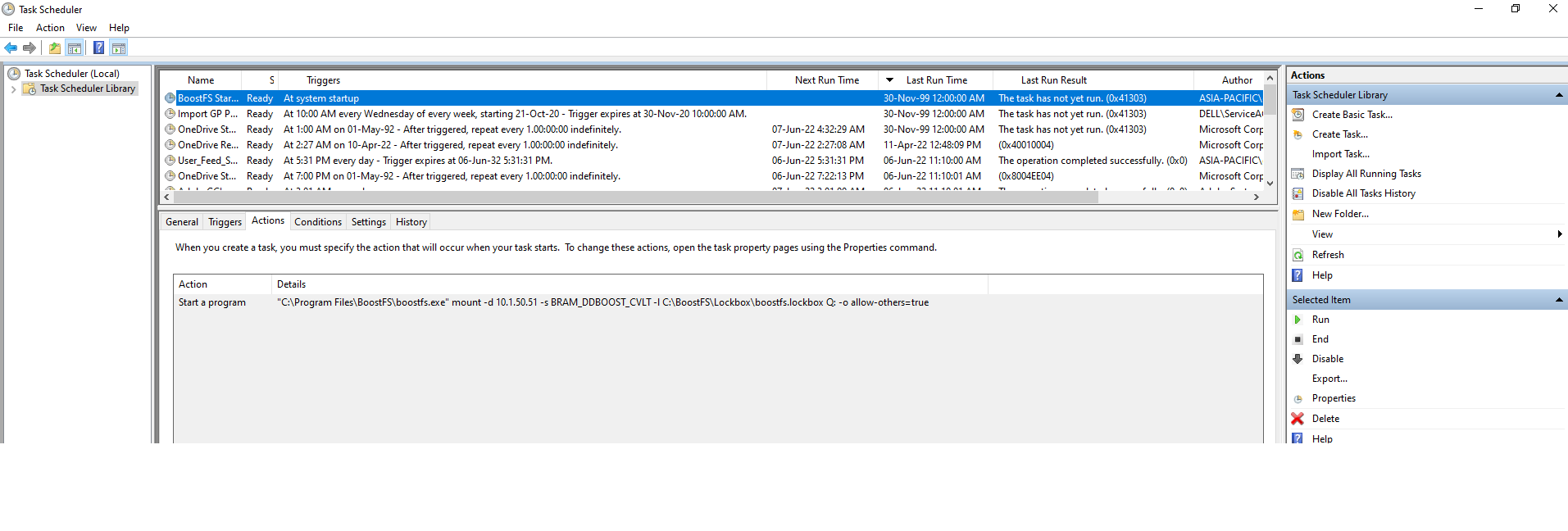
Additional Information
- Additional details, refer to Dell Data Domain BoostFS 8.6 for Windows Configuration Guide
- Refer to Microsoft documentation for additional information and details, Microsoft Support (External Link).