SQL Server Model Database Repair
Summary: SQL Server Model Database Repair
Symptoms
The SQL Server Model database has become corrupted, As a result, the SQL Server service does not start.
Cause
This is caused by software corruption of Microsoft SQL Server database, logs, and application files.
Resolution
Fixes:
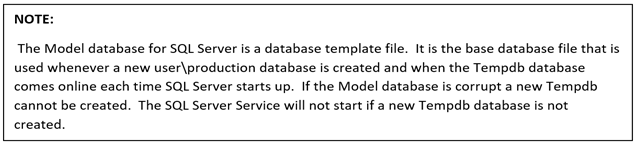
In many scenarios, restoring a SQL Server database remedies a corrupt database incident and puts all things back to normal. A corrupt Model database creates issues that make it difficult to do a normal restore operation. Not being able to start the SQL Server Service makes doing a common SQL Server restore in SQL Server Studio Management impossible.
The quickest and most reliable solution for bringing the SQL Server Model database online requires bringing in a fresh copy of the Model database files and restarting the SQL Server Service. The steps are below for finding and replacing the necessary SQL template files to do a successful Model database file replacement allowing SQL Server to start successfully.
Steps to restore Model Database:
- Go to the Default Database Template store folder in a Microsoft SQL Server installation. The default location is "C:\Program Files\Microsoft SQL Server\MSSQLxxSQLInstanceName\MSSQL\Binn\Templates." The SQL Server instance name in this example may be different but it represents the name for the instance being worked with to replace the Model database files.
In our example below:
"C:\Program Files\Microsoft SQL Server\MSSQL14.SQLTEST\ MSSQL\Binn\Templates" folder is the location of our base default Model database files.
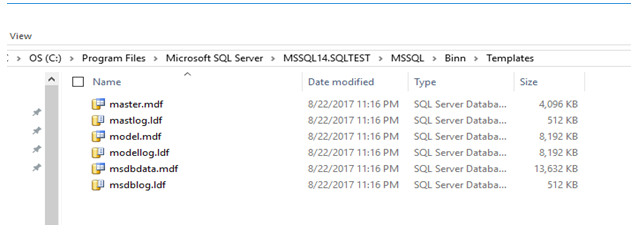
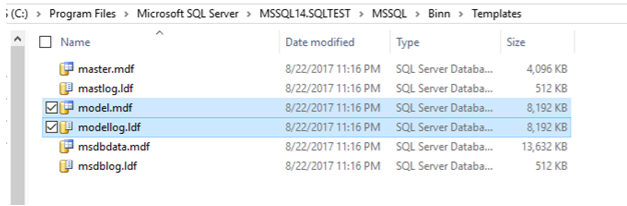
- When we locate the model.mdf and modellog.ldf files, copy the files and have them ready to paste into the working database directory of our SQL Server instance.
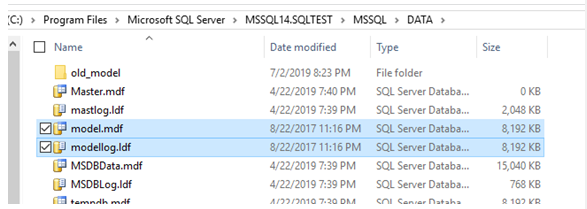
- Paste in the copied default Model database files into the working database directory for our installed SQL Server. In this case, the file path location is "C:\Program Files\Microsoft SQL Server\MSSQL14SQLTEST\MSSQL\DATA"
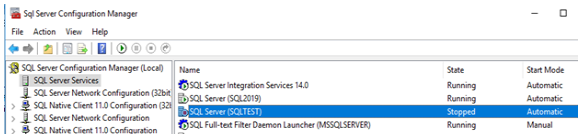
- Find the instance name for the SQL Server service that we are troubleshooting in SQL Server Configuration Manager. In this case, it is SQL Server (SQLTEST).
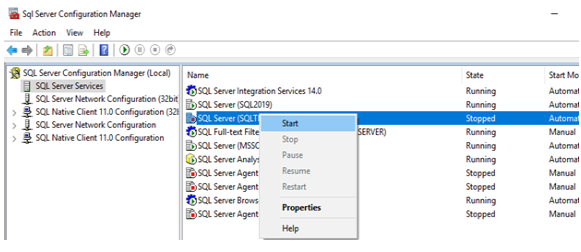
- Start the service related to the SQL Server instance that we are troubleshooting.
- If the Model database was customized to include common database items and features used for organizational production databases, a restore of a good backup of the Model database may be performed to get those items and features back into the Model database.
- The latest updates for SQL Server should also be applied here to ensure that the version of our Model database matches our other system databases.