PowerProtect | PowerProtect Data Manager로 운영 체제 인증을 사용하여 Oracle 백업을 수행하는 방법
Summary: 이 문서에서는 PowerProtect Data Manager를 사용하여 Oracle 운영 체제 인증을 설정하는 방법에 대해 설명합니다.
This article applies to
This article does not apply to
This article is not tied to any specific product.
Not all product versions are identified in this article.
Instructions
지침:
1) Oracle 호스트에 로그인합니다.2) 데이터베이스가 아래와 같이 OS 인증을 지원하는지 확인합니다.
sqlplus /nolog

SQL*Plus: Release 19.0.0.0.0 - Production on Thu Feb 17 07:44:56 2022
Version 19.14.0.0.0

Copyright (c) 1982, 2021, Oracle. All rights reserved.

SQL> connect / as sysbackup
Connected.
3) (선택 사항) rman_agent.cfg 구성 파일에서 필요한 각 SID에 대해 ORACLE_OS_USER를 설정합니다.
("/home/oracle/opt/dpsapps/rmanageent/config"가 기본 위치)
예를 들어, rman_agent.cfg 파일에는 데이터베이스 SID orcl에 대한 OS 인증을 활성화하는 다음과 같은 설정이 포함되어 있습니다.
[SID_orcl]
ORACLE_OS_USER = oracle
독립 실행형 또는 RAC 시스템에서 지원되는 모든 Oracle 버전의 경우 SID_name은 로컬 호스트에서 실행되는 SID와 일치해야 합니다.
그런 다음 파일을 저장합니다.
그런 다음 파일을 저장합니다.
4) Oracle 호스트에서 에이전트를 루트로 재시작합니다.
systemctl restart agentsvc
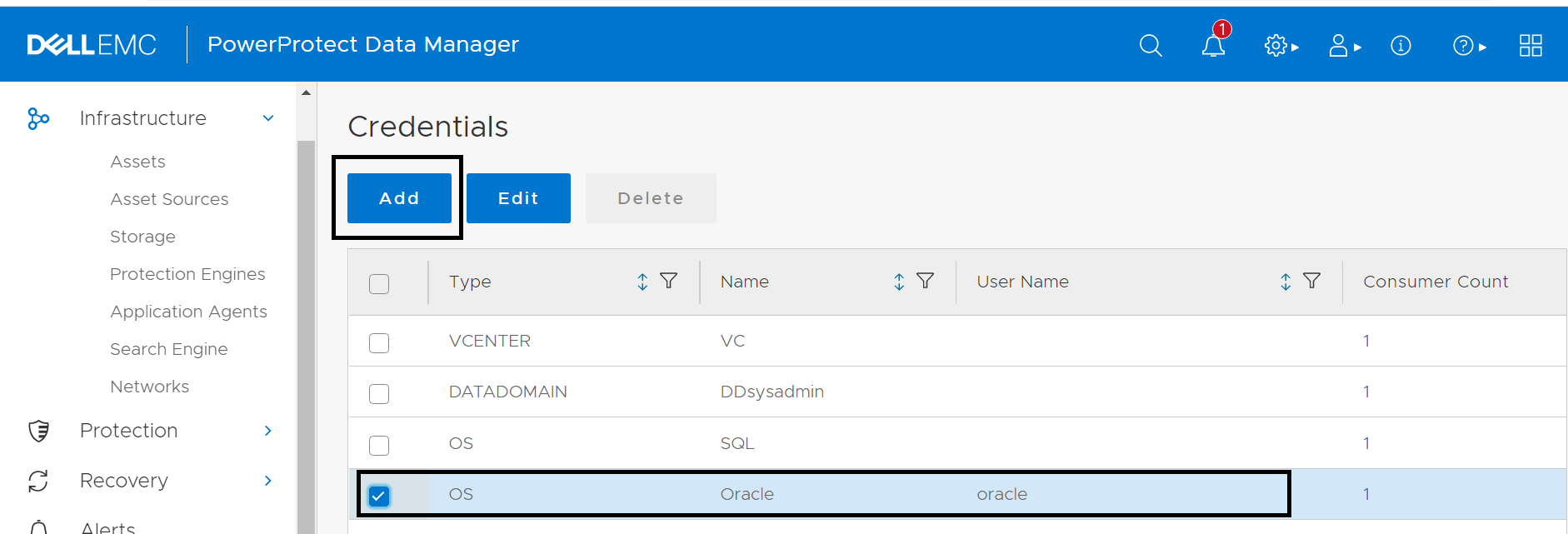
5) Administration>Credentials>Add를 클릭하여 PowerProtect Data Manager에서 OS 사용자에 대해 자격 증명을 생성합니다.
6) Protection>Protection Policies>Add를 클릭하여 PowerProtect Data Manager에서 보호 정책을 생성합니다.
7) "Set Credentials"을 클릭합니다.

8) "OS User"를 선택하고 이전에 생성한 자격 증명을 선택합니다.
9) 테스트 백업을 실행하여 구성이 정상인지 확인합니다.
Additional Information
이 비디오를 참조하십시오.
Article Properties
Article Number: 000196402
Article Type: How To
Last Modified: 14 Dec 2022
Version: 6
Find answers to your questions from other Dell users
Support Services
Check if your device is covered by Support Services.