How to Install Platform Security Rollup for NetWorker Virtual Edition
Summary: How to install Platform Security Rollup for NetWorker Virtual Edition (NVE) using Dell's Installation Manager. Follow our guide to secure and up-to-date NVE systems, covering preupgrade checks, installation procedures, and troubleshooting upgrade failures. ...
This article applies to
This article does not apply to
This article is not tied to any specific product.
Not all product versions are identified in this article.
Instructions
Run the following command from an SSH session on the NVE to display the most recent OS Rollup installed and its installation date: avosrollup -V
Example:
admin@nve:~> sudo su -
nve:~ # avosrollup -V
Avamar Platform OS Security Rollup:
OS[SLES12.5] Version[2025-R4-v3] Installation Time[2026-02-06-16-13-19]
nve:~ #
See the latest Dell Security Advisory (DSA) under the Advisories section of NetWorker Support pages.
From the NetWorker Downloads page, the expanded details for the platform rollup indicate which NetWorker Versions it is applicable to. For example:
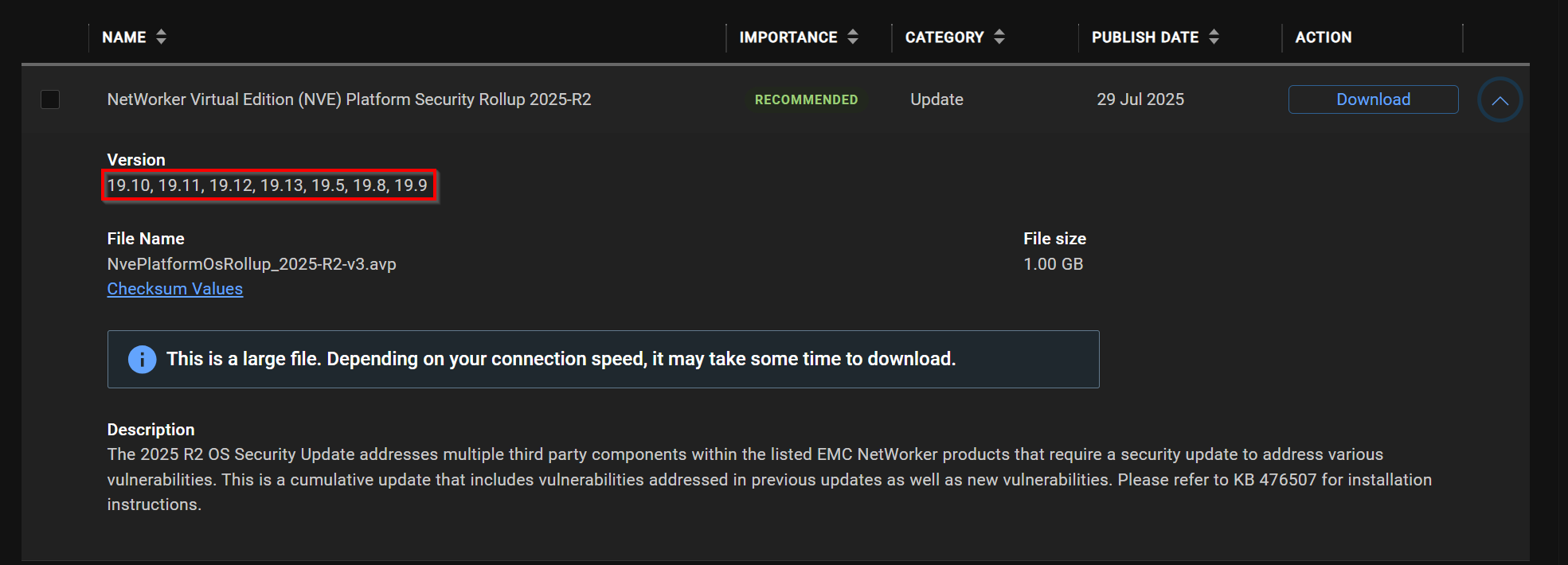
NOTE: The OS rollup packages are cumulative. If you are behind by more than one revision, you do not need to apply each rollup; apply the latest revision available. Critical OS security fixes are applied by the platform rollups and it is important to ensure that you maintain up-to-date packaging. The revision cycle is documented in the following article: Dell Avamar and NetWorker Operating System (OS) Rollup Security Update Cadence (Requires Dell account sign-in)
WARNING: This process is not intended or appropriate for standard technical support. If you require assistance, reach out to your Dell Site Account Manager (SAM) or Dell Sales Rep to engage with the Global Professional Services (PS) team.
Pre-Upgrade Steps
- Ensure that you can log in to the NVE using both the admin and root credentials. Passwords can be changed by running:
sudo /usr/local/avamar/bin/change-passwords
NOTE: For more information, see: NVE: How to change OS passwords.
- Perform a "Server Protection" backup in NetWorker and collect bootstrap details with:
mminfo -B
- Make note of the upgrade history on the NVE:
avi-cli --verbose localhost --password 'ROOT-PASSWORD' --listhistory
Or:
ls -ltr /data01/avamar/var/avi/server_data/package_data/
- Create a snapshot NVE Virtual Machine (VM).
- Before copying any files to the NVE, ensure that the NVE has enough space on the /(root) and /data01 partitions by running the following command:
df -Th
- Large .log files can be moved or purged, to identify large files:
find / -name +1G - Use an SCP agent (WinSCP, FileZilla, and so forth) to copy logs off, or Linux
mvcommand to move to another location with more space, optionally logs can be deleted withrm -rf /path/to/large/file - The /data01 partition can be expanded, following:
NOTE: The NetWorker configuration-database (NSRDB), client file index, and media database (mm) are all stored on the /data01 partition by default.
Process
- From a web browser, access the NVE's installation manager:
://NVE_hostname/avi - Log in with the root credentials.
- Go to the Repository tab. Use the Browse button to browse and upload the platform rollup package.
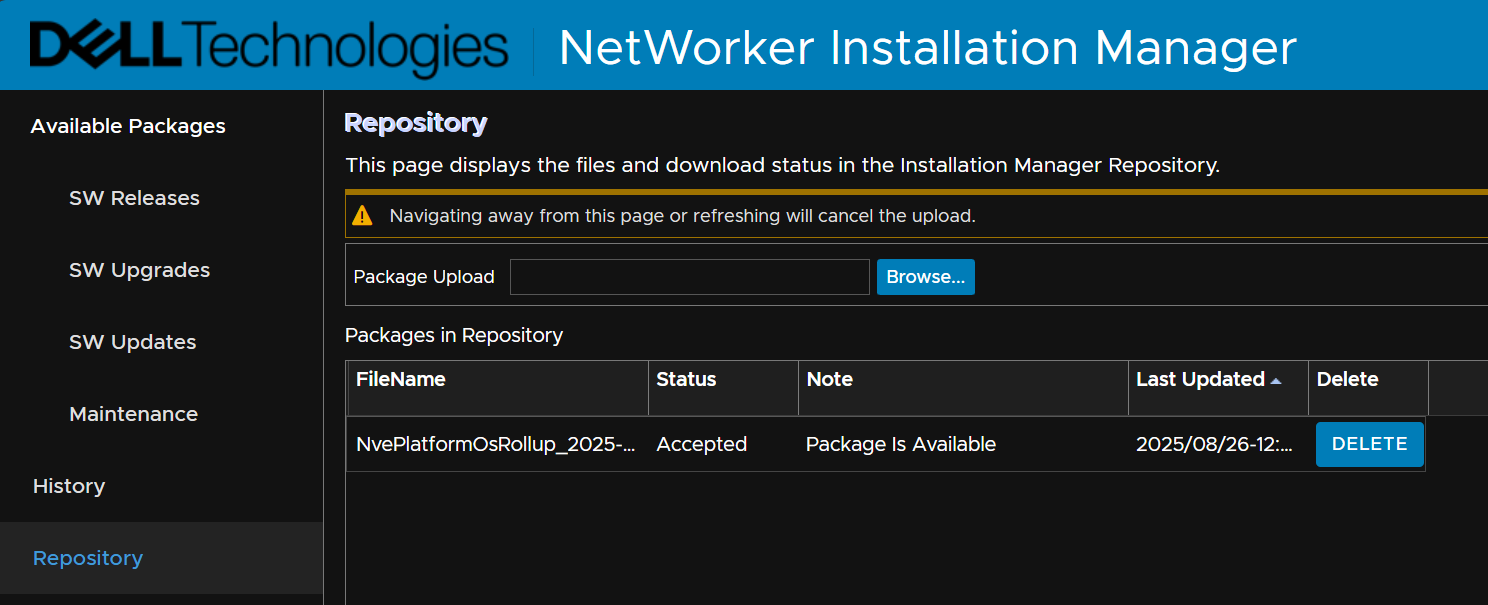
Optionally: You can use an SCP agent to copy the downloaded installation package to the NVE's /data01/avamar/repo/packages/ directory.
- Once the NVE has scanned the files from the packages directory, the package can be installed from the Available Packages -> SW Updates tab.
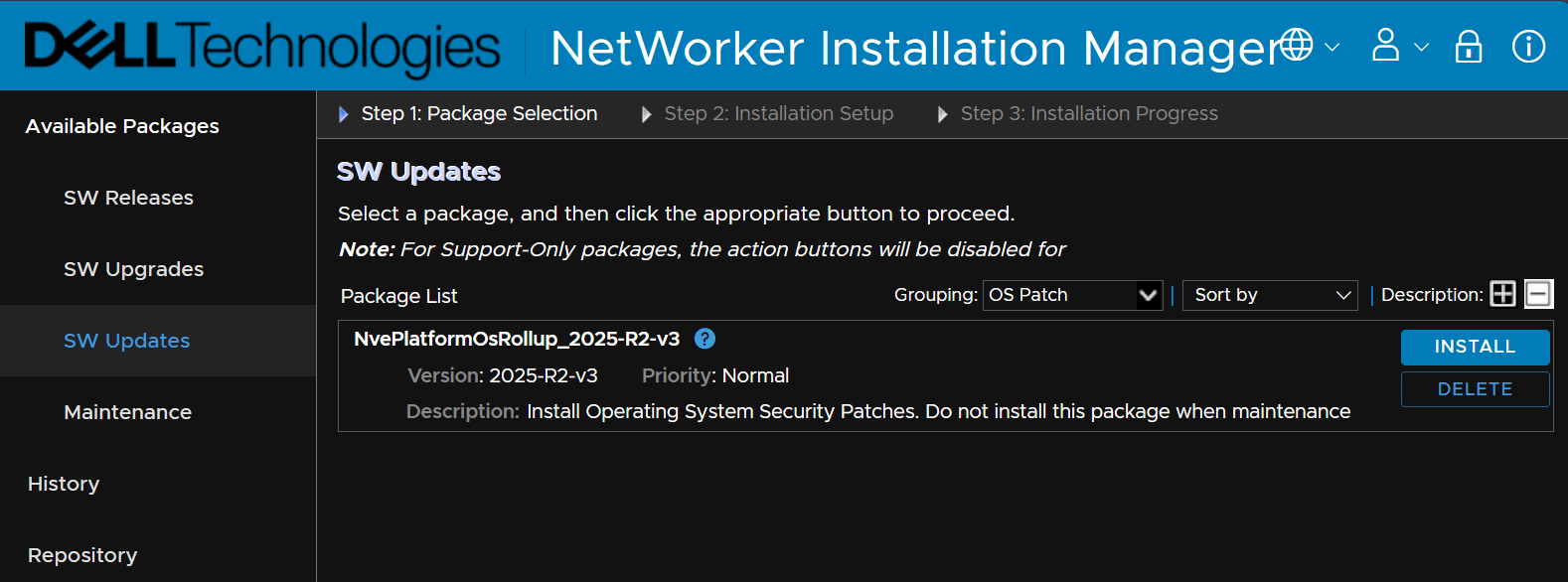
NOTE: If the package is not shown, go to the Repository tab and confirm if the package is shown. The package must report a status of Accepted, and state Package is Available.
- From SW Updates, click Install which initiates the installation process.
- You are prompted to enter the root password, once entered, click Continue.
The installation may take several minutes to run. The time may vary depending on the size or amount of data on the node. Monitor the installation and respond to any input. The Server is rebooted as part of the workflow. You may be logged out of the Installation Manager. If so log back into the installation manager to continue to monitor progress. Click the Monitor button to get back to the Installation Progress display. Once the Installation is 100% completed, you may log out (Click the folder upper right next to the refresh icon) and disconnect.
Additional Information
The NetWorker appliance and NetWorker software updates are performed separately. For instructions on this process, see article NetWorker Virtual Edition: How To Upgrade NetWorker Software and NVE System.
Installation Failures:
/space/avamar/var/avi/server_log/avinstaller.log.0/space/avamar/var/avi/server_log/aviserver.log.0/space/avamar/var/avi/server_log/avitask.log.0
Upgrade and Installation Failures:
A temporary folder is created using the name of the upgrade package being installed when performing upgrades. You can see the temp upgrade directory by running: ls -l /data01/avamar/repo/temp/. This folder does not exist post upgrade and may be deleted if the upgrade fails and the workflow is closed. To collect these logs, initiate the upgrade and before closing out the failure collect the logs.
/data01/avamar/repo/temp/*/tmp/workflow.log/data01/avamar/repo/temp/*/tmp/err.log
OS Rollup Specific Log:
/tmp/sec_install_os_errata_sles.pl.log
This log may be cleaned up after a rollup has been completed and the NVE has rebooted.
/var/log/zypp/history
This is not an NVE-specific log; however, it details information about operating system package installations. The below command lists what package was installed along with its date and time. The timestamps align with the OsRollup. This provides an overview of operating system packages that were updated during the rollup.
grep "|install|" /var/log/zypp/history
Upgrade history and repository:
-
Get output-showing install/upgrade history:
avi-cli --verbose localhost --password ROOT-PASSWORD --listhistory
-
List packages in the repository:
avi-cli --verbose localhost --password ROOT-PASSWORD --listrepository
-
Upgrade logs from previous rollups and upgrades can be found under:
/usr/local/avamar/var/avi/server_data/package_data/
========================
Related articles:
- NetWorker Virtual Edition: Upgrade or Install Failure Log Locations and Collection
- NetWorker: Installation of third-party software on NVE appliance
- Minimum, Recommended, and Latest Code Versions for Dell Technologies Servers, Storage, and Networking products (including NetWorker)
- What is NVE in NetWorker?

Affected Products
NetWorkerProducts
NetWorkerArticle Properties
Article Number: 000052627
Article Type: How To
Last Modified: 10 Feb 2026
Version: 10
Find answers to your questions from other Dell users
Support Services
Check if your device is covered by Support Services.