故障診斷 Windows 10 未正確關機
Summary: 閱讀我們的指南,瞭解解決 Windows 10 關機問題的步驟。瞭解快速啟動功能、完全關機方法和命令行解決方案。請確定您的系統已完全關機,以發揮最佳效能。
This article applies to
This article does not apply to
This article is not tied to any specific product.
Not all product versions are identified in this article.
Instructions
Windows 關機
自 Windows 8.1 和 Windows 10 起,名為「快速啟動」的功能一直是 Microsoft 作業系統上的一個選項。此功能用於在系統關機和休眠之間混合使用,以加速作業系統開機程序。
Windows 中的快速啟動會捨棄所有開啟的程式和檔案 (如同傳統關機時一樣),但會將 Windows 核心的狀態儲存至硬碟 (如同休眠時一樣)。您可以在以下位置找到更多資訊:區分快速啟動與從休眠喚醒

完全關機並重新開機
如果需要關機,同時故障診斷 Windows 軟體問題,則應使用下列方法。
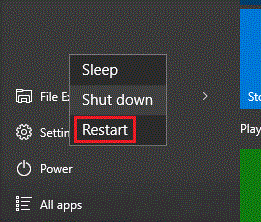
- 如果需要關機,則應選擇重新開機。Windows 會在重新開機電腦時執行完整關機。
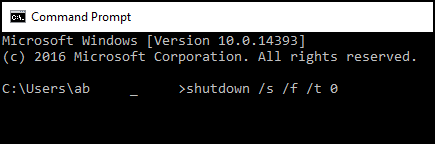
- 下一個選項是使用命令列。
下列文章說明如何在 Windows 中開啟命令列:命令提示字元:它是什麼以及如何在 Dell 系統上使用
在命令列中,輸入:shutdown /s /f /t 0
然後按下 Enter 鍵。
- 下一個選項是停用快速啟動功能。
注意:此選項應作為最後手段使用,因為它可能會增加電腦的開機時間。
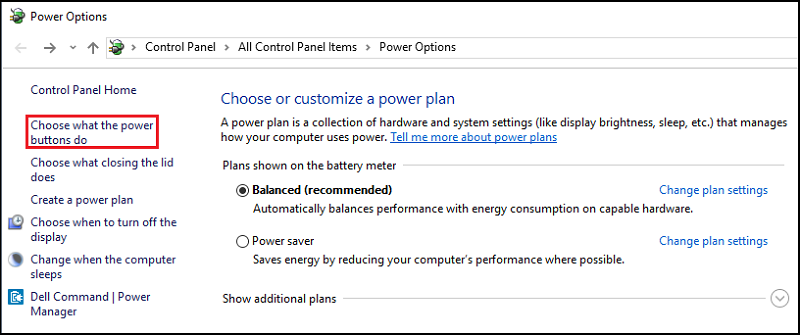
- 在開始功能表中搜尋並開啟「電源選項」。
- 按一下視窗左側的「選擇按下電源按鈕時的行為」。
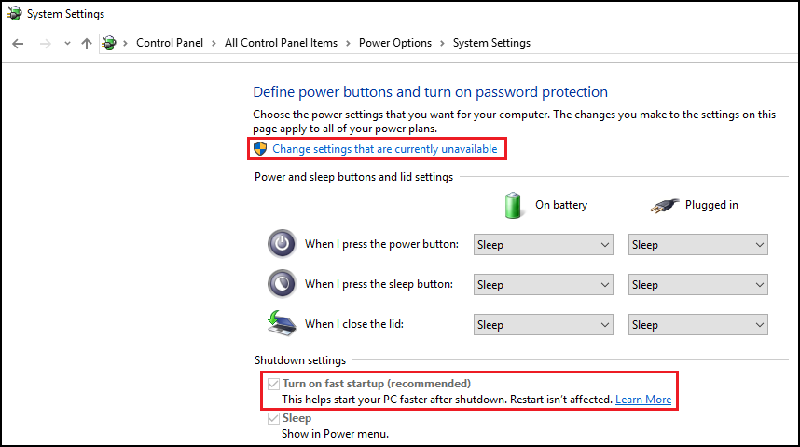
- 在「關機設定」下,請確定已清除「開啟快速啟動」。
Additional Information
Affected Products
Alienware, Dell All-in-One, Dell Pro All-in-One, Dell Pro Max Micro, Dell Pro Max Slim, Dell Pro Max Tower, Dell Pro Micro, Dell Pro Slim, Dell Pro Tower, Dell Slim, Dell Tower, Inspiron, OptiPlex, Vostro, XPS, G Series, G Series, Alienware
, Dell Laptops, Dell Plus, Dell Pro, Dell Pro Max, Dell Pro Plus, Dell Pro Premium, Inspiron, Latitude, Dell Pro Rugged, Vostro, XPS, Fixed Workstations, Mobile Workstations, Dell Pro Max Micro XE FCM2250, Dell Pro Max Slim XE FCS1250, Dell Pro Max Tower T2 XE FCT2250, Dell Pro Max 16 XE MC16250, Dell Pro Micro Plus XE QBM1250, Dell Pro Slim Plus XE5 QBS1250, Dell Pro Tower Plus XE5 QBT1250
...
Article Properties
Article Number: 000124687
Article Type: How To
Last Modified: 19 Apr 2026
Version: 11
Find answers to your questions from other Dell users
Support Services
Check if your device is covered by Support Services.