如何從 VMware Carbon Black Cloud 移除裝置
Summary: 瞭解如何依照以下逐步指示,手動或自動從 VMware Carbon Black Cloud 移除 Windows、Mac 或 Linux 裝置。
This article applies to
This article does not apply to
This article is not tied to any specific product.
Not all product versions are identified in this article.
Symptoms
本文提供手動和自動從 VMware Carbon Black Cloud 移除裝置的步驟。
受影響的產品:
- VMware Carbon Black Cloud Endpoint
受影響的作業系統:
- Windows
- Mac
- Linux
Cause
不適用
Resolution
根據預設,VMware Carbon Black Cloud 會保留目前/先前使用 VMware Carbon Black Cloud Endpoint 感應器啟動的所有裝置。系統管理員可手動或自動移除不再需要的裝置。
如需詳細資訊,請按一下偏好的方法。
警告:
- 必須先從裝置解除安裝 VMware Carbon Black Cloud Endpoint 感應器,然後再將其從 VMware Carbon Black Cloud 主控台移除。
- 移除裝置是永久性的操作,並會清除所有歷史資訊。
- 在網頁瀏覽器中,前往 [REGION].conferdeploy.net。
注意:[REGION] = 租戶的地區

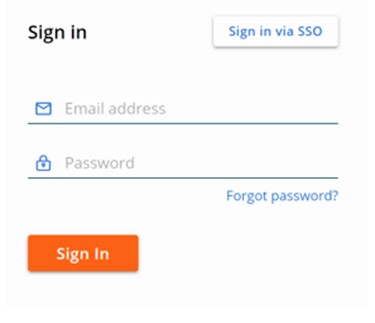
- 登入 VMware Carbon Black Cloud。
- 在左窗格中,按一下端點。
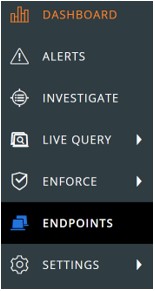
注意:範例中的配置可能會與您的環境稍有不同。
- 在 「所有感應器 」使用者介面 (UI) 中:
- 勾選適當的裝置名稱。
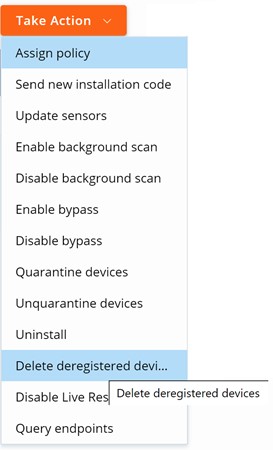
- 按一下採取行動。
- 按一下刪除已取消註冊的裝置。
- 按一下刪除。

注意:重新整理時,使用者介面會反映變更。
- 在網頁瀏覽器中,前往 [REGION].conferdeploy.net。
注意:[REGION] = 租戶的地區
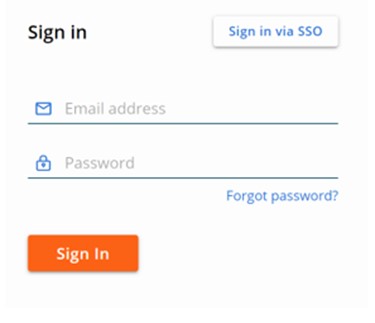
- 登入 VMware Carbon Black Cloud。
- 在左窗格中,按一下端點。
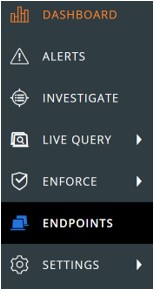
注意:範例中的配置可能會與您的環境稍有不同。
- 在右上角按一下感應器 選項 ,然後選取 感應器設定。
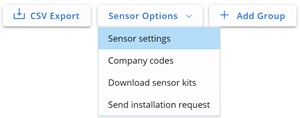
- 在 「感應器設定 」使用者介面 (UI) 中:
- 勾選刪除已取消註冊的感應器。
- 從下拉式功能表中選取時間。
- 按一下儲存。
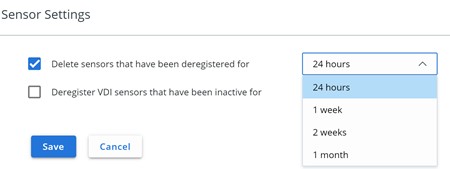
注意:重新整理時,使用者介面會反映變更。
如要聯絡支援部門,請參閱 Dell Data Security 國際支援電話號碼。
請前往 TechDirect,以線上產生技術支援要求。
如需更多深入見解與資源,請加入 Dell 安全性社群論壇。
Additional Information
Videos
Affected Products
VMware Carbon BlackArticle Properties
Article Number: 000126231
Article Type: Solution
Last Modified: 15 Feb 2024
Version: 10
Find answers to your questions from other Dell users
Support Services
Check if your device is covered by Support Services.