Hard Drive Locked Error During the Install of Windows 10
Summary: This article explains how to fix a hard drive locked error when installing Windows 10.
This article applies to
This article does not apply to
This article is not tied to any specific product.
Not all product versions are identified in this article.
Instructions
Hard Drive is Locked
Warning: This error happens during the installation of Windows 10, and all Data is erased from the system.
You may get an error, "Hard drive is locked" when you try to install Windows 10 from recovery media. The following steps can be used to resolve this error.
Access the Windows Recovery Environment (WinRE)
- Starting with the computer off. press the Power button on the computer and immediately start pressing the F12 key once a second to access the System Boot menu.
- Select SupportAssist OS Recovery to boot to SupportAssist OS Recovery.
- In SupportAssist OS Recovery click the 3 dots
 at the upper right side of the OS Recovery Home screen and this will provide a dropdown menu.
 - Select Windows recovery.
- The computer will reboot into the Windows Recovery Environment (WinRE).
- Select Troubleshoot > Advanced Options > Command Prompt (Figure 4)
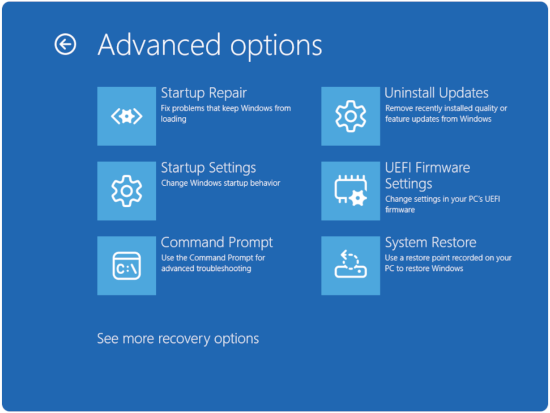
Figure 1: Advanced options - In the command prompt type,
diskpart. - In the command prompt type,
list disk. - In the command prompt type,
Select disk #. # is the drive number that they want to install to. - In the command prompt type,
Clean. - In the command prompt type,
Convert GPT. - In the command prompt type,
Exit.
Boot to the Windows 10 media and start the install process. Select the keyboard language and select the troubleshoot computer option. Select Recover from a drive.
Additional Information
For additional information on Windows 10, see the Dell Windows Support library page.
Affected Products
Alienware, Inspiron, OptiPlex, Vostro, XPS, G Series, G Series, Alienware, Inspiron, Latitude, Vostro, XPS, Fixed Workstations, Mobile WorkstationsArticle Properties
Article Number: 000131936
Article Type: How To
Last Modified: 31 Jul 2026
Version: 10
Find answers to your questions from other Dell users
Support Services
Check if your device is covered by Support Services.