Troubleshooting Kensington Security Locks on Dell Systems
Summary: This article provides info on Kensington Locks used with Dell systems.
This article applies to
This article does not apply to
This article is not tied to any specific product.
Not all product versions are identified in this article.
Symptoms
This article provides information about troubleshooting Kensington® Security Locks found on Dell systems.
Table of Contents:
1. Troubleshooting Combination Type Security Locks
Troubleshooting Scenarios:
- How to reset the combination of the lock
- How to secure the system using the Kensington Combination Lock
- How to remove the lock from the system
- How do we reset the combination if the combination is lost?
- Unable to remove lock from the system with the correct combination known:
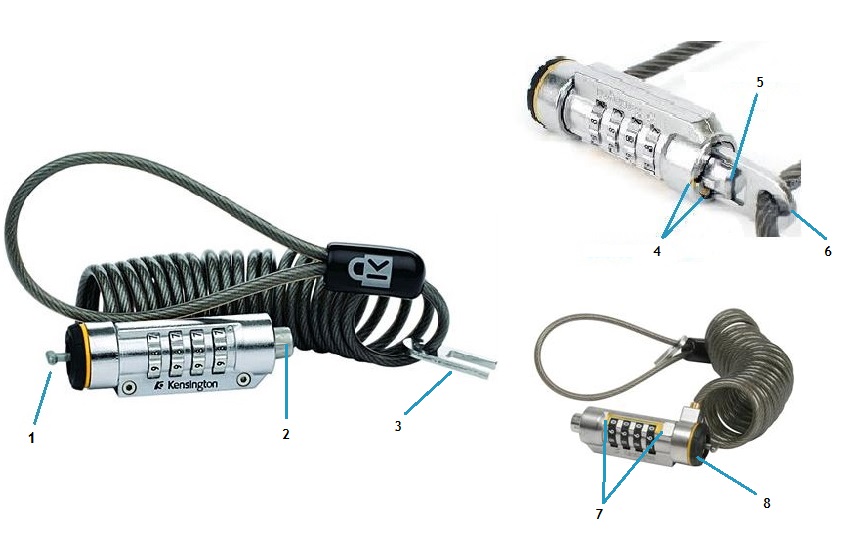
The image above shows the various parts of the combination locks mentioned in the instructions below.
| 1 | T-Bar | 2 | Push Button |
| 3 | Reset Key | 4 | Colored Ticks |
| 5 | Push Button | 6 | Reset Key (In Use) |
| 7 | Yellow Bracket | 8 | Lock Bumper |
I. How to reset the combination of the lock
- The default combination of the lock "out of the box" is 0000 (reading left to right) that is from the button of the lock to the T-bar of the lock.
- Take the reset key and insert into the rear of the lock (near the button of the lock).
- Press and turn the reset key aligning the two colored alignment ticks.
- Align the wanted combination (left to right) in the yellow bracket area.
- To finalize the process, take the reset key and reinsert into the rear of the lock. Turn the reset ring back to its original position. The reset ring pops back, and the alignment ticks are no longer aligned.
- Press in the button at the rear of the lock to confirm that the new combination is set. If it does not press in we were not successful.
II. How to secure the system using the Kensington Combination Lock
- Align the correct combination in the yellow bracket area of the lock.
- Insert the lock into the Kensington security slot of the system.
- Rotate the lock body 90 degrees (clockwise).
- Pushing the button, scramble the combination of the lock tumblers once the button goes in completely. The lock will now be secured in the security slot thus securing the system.
III. How to remove the lock from the system
Align the correct combination in the yellow bracket area and turn the lock body 90 degrees to remove the lock from the system.
IV. How do we reset the combination if the combination is lost
The combination can be changed only if the user remembers the previously set combination. If the user has forgotten the combination, there is no way to reset it back. If the user registered the product online, then the combination could be retrieved and the user could try that combination. If the product and code are not registered, then there is no way to reset or unlock it.
V. Unable to remove lock from the system with the correct combination known
Make certain the user has aligned the combination (reading left to right). You can try the REVERSE of the known combination and check. Sometimes users have not aligned the tumblers up correctly and reversing will occasionally work.
If it does not work the only way to get the lock removed from the laptop would be to contact a bonded locksmith to remove the lock without damaging the system.
2. Troubleshooting Keyed Type Security Locks
Troubleshooting Scenarios:
- How to secure the system with the lock
- How to register the lock and key code
- How to order a replacement key
- Where is the key code on the lock?
- User lost the key and does not know the Key Code, and did not register the product
- The lock does not fit the security slot of the system. (for Premium Lock only)
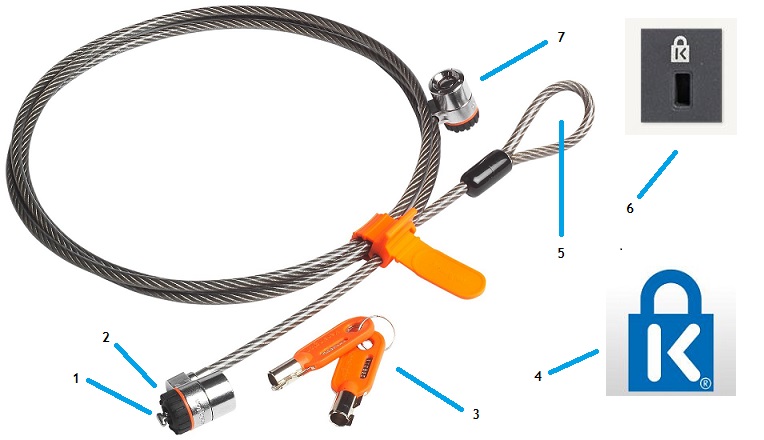
The image above shows the various parts of the keyed locks mentioned in the instructions below.
| 1 | T-Bar | 2 | Lock Bumper |
| 3 | Pair of keys | 4 | K-Lock symbol |
| 5 | Cable Loop | 6 | K-Lock symbol above location on system |
| 7 | Extra Lock, usually attaches to a docking station |
I. How to secure the system with the lock
- Insert the lock into the security slot of the system (See "6" in the image above)
- Insert the key into the lock and rotate it 90 degrees clockwise
- Verify that the lock is secured in the system
- To unlock, insert the key into the lock and rotate it 90 degrees counter-clockwise
II. How to register the lock and key code
- Go to the link here

- And click "Get Started."
- Register a log-in account with username and password.
- Register your lock with the key code stamped on the lock.
Benefits of lock registration:
- I lost my key: The supplier ships replacement keys directly to Dell customers, at no additional charge to the customer or to Dell.
See Section III below for instructions on how to order a replacement key. - I forgot my number combination: Customers can store and retrieve the number combination at the site.
III. How to order a replacement key
- Once the lock is registered (see Section II above for instructions on How to register the lock and key code), log in and select the Security lock codes tab.
- Click the Lost Key? Order a free replacement link. This brings up a form to request the key replacement.
- Fill out the form and submit it.
 NOTE: It is NOT possible to order a replacement key without the key code
IV. Where is the key code on the lock?
For security reasons, there is no code on the lock, cable, or packaging. It is a five- or six-digit code which is stamped on the key. The key code can be all numbers, all letters, or a combination of letters and numbers. It is highly recommended to register the lock and key code on the website.
V. Customer lost key and does not know the Key Code, and did not register the product
The customer must contact a bonded locksmith who can extricate the lock without damaging the system. Kensington would not be able to replace the key without the key code.
VI. The lock does not fit the security slot of the system
Look for "K-Lock" icon as shown in location "4" and "6" in the image at the top of this section. If the system has this symbol, all Kensington locks are compatible. If the symbol is not there, it may be compatible with another manufacturer's product.
Cause
N/A
Resolution
N/A
Affected Products
Chromebook, G Series, Alienware, Dell Plus, Dell Pro, Dell Pro Max, Dell Pro Plus, Dell Pro Premium, Inspiron, Latitude, Dell Pro Rugged, Vostro, XPS, Legacy Laptop Models, Mobile Workstations, Dell Combination Lock, Dell Premium LockArticle Properties
Article Number: 000134337
Article Type: Solution
Last Modified: 09 May 2025
Version: 6
Find answers to your questions from other Dell users
Support Services
Check if your device is covered by Support Services.