How to Subscribe to Dell Security Advisories
Summary: Dell Customers can subscribe to be notified of Dell Security Advisory (DSA) publications.
This article applies to
This article does not apply to
This article is not tied to any specific product.
Not all product versions are identified in this article.
Instructions
- Section 1: Subscribe to all Dell Security Advisory (DSA) publications. (Recommended Method)
- Section 2: Subscribe to Dell Security Advisories (DSA) for certain original/legacy products and product lines.
Section 1: All Dell Security Advisories (DSA) Publications (Recommended Method)
Subscribe to Security Alerts from the Security Advisories and Notices Page:
-
Customers can subscribe to all Dell Security Advisory publications from https://www.dell.com/support/security/ by providing their email.
-
Select the "Security Advisories and Notices" tab and click "Subscribe to Security Alerts" (see Figure 1: Security Advisories and Notices).
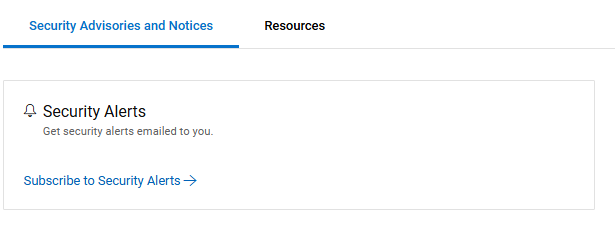
Figure 1: Security Advisories and Notices
- Enter email to subscribe into the "Email" textbox, select "Alert Options", and check the box to "Confirm sign up". Press "Submit" when form is completed (see Figure 2: Security Alerts Subscription Form).

Figure 2: Security Alerts Subscription Form
- Customers will receive a confirmation email requesting consent.
-
Once the request is accepted, customers will receive a notification whenever a Dell Security Advisory is published or has a major update.
Section 2: Subscribe to Dell Security Advisories (DSA) for certain original/legacy products and product lines
-
Go to https://www.dell.com/support/preferences/notifications and sign in with your Dell credentials.
-
Then select "Product Advisories" (see Figure 2: Product Advisories):

Figure 2: Product Advisories
-
Use the "Add Alert" option, as shown below (see Figure 3: Add Alert). The email provided when the account was created must be selected.

Figure 3: Add Alert
-
Choose the product to activate the Dell Security Advisory notifications on from the menu, then click "Add Product" (see Figure 4: Choose Product).

Figure 4: Choose Product
Note: If the product to activate Dell Security Advisory notifications on is not listed, see Section 1.
-
The "My Advisory Alerts" section is populated with the products and options to receive Dell Technical Advisories (DTA) and Dell Security Advisories (DSA) (see Figure 5: My Advisory Alerts).

Figure 5: My Advisory Alerts
-
To remove the alerts, click the ellipses under "ACTIONS" (see Figure 5: My Advisory Alerts), and click "Delete." To stop receiving Dell Technical Advisories (DTAs) but still receive Dell Security Advisories (DSAs) for a product, clear the box for the unwanted option.
Affected Products
Product Security InformationArticle Properties
Article Number: 000206159
Article Type: How To
Last Modified: 17 Dec 2024
Version: 6
Find answers to your questions from other Dell users
Support Services
Check if your device is covered by Support Services.