如何启动 Windows 中的 Microsoft Copilot
Summary: 本文介绍了如何使用键盘、快捷键或 Windows 和 Microsoft Edge 内的按钮来启动 Windows 中的 Microsoft Copilot。
This article applies to
This article does not apply to
This article is not tied to any specific product.
Not all product versions are identified in this article.
Instructions
受影响的操作系统:
- Windows 11
- Windows 10
- Windows 中的 Microsoft Copilot 在中华人民共和国 (PRC) 不可用
- 回顾是一项 NPU 驱动的功能,仅在 Microsoft Copilot+ PC 上可用
- 在可用的情况下,用户也可以禁用 Windows 中的 Microsoft Copilot 和回顾功能,这会导致 Microsoft Copilot 键表现出不同的行为
- 该层次结构适用于安装了 Windows 11 的所有计算机
- 使用“Windows 更新”在安装了 Windows 10 的非 Copilot+ PC 上启用 Microsoft Copilot 键 — 待公布 (TBA)
Windows 中的 Microsoft Copilot 可通过多种方式启动。
| 启动 Microsoft Copilot | 键盘快捷键、图标或按键 |
|---|---|
| Windows 键 + C |  |
| Windows 任务栏 |  |
| Microsoft Edge |  |
| Microsoft Copilot 键 |  |
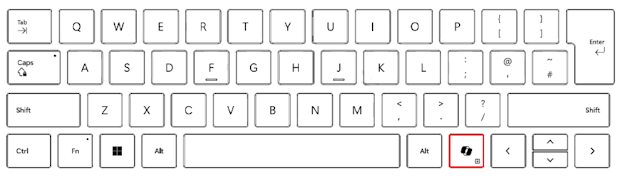
提醒:自 2024 年春季起,新上市的 Windows 11 设备将采用全新的键盘布局,并配备用于启动 Windows 中的 Microsoft Copilot 的专用键。该按键将替换右侧 Alt 键旁边的菜单键。按键位置可能因某些区域布局而异。
已知行为
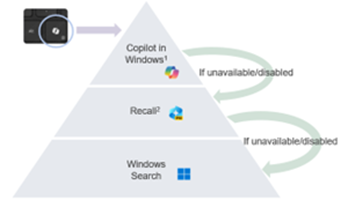
在 Microsoft Copilot+ PC 上,按 Microsoft Copilot 键将:
- 启动 Windows 中的 Microsoft Copilot。
- 如果 Microsoft Copilot 不可用或已禁用,则按下该按键将启动“回顾”功能。
- 如果“回顾”功能不可用或已禁用,则按下该按键将启动 Windows 搜索
按住 Microsoft Copilot 键可启动语音听写功能:
这允许用户向 Windows 中的 Microsoft Copilot 提问,或通过语音命令进行多轮交互。该此功能将在未来的某个时间点启用。
Additional Information

Article Properties
Article Number: 000221081
Article Type: How To
Last Modified: 19 May 2026
Version: 9
Find answers to your questions from other Dell users
Support Services
Check if your device is covered by Support Services.