如何使用 Dell 管理入口網站部署 Dell Command Update
Summary: 瞭解如何使用 Dell 管理入口網站 (DMP) 將 Dell Command Update 發佈至 Microsoft Intune。
This article applies to
This article does not apply to
This article is not tied to any specific product.
Not all product versions are identified in this article.
Instructions
IT 管理員可以使用 Dell 管理入口網站將 Dell Command Update 發佈至 Microsoft Intune。
受影響的軟體:
- Dell Command Update
- Dell 管理入口網站
- Microsoft Intune
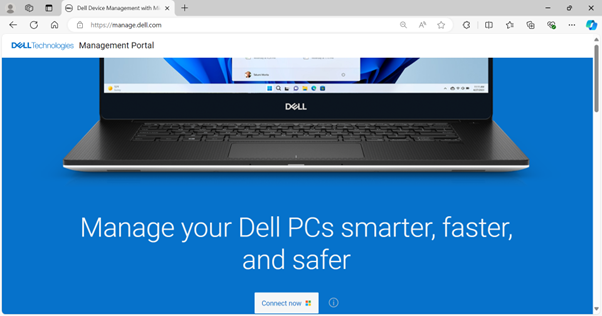
- 在網頁瀏覽器中,前往 Dell 管理入口網站。
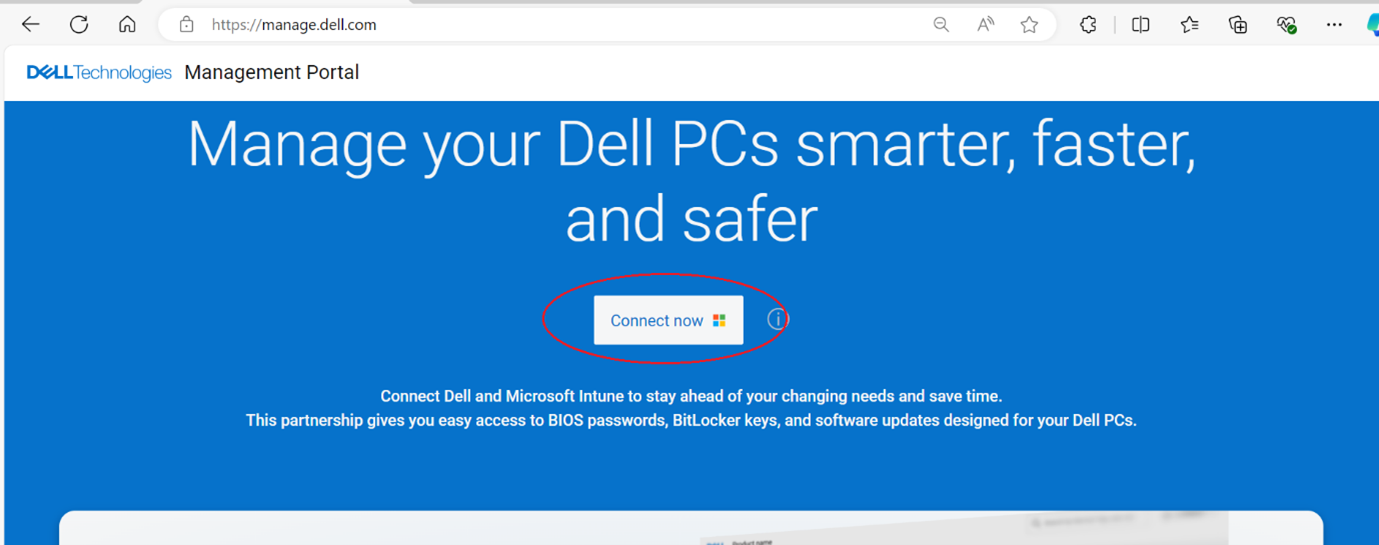
- 按 一下立即連線 按鈕。
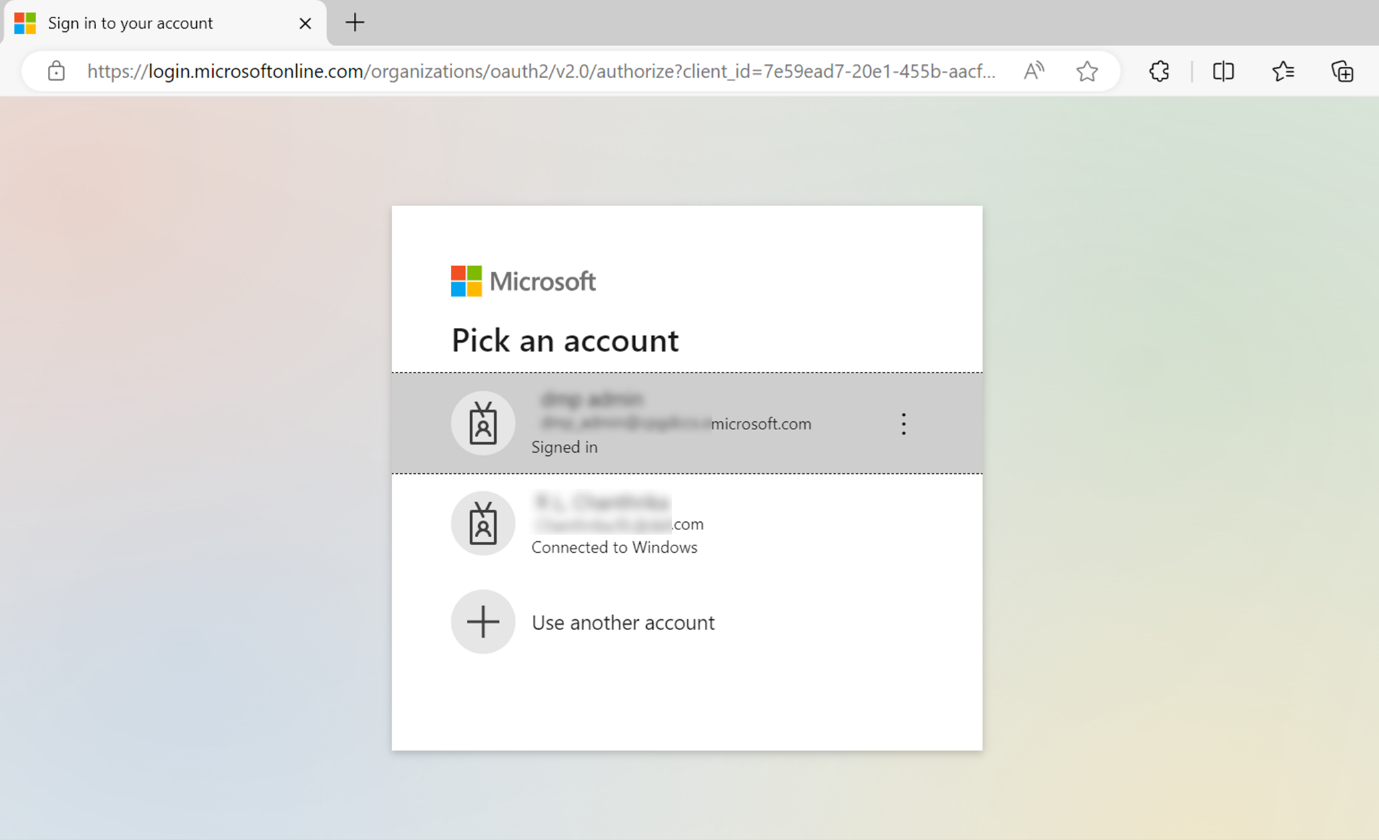
- 使用您的 Microsoft 365 帳戶登錄。
注意:- 必須具備有效的 Microsoft 365 訂用方案與 Intune 授權,才能啟動 Dell 管理入口網站。有關 Microsoft Intune 的訂閱和許可的詳細資訊,請參閱 Microsoft Intune 許可
。
- 如果這是您第一次使用 Dell 管理入口網站,系統會提示您為貴組織接受權限。如需權限和啟動 Dell 管理入口網站的程序詳細資訊,請參閱 如何將 Dell 管理入口網站連線至 Microsoft Intune。
- 必須具備有效的 Microsoft 365 訂用方案與 Intune 授權,才能啟動 Dell 管理入口網站。有關 Microsoft Intune 的訂閱和許可的詳細資訊,請參閱 Microsoft Intune 許可
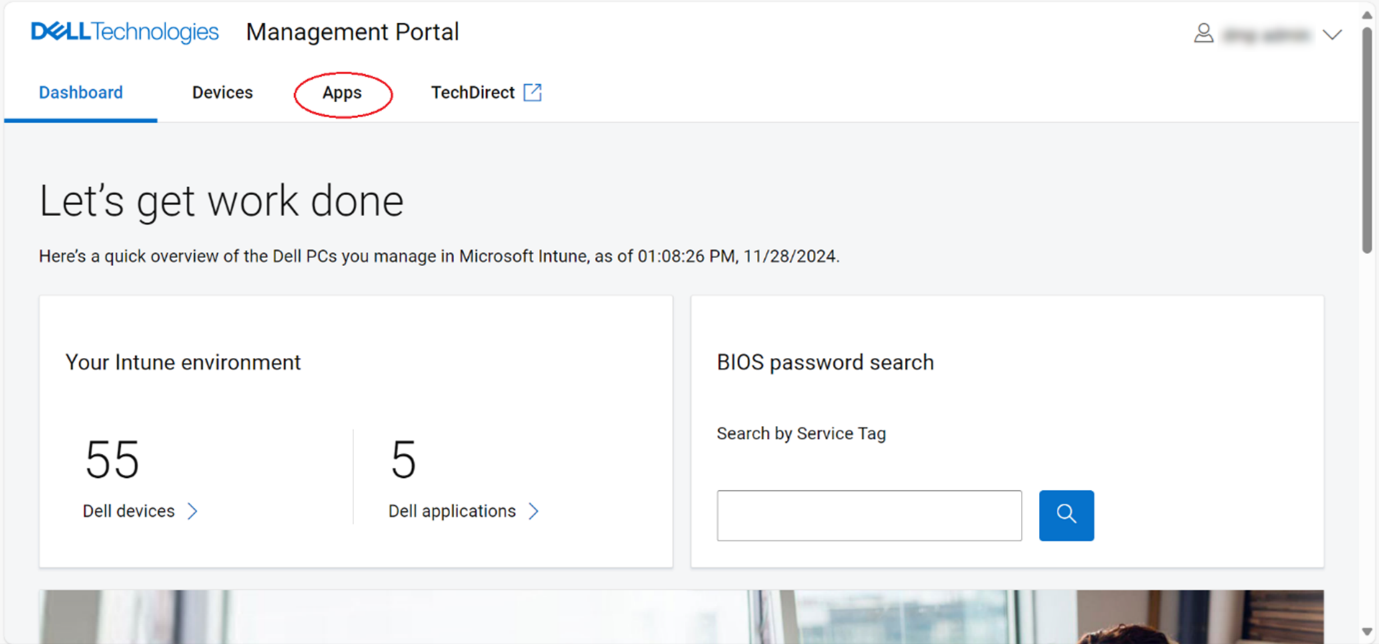
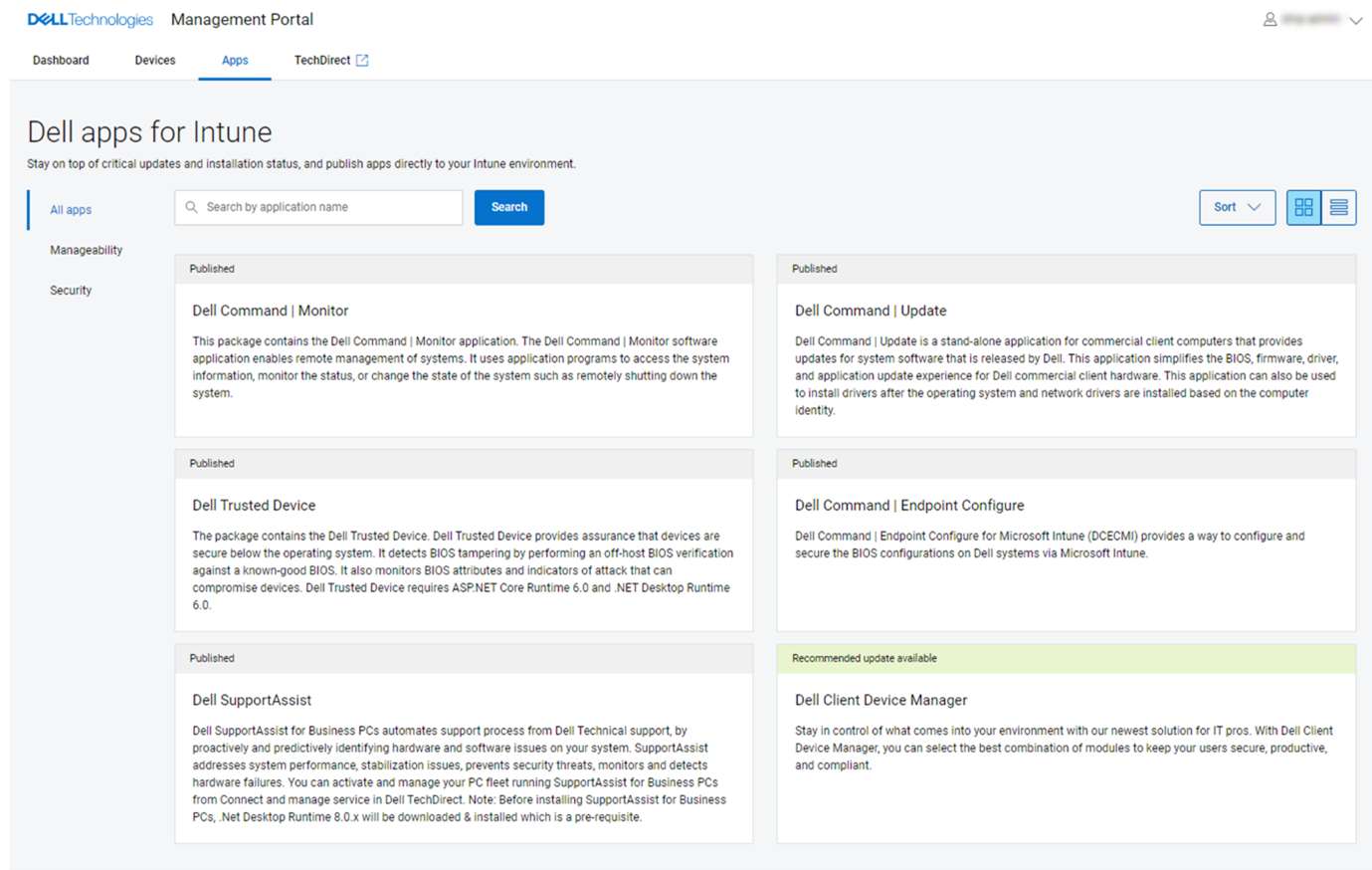
- 登入時會顯示 儀表板 頁面。按一下 應用程式 標籤。
- 在 應用程式 頁面中,按一下 Dell Command | 從可用的應用程式清單進行更新。
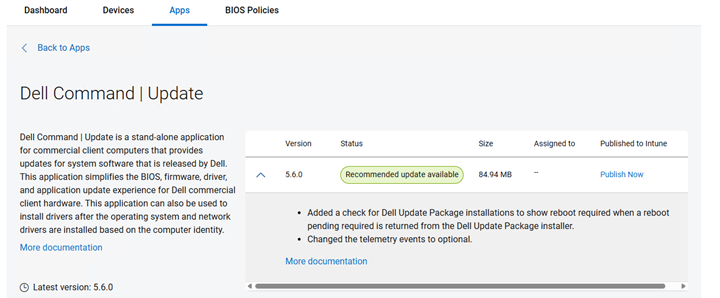
- 按 一下立即發佈。
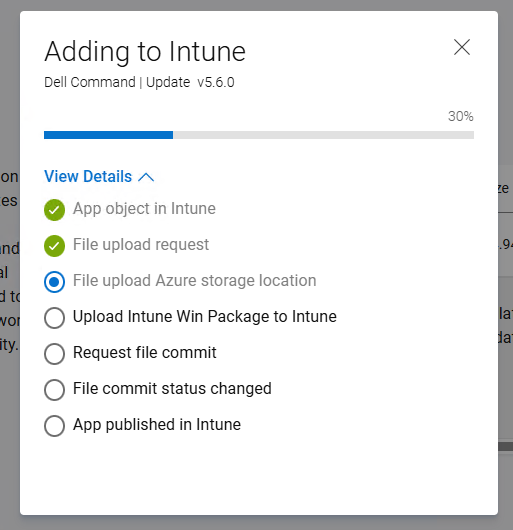
- Dell Command Update 應用程式發佈程序隨即啟動。或者,按一下 檢視詳細資料以檢查進度。
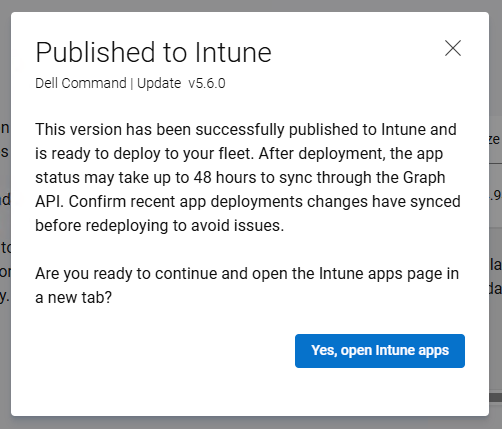
- Dell Command Update 應用程式成功發佈至 Microsoft Intune 後,摘要隨即顯示。單擊 “是,打開 Intune 應用”轉到 Intune 頁並查看已發佈的應用程式。
- 隨即會在 Intune 中發佈 Dell Command Update 應用程式的詳細資料。
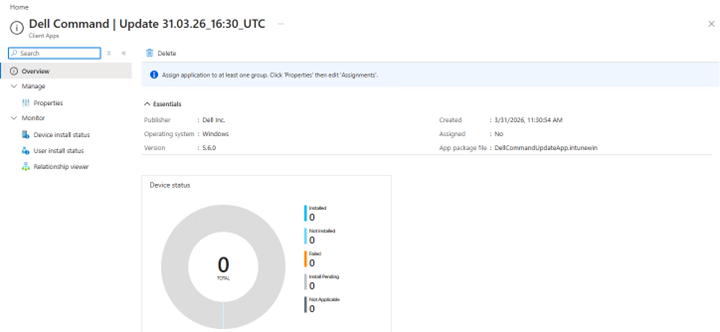
- 按 一下內容 以檢視更多資訊。
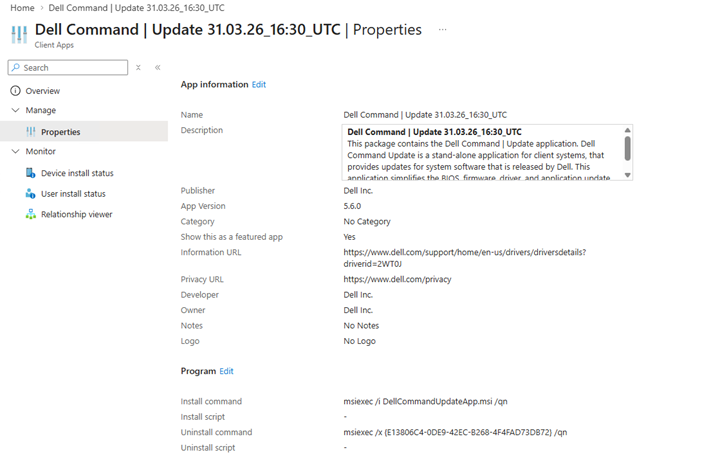
- 按一下內容頁面底部指派區段中的編輯選項,以編輯裝置或使用者指派。
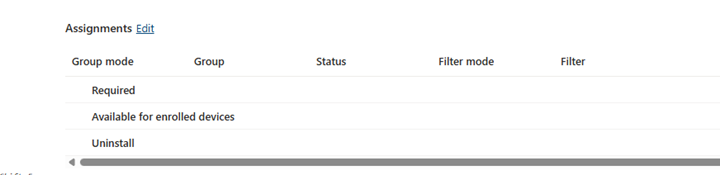
- 按 一下新增群組 選項,選取要指派 Dell Command Update 應用程式的裝置或使用者群組。可用的裝置或使用者群組是由 必要 或 可用 選項以及 IT 系統管理員需求決定。
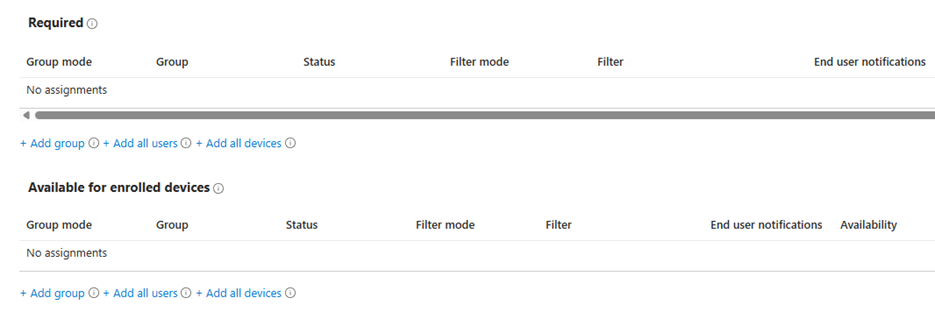
注意:有關分配應用的詳細資訊,請參閱將 應用分配到具有 Microsoft Intune
Affected Products
Dell Command | UpdateArticle Properties
Article Number: 000447089
Article Type: How To
Last Modified: 24 May 2026
Version: 2
Find answers to your questions from other Dell users
Support Services
Check if your device is covered by Support Services.