PowerFlex: How to correlate ESXi RDM to hard drive at iDRAC
Summary: This article discusses determining how to find which hard drive is a failed disk on an HBA330 SAS controller from the ScaleIO Virtual Machine (SVM) to the physical device that must be replaced. ...
This article applies to
This article does not apply to
This article is not tied to any specific product.
Not all product versions are identified in this article.
Instructions
R630 ScaleIO Ready Node HBA330 SAS controller only RDM:
- Identify the disk in the ScaleIO UI, and get the SDS device current path.
Example: /dev/sdh
- SSH to SVM run the following command to map
/dev/sdX dev to NAA # mapping:
ls -l /dev/disk/by-id/ |grep wwn
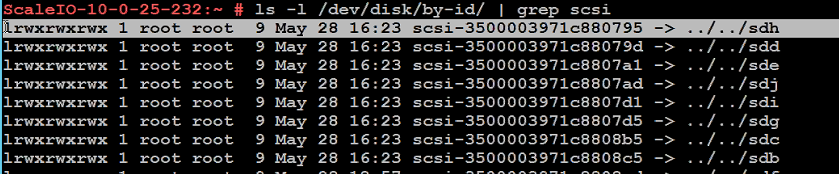
- Record the disk in question's scli address or
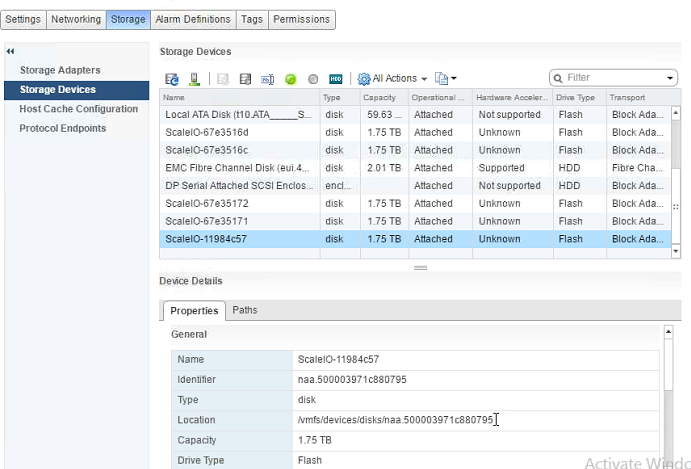
NAA #(it starts with 500*). - In vCenter, select the ESXi host in question and go to Manage -> Storage -> Storage Devices.
- Select each disk present and inspect the Identifier field of the Properties tab (under the Device Details section) for the NAA number in question:
- Once identified, select the Paths tab of the Device Details section, and record the Runtime Name of the disk in question:
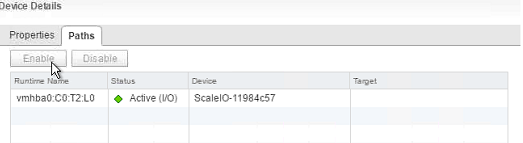
- ESXi Runtime name T-value numbering starts at 1, and not 0 as iDRAC's does (Example:
vmhba0:C0:T2:L0). - In iDRAC, go to Storage -> Physical Disks, and select the disk with the name "
Solid-State Disk 0:1:X," where X is 1 less than the T-value of the disk in question's ESXi runtime name.
Example: (ESXi vmhba0:C0:T2:L0 = iDRAC Solid-State Disk 0:1:1)

Affected Products
PowerFlex rack, ScaleIOArticle Properties
Article Number: 000004305
Article Type: How To
Last Modified: 20 Nov 2025
Version: 10
Find answers to your questions from other Dell users
Support Services
Check if your device is covered by Support Services.