NetWorker: AD/LDAP User Cannot See NMC Users or NMC Roles "Access is Denied"
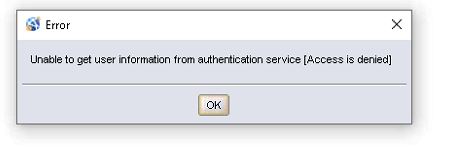
Summary: You can log in to the NMC with a Lightweight Directory Access Protocol (LDAP) AD user but cannot view NMC Roles or NMC Users. The error message "Unable to get user information from authentication service [Access is Denied]" appears. ...
Symptoms
Cause
Issue 2: The NetWorker external authentication configuration has an incorrect or missing "Config User Group Attribute."
Issue 3: The AD group DN which has not been granted FULL_CONTROL administrative privileges.
Resolution
Issue 1:
- Log in to the NMC as the default NetWorker Administrator account.
- Go to Setup-->Users and Roles-->NMC Roles.
- Open the properties of the Console Security Administrator and Console Application Administrator roles.
- In the External Roles field, the Distinguished Name (DN) of one or more AD groups for NetWorker administrators should be specified.
NOTE: If you are uncertain of the DN being specified, see the Notes field for steps that can be completed for collecting this information. The AD group DNs should also be added to the corresponding NetWorker server's User Group's External Roles fields. Connect to the NetWorker server from the NMC as the default NetWorker Administrator account and go to Server-->User Groups. Without this you can log in to the NMC as an AD user but not connect to the NetWorker server.
Example:
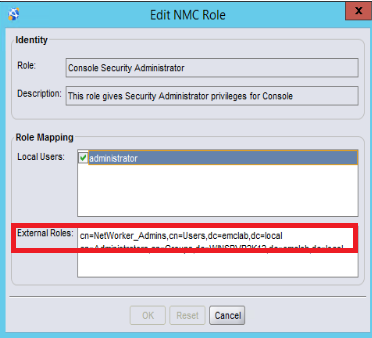
- Once the DN of your NetWorker administrator's AD groups has been added to both roles. Log in to the NMC as an AD user belonging to the newly added group and confirm if you can see the NMC Users and NMC Roles configurations.
Issue 2:
- Check your existing configuration using your configuration ID:
authc_config -u Administrator -p password -e find-all-configs
authc_config -u Administrator -p password -e find-config -D config-id=#
Example:
authc_config -u Administrator -e find-config -D config-id=1
Enter password:
Config Id                    : 1
Config Tenant Id             : 1
Config Name                  : lab
Config Domain                : emclab
Config Server Address        : ldap://winsrvr2k16.emclab.local:389/DC=emclab,DC=local
Config User DN               : CN=Administrator,CN=Users,DC=emclab,DC=local
Config User Group Attribute  :
...
...
- To update this value using command, run the following:
authc_config -u Administrator -p password -e update-config -D config-id=# -D config-user-group-attr=memberOf
-e add-config" to "-e update-config" and populate the rest of the fields as per your environment. Config User Group Attribute should be set to "-D "config-user-group-attr=memberOf"" in the script template (by default). Once the configuration has been updated, you should see the changes with:
authc_config -u Administrator -p 'password' -e find-config -D config-id=#
Example:
authc_config -u Administrator -e find-config -D config-id=1
Enter password:
Config Id                    : 1
Config Tenant Id             : 1
Config Name                  : lab
Config Domain                : emclab
Config Server Address        : ldap://winsrvr2k16.emclab.local:389/DC=emclab,DC=local
Config User DN               : CN=Administrator,CN=Users,DC=emclab,DC=local
Config User Group Attribute  : memberOf
...
...
- Log out of the NMC and log back in with your AD user
Issue 3:
In some instances even after adding the AD group DN(s) to the External Roles fields of Console Security Administrator and Console Application Administrator you will observe the "Access Denied" error. FULL_CONTROL permissions can be added to the NetWorker administrators AD group.
- Open an elevated command prompt on the NetWorker server.
- Confirm which AD groups have FULL_CONTROL permissions are set:
authc_config -u Administrator -p 'password' -e find-all-permissions
- If the DN of the NetWorker administrators group is not specified, run the following command:
authc_config -u Administrator -p password -e add-permission -D "permission-name=FULL_CONTROL" -D "permission-group-dn=cn=group-name,ou=ou-name,dc=domain,dc=domain"
permission-group-dn should contain the full DN of the group you want to add the permissions to. If you are uncertain of the group DN, see the Notes field for collecting this information.
authc_config -u Administrator -e add-permission -D "permission-name=FULL_CONTROL" -D "permission-group-dn=cn=NetWorker_Admins,cn=Users,dc=emclab,dc=local"
Enter password:
Permission FULL_CONTROL is created successfully.
- Once the permission was added, you can confirm the changes by running the find-all-permissions command from step 2.
- Log in to the NMC with an AD user belonging to the group you added permissions to and confirm if you can see the NMC Roles or NMC Users settings.
Additional Information
The above procedures require knowing the Distinguished Name (DN) of an AD group that AD users belong to. This can be confirmed by your AD Administrator. For Example from ADSI Edit on the domain controller:
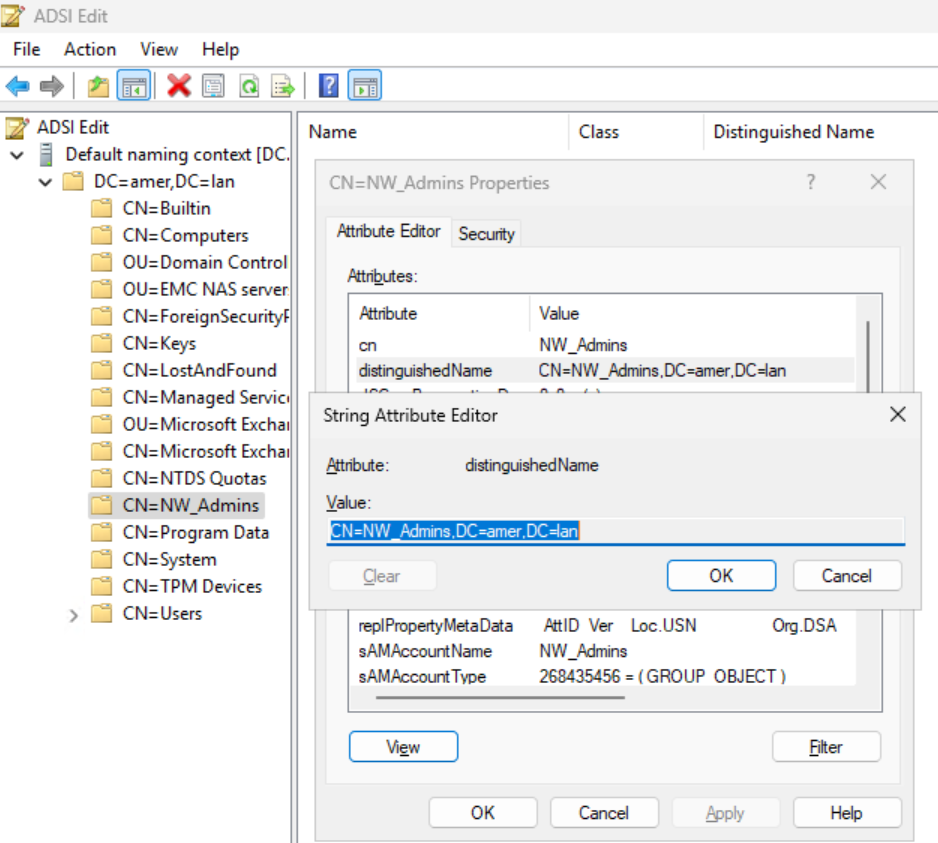
This can also be collected using authc_config and authc_mgmt commands on the NetWorker server. In order to collect this information, you must know the tenant and domain that was configured for your LDAP AD external authentications:
- Log in to the NetWorker server and open an elevated command prompt.
- Confirm if a tenant was configured (usually default is used):
authc_config -u Administrator -p password -e find-all-tenants
Example:
C:\>authc_config -u Administrator -e find-all-tenants
Enter password:
The query returns 3 records.
Tenant Id Tenant Name
1         default
7         emc
8         test
- Once you have the tenant name, run the following command to query LDAP AD groups for a specific AD user:
authc_mgmt -u Administrator -p password -e query-ldap-groups-for-user -D "query-tenant=tenant-name" -D "query-domain=domain-name" -D "user-name=ad-user"
Example:
C:\>authc_mgmt -u Administrator -e query-ldap-groups-for-user -D "query-tenant=default" -D "query-domain=emclab" -D "user-name=bkupadmin"
Enter password:
The query returns 1 records.
Group Name            Full Dn Name
NetWorker_Admins      cn=NetWorker_Admins,cn=Users,dc=emclab,dc=local
authc_config and authc_mgmt are useful commands for testing and configuring external authentication. To see all the available options run the commands on their own with no flags/switches.