ViPR SRM 4.01: Unable to access the SRM GUI using https
Summary: Unable to access the SRM GUI using https
This article applies to
This article does not apply to
This article is not tied to any specific product.
Not all product versions are identified in this article.
Symptoms
Unable to load the SRM GUI interface using ssl interface using the URL as: https://<ipaddress>:58443/APG
We get the error message as:
ERR_SSL_OBSOLETE_CIPHER
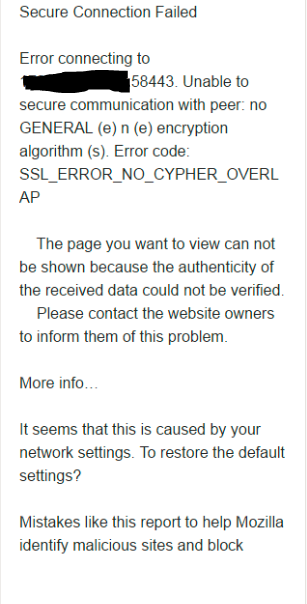
The issue is present for all the browsers, i.e. Chrome, Firefox and IE.
We get the error message as:
ERR_SSL_OBSOLETE_CIPHER
The issue is present for all the browsers, i.e. Chrome, Firefox and IE.
Cause
The cause occurs due to upgrade of the browsers. The ciphers used earlier is not updated to new.
earlier the cipher under server.xml file:
earlier the cipher under server.xml file:
ciphers="TLS_DHE_RSA_WITH_AES_128_CBC_SHA, TLS_DHE_RSA_WITH_AES_256_CBC_SHA"The correct ciphers in upgraded server.xml shuld be:
ciphers="TLS_ECDHE_RSA_WITH_AES_256_GCM_SHA384, TLS_RSA_WITH_AES_256_GCM_SHA384, TLS_ECDH_RSA_WITH_AES_256_GCM_SHA384, TLS_ECDHE_RSA_WITH_AES_128_CBC_SHA, TLS_ECDHE_RSA_WITH_AES_128_CBC_SHA256, TLS_ECDHE_RSA_WITH_AES_128_GCM_SHA256"
Resolution
Perform the below steps:
1. Login to SRM frontend server to the location: /opt/APG/Web-Servers/Tomcat/Default/conf
2. vi server.xml
3. Under the section the ciphers present are:
connector should be using the OpenSSL style configuration
described in the APR documentation -->
4. Modify the ciphers section as below:
6. Go to the path: /opt/APG/bin
7. Restart the tomcat service with the command: ./manage-modules.sh service restart tomcat
8. Open the browser window and check for the login using URL: https://<ipaddress>:58443/APG
9. This will load the SRM GUI interface successfully.
1. Login to SRM frontend server to the location: /opt/APG/Web-Servers/Tomcat/Default/conf
2. vi server.xml
3. Under the section the ciphers present are:
TLS_DHE_RSA_WITH_AES_128_CBC_SHA, TLS_DHE_RSA_WITH_AES_256_CBC_SHA
<!-- Define a SSL HTTP/1.1 Connector on port 8443
This connector uses the JSSE configuration, when using APR, the
connector should be using the OpenSSL style configuration
described in the APR documentation -->
   <Connector port="58443" protocol="HTTP/1.1" SSLEnabled="true"
               maxThreads="150" scheme="https" secure="true"
               compression="2048" compressableMimeType="text/"
               clientAuth="false" sslProtocols="TLSv1.2"
               sslEnabledProtocols="TLSv1.2" URIEncoding="UTF-8"
               keystoreFile="/opt/APG/Web-Servers/Tomcat/Default/conf/.keystore"
              keystorePass="watch4net"
               ciphers="TLS_DHE_RSA_WITH_AES_128_CBC_SHA, TLS_DHE_RSA_WITH_AES_256_CBC_SHA"
               SSLDisableCompression="true" />
4. Modify the ciphers section as below:
ciphers="TLS_ECDHE_RSA_WITH_AES_256_GCM_SHA384, TLS_RSA_WITH_AES_256_GCM_SHA384, TLS_ECDH_RSA_WITH_AES_256_GCM_SHA384, TLS_ECDHE_RSA_WITH_AES_128_CBC_SHA, TLS_ECDHE_RSA_WITH_AES_128_CBC_SHA256, TLS_ECDHE_RSA_WITH_AES_128_GCM_SHA256"5. Save the file.
6. Go to the path: /opt/APG/bin
7. Restart the tomcat service with the command: ./manage-modules.sh service restart tomcat
8. Open the browser window and check for the login using URL: https://<ipaddress>:58443/APG
9. This will load the SRM GUI interface successfully.
Affected Products
SRMArticle Properties
Article Number: 000065198
Article Type: Solution
Last Modified: 01 Oct 2025
Version: 4
Find answers to your questions from other Dell users
Support Services
Check if your device is covered by Support Services.