How to View Pending Policy Changes in the Dell Security Management Server
Summary: This article describes how to see the content of the pending policies changes in the Dell Security Management Server before committing them.
Symptoms
Affected Products:
- Dell Security Management Server
- Dell Security Management Server Virtual
Affected Versions:
- v9.7 and Later
Cause
Every saved policy change is added to the policies to commit.
By going to Management -> Commit, it is possible to see the number of pending policy changes, but not the content:

Figure 1: (English Only) Pending policy changes
Resolution
To see what the Pending Policy Changes are, follow the steps below:
- Open the console and go to Management -> Log Analyzer.
- In Category, select Policy and as Start Date\Time select the date and time after the last recorded commit:
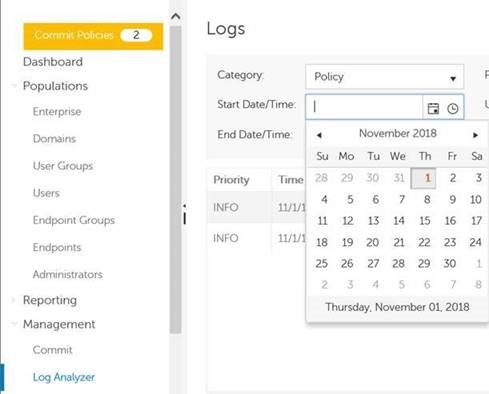
Figure 2: (English Only) Policy Commit Logs
- Press the Search button. The example below shows uncommitted changes of the Activate PBA policy:
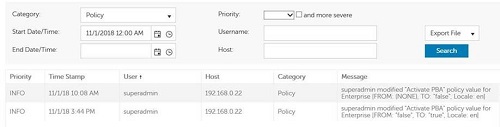
Figure 3: (English Only) Search
This report shows all policy changes. If the value set in Start Date\Time is before the last recorded Commit, then the pending policies will be only those after the last Policy Commit entry in the report as per screenshot below:
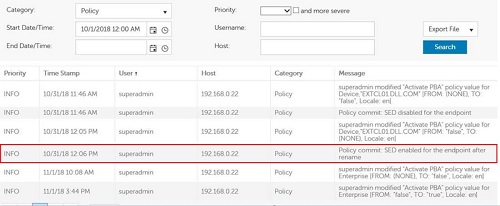
Figure 4: (English Only) Policy Commit log
To contact support, reference Dell Data Security International Support Phone Numbers.
Go to TechDirect to generate a technical support request online.
For additional insights and resources, join the Dell Security Community Forum.