Bluetooth省電力設定が接続の問題を引き起こしている
Resumen: この記事では、Windows 11で断続的に接続を失うBluetoothデバイスのトラブルシューティング方法について説明します。
Este artículo se aplica a
Este artículo no se aplica a
Este artículo no está vinculado a ningún producto específico.
No se identifican todas las versiones del producto en este artículo.
Instrucciones
Bluetoothデバイスは、Windowsコンピューターへの接続をランダムに失います。
BluetoothデバイスがWindowsコンピューターからランダムに切断されている場合は、Windows電源管理の節約機能が原因である可能性があります。
Windows電源管理の保存機能をオフにすると、問題が解決する場合があります。
Windows 11でBluetooth電源管理設定を変更する
- Windowsアイコンを右クリックし、[デバイス マネージャー]を選択します。
- Bluetoothの左側にある矢印をクリックして、セクションを開きます。
- Bluetoothアダプターを右クリックし、[プロパティ]を選択します(図1)。
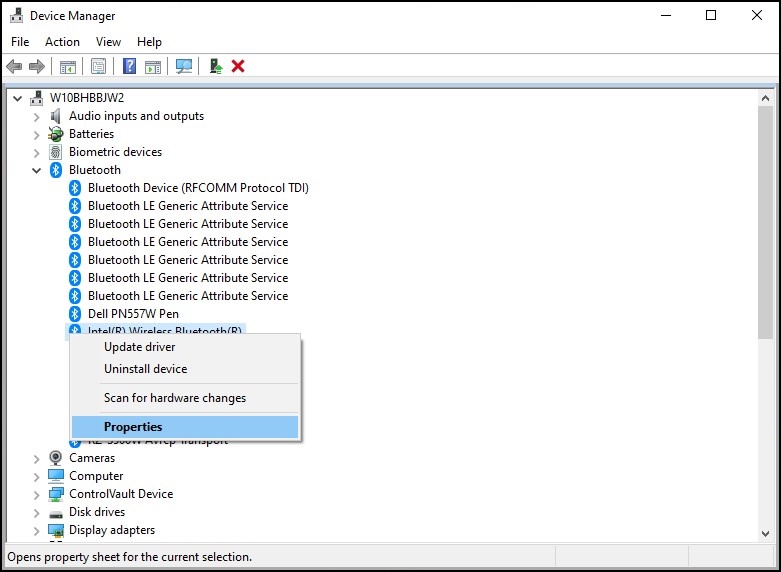
図1: Bluetooth デバイス ウィンドウ - アダプター Bluetoothウィンドウ(図2)が開きます。[電源管理]タブに移動し、[電力の節約のために、コンピューターでこのデバイスの電源をオフにできるようにする]の横のチェックボックスがオフになっていることを確認します。
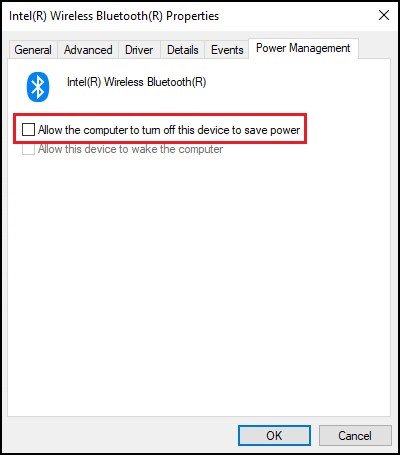
図2:Bluetoothデバイスのプロパティ ウィンドウ - [OK]をクリックします。
お使いのBluetoothデバイスで接続の問題が引き続き発生する場合は、 Bluetooth Not Working? ペアリングと検出の問題を解決する ライブラリページ。
Información adicional
Productos afectados
Alienware, Dell All-in-One, Dell Pro All-in-One, Dell Pro Max Micro, Dell Pro Max Slim, Dell Pro Max Tower, Dell Pro Micro, Dell Pro Slim, Dell Pro Tower, Dell Slim, Dell Tower, Inspiron, Legacy Desktop Models, OptiPlex, Vostro, XPS, G Series
, G Series, Alienware, Dell Plus, Dell Pro, Dell Pro Max, Dell Pro Plus, Dell Pro Premium, Inspiron, Latitude, Dell Pro Rugged, Vostro, XPS, Legacy Laptop Models, Fixed Workstations, Mobile Workstations, Dell Pro Max Micro XE FCM2250, Dell Pro Max Slim XE FCS1250, Dell Pro Max Tower T2 XE FCT2250, Dell Pro Micro Plus XE QBM1250, Dell Pro Slim Plus XE5 QBS1250, Dell Pro Tower Plus XE5 QBT1250
...
Propiedades del artículo
Número del artículo: 000122996
Tipo de artículo: How To
Última modificación: 13 May 2026
Versión: 15
Encuentre respuestas a sus preguntas de otros usuarios de Dell
Servicios de soporte
Compruebe si el dispositivo está cubierto por los servicios de soporte.