Alienware Command Center Application Quick Guide
Summary: Learn how to manage Alienware computer features, including AlienFX, AlienFusion, and more, using the Alienware Command Center application.
Instructions
The Alienware Command Center Package Manager is an exclusive software that integrates into a single interface application that is designed to control features of your Alienware computer. It comes preinstalled on your Alienware computer.
There is a different Command Center version for every Alienware computer, and each version enables different features depending on your computer model. See the Alienware Command Center Documentation for detailed information.
To download the correct version for your computer:
- Browse to Dell Drivers & Downloads.
- Identify your Dell product.
- Click Download & Install SupportAssist to auto-detect your Dell product. Follow the on-screen instructions to install Dell SupportAssist. For more information, reference SupportAssist for Home PCs: Overview and Common Questions.
- Or, enter the Service Tag, Express Service Code, or the Serial number of the Dell product and click Search.
- Or, click Browse all products to manually select your Dell product from the catalog.
- Click Find Drivers.
- Select the Operating System.
- Under Category, select Application.
- Locate the latest Alienware Command Center Application.
- Click Download and save the file to your computer.
- Open File Explorer (also known as Windows Explorer) and browse to the location where the downloaded file is saved.
- Double-click the Alienware Command Center Application setup file and follow the on-screen instructions to complete the installation process.
Affected Software:
- Alienware Command Center
Affected Platforms:
- All Alienware desktops and laptops
- All Dell G Series desktops and laptops
Note:
- Alienware Command Center works on any computer (if the computer meets the minimum requirements to install Alienware Command Center) to control lights and other settings with an Alienware gaming keyboard, mouse, or headset.
- Certain Alienware gaming peripherals are supported by Alienware Command Center. For more information about supported gaming peripherals, refer to Support for Alienware Command Center Manuals & Documents.
- For information about compatibility issues with Alienware peripherals, reference:
Alienware Command Center Support Videos
Learn how to install the Alienware Command Center on another computer like the Dell G Series or any other non-Alienware computer.
How to Install Alienware Command Center on non-Alienware systems
Duration: 00:02:51 (hh:mm:ss)
When available, closed caption (subtitles) language settings can be chosen using the Settings or CC icon on this video player.
Learn how to properly reinstall your Alienware Command Center.
How to Reinstall Alienware Command Center
Duration: 00:03:55 (hh:mm:ss)
When available, closed caption (subtitles) language settings can be chosen using the Settings or CC icon on this video player.
Discover the new Alienware Command Center software, an all in one stop for all your gaming needs. Inside you can control fans, monitor heat, and create overclocking profiles.
Alienware Command Center - Software Overview
Duration: 00:04:00 (hh:mm:ss)
When available, closed caption (subtitles) language settings can be chosen using the Settings or CC icon on this video player.
Learn how to browse the new Control Center application, configure macro keys, lights, and customizable presets. In this video, every screen for the mouse and keyboard is showcased.
Learn how to use the Macro Keys on an Alienware
Duration: 00:02:37 (hh:mm:ss)
When available, closed caption (subtitles) language settings can be chosen using the Settings or CC icon on this video player.
AlienFX and AlienFX 2.0
AlienFX lets you choose from an array of color and transition effects across multiple distinct zones on your computer and Alienware devices.
AlienFX 2.0 in Alienware Command Center version 5.0 and higher and offers a brand-new interface. Save new themes, assign them to your games and edit device settings with new AlienFX hardware and software featuring support for full RGB values and up to 16.8 million colors. Included is a new user interface to map and create new system-level effects so you can manage lighting and settings from the same controls. Select computers, and hardware also offer settings for individual or group keyboard key colors.
Alien Fusion
On Alienware Command Center versions below version 5.0, AlienFusion gives you access to your Alienware's power management controls so you can decide when you need maximum performance or when you can scale back for more everyday programs, increasing energy efficiency and extending battery life for laptops.
With the new Alienware Command Center (version 5.0 and higher), Fusion allows you to control the power settings, thermal controls, and audio settings, all in one place.
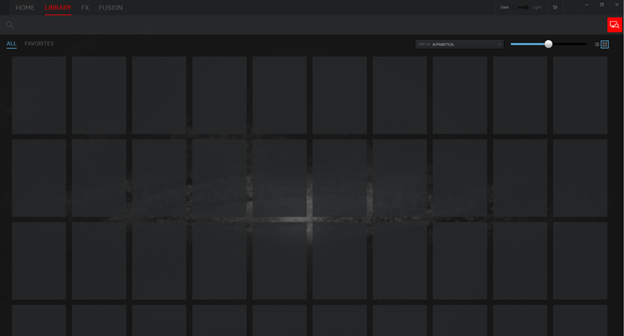
Game Library
The easy-to-use interface links all your various computer settings with a gaming library, making it simple to access gaming information. No matter what the source, the command center gives you access to your games and the ability to fine-tune settings for each one. Create a unique game profile and it stays how you want it, no matter where you launch.
AlienAdrenaline
With AlienAdrenaline you access:
-
Game Mode: Create profiles for each of your games to change the computer lighting, open VoIP programs, launch monitoring programs, and many other functions automatically when you launch your game.
-
Performance Monitoring: See real-time stats of your CPU, memory, video card, and WLAN. Record them in the background to review your computer performance.
-
Alienware Graphics Amplifier (select computers only): On computers supporting the Alienware Graphics Amplifier, you can see the connection status and also configure the behavior of the computer when disconnecting the Alienware Graphics Amplifier.
AlienTouch
AlienTouch allows you to change the touchpad settings on your Alienware laptop. Tapping, Sensitivity, and Virtual Scrolling are the options available under AlienTouch.
- Alienware 14
- Alienware 17 R1
- Alienware 18
- Alienware M11x (All)
- Alienware M14x (All)
- Alienware M15x
- Alienware M17x (All)
- Alienware M18x (All)
AlienTactX
AlienTactX allows you to change the settings for the macro keys. The TactX window allows you to change color schemes for the macro keys and set the shortcut options.
Thermal Controls
Thermal Controls give you access to your Alienware's management thermal computer controls so you can monitor thermal status, adjust thermal control of computer fans, and change the status of active venting.
For computers supporting Alienware Command Center version 5.0 and higher, you find the thermal controls under the Fusion tab.
OC Controls
OC Controls enable monitoring of the CPU, DRAM, and the Overclocking Profile.
- Alienware 15 R3
- Alienware 15 R4
- Alienware 17 R4
- Alienware 17 R5
- Alienware Area-51 R2
- Alienware Area-51 R3
- Alienware Area-51 R4
- Alienware Area-51 R5
- Alienware Area-51 R6
- Alienware Aurora R5
- Alienware Aurora R6
- Alienware Aurora R7
AlienSense
AlienSense is a face detection program that allows you to log in to your computer through face detection and set up other functions such as user switch and lock the computer when you are away.
- Alienware M11x R1
- Alienware M15x
- Alienware M17x R1
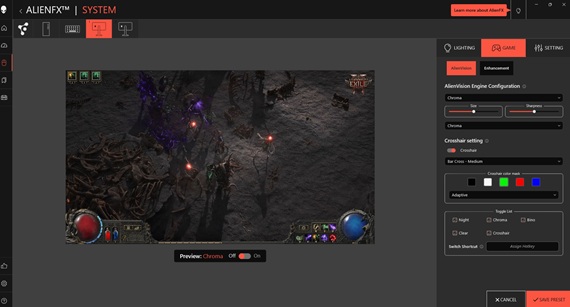
How to Create a Custom Crosshair
- From Alienware Command Center, go to the FX tab.
- Select a supported Alienware monitor.
- In the upper-right, click the GAME tab and then modify the custom crosshair.
How to Create a Theme
- From the GAMES section on the right side of the HOME window, select the game for which a theme should be created.
- On the left side of the HOME window, click Create theme. The FX window is displayed.
- In the CREATE NEW THEME text box at the top-left corner of the window, type the theme name.
- On the device image, select one or more zones to adjust the lighting. One or more zones can be selected in one of the following ways:
- Click the zone itself or the numbered call-outs on the device.
- Click the quick select option to select the zones.
- In the left panel, click the LIGHTING tab and assign the lighting color to the theme using one of the following options.
- Select the different types of effects from the EFFECT drop-down list.
- Click the RGB values radio button.
- Enter the RGB values to select the required color.
- Click the SAVE THEME button.
- The "Theme saved successfully!" message is displayed.
How to Apply Themes to Games
- Click FX to open the FX window.
- From the THEMES section, select the theme that you want to apply to a game.
- Click the Edit theme button.
- Click the CHOOSE GAME at the top of the left panel. Select the game from the displayed list and click the OK button.
- Click the SAVE THEME button.
- The "Theme saved successfully!" message is displayed.
How to Create Macros
- In the FX Control Panel, click the MACROS tab.
- On the right side of the HOME window, click the Create macro button.
- Click the + button to create a new macro.
- Enter the name of the macro.
- Scroll to the MACRO tab and click the recording button.
- Perform the actions that you want to assign to the macro.
- Click the stop button.
- Click the Save button.
How to Browse Macros
- Click the Edit theme button on the right side of the HOME window.
- Click the -find button.
- Enter the name of the theme that to duplicate and then click the Search button.
- Select the theme to duplicate.
- Copy the macro to duplicate.
- Paste the macro into the new macro that you created.
- Customize the macro as necessary.
- Click the Save button.
How to Edit Themes
- Select the theme to edit and then click the Edit theme button.
- Enter the name of the theme.
- Select the devices and the profiles to save.
- Click the Save button.
How to Duplicate Themes
- Select the theme to duplicate and then click the Edit theme button.
- Click the duplicate button. A copy of the original theme is created.
How to Delete Themes
- Select the theme to delete and then click the Edit theme button.
- Click the delete button. A message appears that asks for confirmation to delete the theme.
How to Create Overclock Profiles
- Click the overclocking icon button.
- Click the overclocking button.
- Enter a name for the profile.
- Click the OK button.
- Click the Save button.
How to Assign Overclock Profiles to a Computer
- Click the overclocking button.
- Click the override button.
- Enter the service tag of the computer in the SafeNet workbook, when prompted, to link the overclock profile to the computer for a secured online operation.
- Click the OK button.
How to Duplicate Overclock Profiles
- Right-click the profile to duplicate and then select the Duplicate option. The Duplicate Profile dialog box is displayed.
- Click the Save button.
- The duplicate overclock profile is displayed in the overclock profile list.
How to Revert Overclock Profile Settings
- Click the overclocking icon button.
- Click the revert button to revert to the previously saved overclock settings. The changes are applied to your computer.
- Click the OK button.
How to Create Thermal Profiles
- From the FUSION window, click the NEW PROFILE icon to create a thermal profile.
- Enter a name for the thermal profile.
- Click the override button.
- Enter the service tag of the computer in the SafeNet workbook.
- Click the OK button.
How to Create Power Profiles
- From the FUSION window, click the power icon to create a power profile.
- Select the computer.
- Enter a name for the power profile.
- Click the OK button.
- Save the changes.
How to Create Audio Profiles
- From the FUSION window, click the NEW PROFILE icon to create an audio profile.
- Select the audio profile.
- Enter a name for the audio profile.
- Click the OK button.
- Save the changes.
How to Create Audio Recon Profiles
- From the FUSION window, click the audio icon.
- Select the audio recon profile.
- Enter a name for the audio recon profile.
- Click the OK button.
- Save the changes.
How to Edit Audio Recon Profiles
- From the FUSION window, click the audio icon.
- Select the audio recon profile.
- Enter a name for the audio recon profile.
- Click the OK button.
- Save the changes.
How to Delete Binary Profiles
- From the FUSION window, click the audio icon.
- Select the binary profile.
- Click the revert button.
- Enter the reason for deleting the binary profile.
- Click the OK button.
How to Duplicate Binary Profiles
Right-click the binary profile and select the Copy option.
Procedure for reverting binary profile settings
Right-click the binary profile and select the Revert option.
Other Resources
See these Dell knowledge base articles for related information: