How to Collect Logs for Dell Security Management Server Virtual
Summary: Learn how to collect logs for Dell Security Management Server Virtual by following these step-by-step instructions.
Instructions
This article covers how to collect logs for Dell Security Management Server Virtual (formerly known as Dell Data Protection Virtual Edition).
Affected Products:
- Dell Security Management Server Virtual
- Dell Data Protection Virtual Edition
Affected Operating Systems:
- Linux
The log collection process for Dell Security Management Server Virtual varies between versions. Select the appropriate instructions for either v9.11.0 and Later or v8.2.0 to 9.10.1 for more information. For versioning information, reference How to Identify the Dell Data Security Server Version.
v9.11.0 and Later
Dell Security Management Server Virtual requires an administrator to Capture Logs before Collecting. Select the appropriate action for more information.
Capture Logs
- Log in to the Dell Security Management Server Virtual administration console using the default administrator (
delluser) credentials. Note:
Note:- The default credentials for Dell Data Protection Enterprise Server Virtual Edition are:
- Username:
delluser - Password:
delluser
- Username:
- An administrator can change the default password within the product’s virtual appliance menu.
- The default credentials for Dell Data Protection Enterprise Server Virtual Edition are:
- On the Main Menu, select Support Tools and then press Enter.
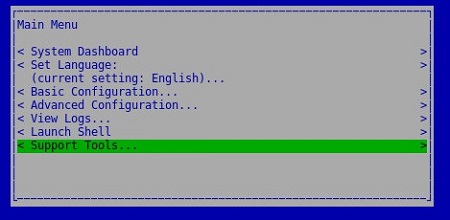 Note:
Note:- The Linux virtual appliance is not designed to be used with a mouse. Use arrow keys to navigate the appliance.
- The virtual appliance restricts mouse and keyboard access to external windows. To release the mouse and keyboard lock, press CTRL + ALT.
- Select Generate System Snapshot Log and then press Enter.
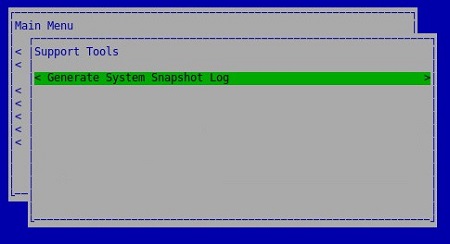
- On successful collection of the log, select OK and then press Enter.
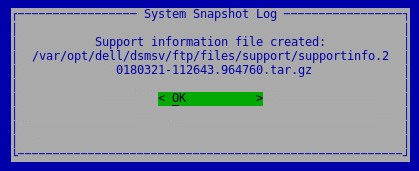 Note: Make a note of the file name (based on timestamp).
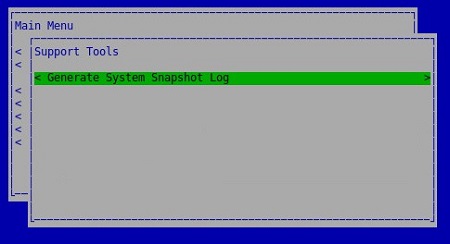
 - Press ESC to return to the Main Menu.
Collect Logs
To successfully offload logs, Dell Security Management Server Virtual requires:
- A third-party FTP (file transfer protocol) client
- Examples of an FTP client include (but are not limited to):
- Filezilla
- WinSCP
- CuteFTP
- Examples of an FTP client include (but are not limited to):
- A storage device (outside of the Dell Security Management Server Virtual)
- In the FTP client, log in with an FTP user to the Dell Security Management Server Virtual.
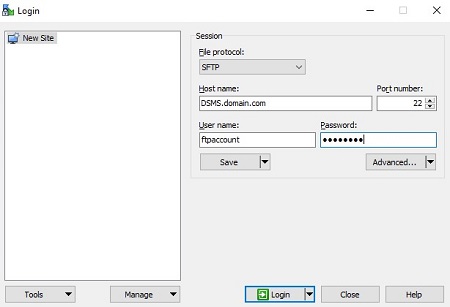 Note:
Note:- An FTP User must be created within the Dell Security Management Server. Reference How to Create an FTP User in Dell Security Management Server Virtual for more information.
- Dell does not endorse or support any listed third-party product. The listed clients are meant to be an example of potential products that can be used. Contact the product’s manufacturer for information about setup, configuration, and management.
- Your FTP client UI may differ from the screenshot examples.
- The default port for SFTP is 22. If the connection fails, ensure that firewalls are not blocking port 22.
- Go to the captured log (
/var/opt/dell/dsmsv/ftp/files/support) and save the bundle locally.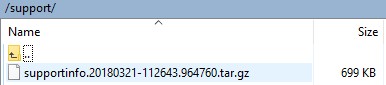 Note: The TAR file log bundle requires a file archival program (such as WinZip, WinRAR, 7-Zip) to be read.
v8.2.0 to 9.10.1
Dell Security Management Server Virtual requires an administrator to Capture Logs before Collecting. Select the appropriate action for more information.
Capture Logs
- Log in to the Dell Enterprise Server Virtual administration console using the default administrator (
ddpuser) credentials. Note:
Note:- The default credentials for Dell Data Protection Enterprise Server Virtual Edition are:
- Username:
ddpuser - Password:
ddpuser
- Username:
- An administrator can change the default password within the product’s virtual appliance menu.
- The default credentials for Dell Data Protection Enterprise Server Virtual Edition are:
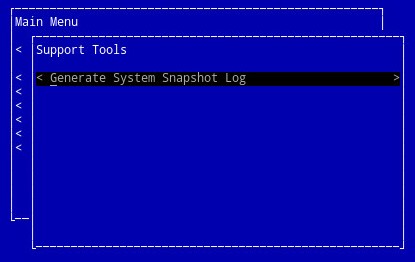
- On the Main Menu, select Support Tools and then press Enter.
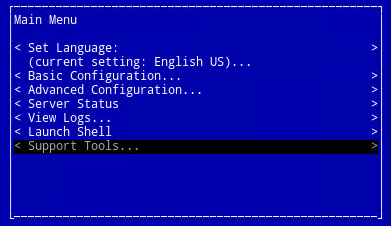 Note:
Note:- The Linux virtual appliance is not designed to be used with a mouse. Use arrow keys to navigate the appliance.
- The virtual appliance restricts mouse and keyboard access to external windows. To release the mouse and keyboard lock, press CTRL + ALT.
- Select Generate System Snapshot Log and then press Enter.
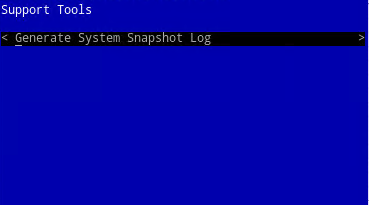
- On successful collection of the log, select OK and then press Enter.
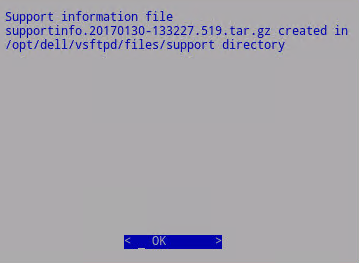 Note: Make a note of the file name (based on timestamp).
 - Press ESC.
Collect Logs
To successfully offload logs, Dell Security Management Server Virtual requires:
- A third-party FTP (file transfer protocol) client
- Examples of an FTP client include (but are not limited to):
- Filezilla
- WinSCP
- CuteFTP
- Examples of an FTP client include (but are not limited to):
- A storage device (outside of the Dell Security Management Server Virtual)
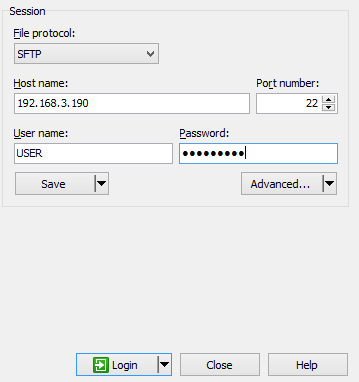
- In the FTP client, log in with an FTP user to the Dell Security Management Server Virtual.
 Note:
Note:- An FTP User must be created within the Dell Security Management Server. Reference How to Create an FTP User in Dell Security Management Server Virtual for more information.
- Dell does not endorse or support any of the listed third-party products. The listed clients are meant to be an example of potential products that can be used. Contact the product’s manufacturer for information about setup, configuration, and management.
- Your FTP client UI may differ from the screenshot examples.
- The default port for SFTP is 22. If the connection fails, ensure that firewalls are not blocking port 22.
- Go to the captured log (
/opt/dell/vsftpd/files/support) and save the bundle locally.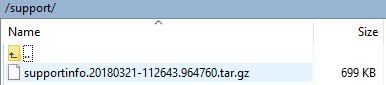 Note: The TAR file log bundle requires a file archival program (such as WinZip, WinRAR, 7-Zip) to be read.
To contact support, reference Dell Data Security International Support Phone Numbers.
Go to TechDirect to generate a technical support request online.
For additional insights and resources, join the Dell Security Community Forum.