Resolving Faxing Issues
Summary: Follow the instruction for help with resolving faxing issues.
This article applies to
This article does not apply to
This article is not tied to any specific product.
Not all product versions are identified in this article.
Symptoms
Table of Contents:
This article provides information about how to resolve Faxing issues.
1. Resolving Faxing Issues
- Verify the phone number.
- When dialing 9 is necessary to make a phone call, it may be necessary to dial 9 as well to send a fax.
- Try faxing to a different fax machine.
- Have someone fax your machine.
- Ensure it is a 4 line phone cord and not a 2 line phone cord.
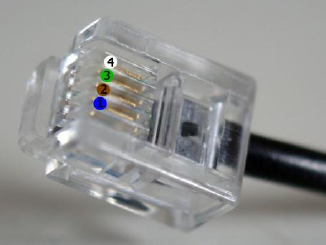
Figure 1: 4 Line Phone Cord
- Ensure that you are plugging the phone cord directly from the wall to the printer.

Figure 2: Phone Line Connected to Wall and Fax.
- Remove any answering machines, credit card machines, or multiple filters from the telephone line and try faxing.
- Verify Line Type and Mode.
- Fax Mode: Answers all calls made to this line (good for a dedicated line)
- Tel Mode: Only answers Fax's if you tell it to (you do this by picking up the handset hooked directly on the fax machine, and make sure On Hook Dial is enabled or Yes, and when you start to hear tones you press the start button on the Fax)
- Ans/Fax Mode: The Fax machine monitors the line to see if it is a Fax tone, to know whether to answer it or not, this mode will not work if a Serial Phone Connection is used.
- DRPD (Distinctive Ring Pattern Detection): Has to be installed by the phone company, basically the Fax will only pick up if it gets the Ring tone it is looking for.
2. Downloading and Viewing Printer Manuals
- Refer to the printer manual for additional troubleshooting steps.
- For additional information about accessing the printer's manual, refer to the Downloading and Viewing Printer Manuals section.
- Browse to the Dell Product Selector page.
- Under Enter your Service Tag, enter your printer's Service Tag to get a concise list of drivers and manuals for your specific product model. Click Submit to continue.
Note: For information about how to locate your printer Service Tag refer to the Dell Knowledge Base article How to Find the Service tag on a Dell Printer.Note: If the Service Tag is not available:
- Click Printers.
- Click Mono Laser Printers, Color Laser Printers, or All-In-One Inkjet Printers.
- Select your printer model (the model number of your printer is shown on the front of the printer).
- Click Manuals.
- Click PDF to the right of the manual that you want.
Note:
- If one or more manuals are available in other languages, a More Languages option shows.
- A PDF reader (called Acrobat) is available for free from Adobe.
Cause
N/A
Resolution
N/A
Affected Products
MultiFunction Printers, Dell 5535dn Mono Laser MFP, Dell 810 All In One Inkjet Printer, Dell A920 All In One Personal Printer, Dell 922 All In One Photo Printer, Dell 924 All-in-One Photo Printer, Dell 926 All In One Inkjet Printer
, Dell 928 All In One Inkjet Printer, Dell A940 All In One Personal Printer, Dell 942 All In One Inkjet Printer, Dell 944 All In One Inkjet Printer, Dell 946 All In One Printer, Dell 948 All In One Printer, Dell 948w All In One Photo Printer, Dell A960 All In One Personal Printer, Dell 962 All In One Photo Printer, Dell 964 All In One Photo Printer, Dell 966 All In One Inkjet Printer, Dell 968 All In One Photo Printer, Dell 968w All In One Wireless Photo Printer, Dell B1265dnf Mono Laser Printer MFP, Dell B5465dnf Mono Laser Printer MFP, Dell C1765NF MFP Laser Printer, Dell C1765NFW MFP Laser Printer, Dell C5765DN MFP Color Laser Printer, Dell C7765DN MFP Color Laser Printer, Dell H625cdw Cloud MFP Laser Printer, Dell H815dw Cloud MFP Printer, Dell H825cdw Cloud MFP Laser Printer, Dell 1125 Mono Laser MFP, Dell P513w All In One Photo Printer, Dell P703w All In One Photo Printer, Dell P713w All In One Photo Printer, Dell S2815dn Smart MFP printer, Dell S2825cdn Smart MFP Laser Printer, Dell V105 All In One Inkjet Printer, Dell V305 All In One Inkjet Printer, Dell V305w All In One Wireless Inkjet Printer, Dell V313 All In One Inkjet Printer, Dell V313w All In One Wireless Inkjet Printer, Dell V505 All In One Inkjet Printer, Dell V505w All In One Wireless Inkjet Printer, Dell V515w All In One Wireless Inkjet Printer, Dell V525w All In One Wireless Inkjet Printer, Dell V715w All In One Wireless Inkjet Printer, Dell V725w All In One Wireless Inkjet Printer
...
Article Properties
Article Number: 000136002
Article Type: Solution
Last Modified: 21 Aug 2025
Version: 7
Find answers to your questions from other Dell users
Support Services
Check if your device is covered by Support Services.