How to Upgrade Dell Security Management Server Virtual
Summary: Dell Security Management Server Virtual and Dell Data Protection Virtual Edition can be upgraded by following these step-by-step instructions.
Instructions
This article covers how to upgrade Dell Security Management Server Virtual (formerly Dell Data Protection Virtual Edition).
Affected Products:
- Dell Security Management Server Virtual
- Dell Data Protection Virtual Edition
Affected Operating Systems:
- Linux
act.credant.com.
The upgrade of Dell Security Management Server Virtual varies between versions:
- v11.6.0
- v10.2.13.14 to 11.5.0
- v10.2.13.13
- v9.11.0 to 10.2.12
- v9.10.1
- v9.8.2 to 9.10.0
- v8.2.0 to 9.7.0
Click the Dell Security Management Server Virtual version running in your environment for specific steps. For versioning information, reference How to Identify the Dell Data Security Server Version.
- In-place upgrades update Dell Security Management Server Virtual to the latest version using a supported upgrade path. The version list below is only used to show upgrade instructions for the version of Dell Security Management Server Virtual running in your environment. It does not imply supported upgrade paths.
- For supported upgrade paths, reference the Upgrade information of Dell Security Management Server Virtual System Requirements.
- Before upgrading, ensure that the environment meets Dell Security Management Server Virtual System Requirements.
v11.6.0
Version 11.6.0 requires a manual upgrade to version 11.7.0 or later.
- On your current Dell Security Management Server Virtual:
- Stop services.
- Create a backup.
- Offload the backup to an external location.
- Shut down the Dell Security Management Server Virtual instance.
Note:- For more information, reference How to Stop and Start Services in Dell Security Management Server Virtual.
- For more information, reference How to Back Up and Restore Dell Security Management Server Virtual.
- Install a new instance of Dell Security Management Server Virtual v11.7.0.
Note: For more information, reference How to Install Dell Security Management Server Virtual.
- Upload the backup (Step 1C) to the new instance of Dell Security Management Server Virtual.
Note: SFTP must be enabled to load the backup. For more information, reference How to Create an FTP User in Dell Security Management Server Virtual.
- On the new instance of Dell Security Management Server Virtual, restore the backup from Step 3.
- Once the new instance has been tested and verified, decommission the legacy Dell Security Management Server Virtual from Step 1.
v10.2.13.14 to 11.5.0
- Log in to the Dell Enterprise Server Virtual administration console.
 Note:
Note:- The default credentials for Dell Security Management Server Virtual are:
- Username:
delluser - Password:
delluser
- Username:
- An administrator can change the default password within the product’s virtual appliance menu.
- The default credentials for Dell Security Management Server Virtual are:
- From the Main Menu, select Basic Configuration and then press Enter.
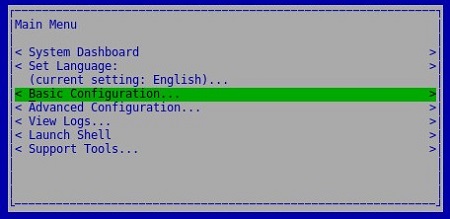
- Select Update Dell Security Management Server Virtual and then press Enter.
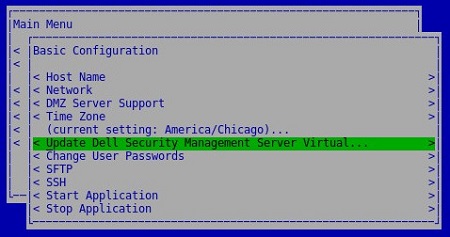
- Select Install Updates and then press Enter.
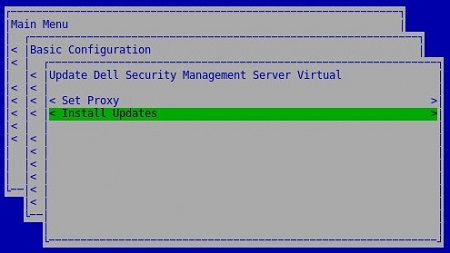
- Select Yes and then press Enter.

- Select Yes and then press Enter.
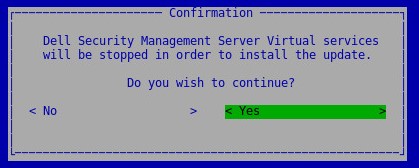
- From the database access menu:
- Optionally, enable remote access for IPv4.
- Optionally, enable remote access for IPv6.
- Enter the new database password.
- Confirm the new database password.
- Select Reboot Appliance and then press Enter.

The server upgrade can be confirmed by seeing the new version on the top of the administration console.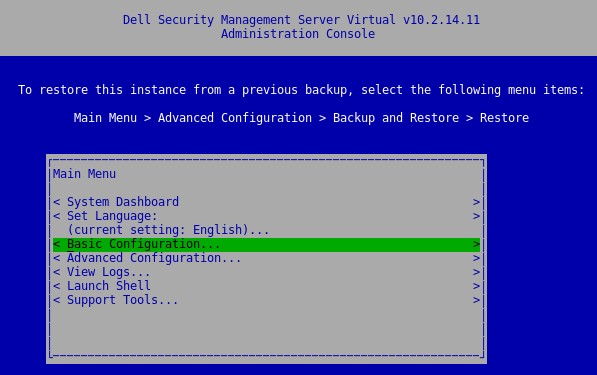
v10.2.13.13
Version 10.2.13.13 requires a manual upgrade to version 10.2.13.14 or later.
- On your current Dell Security Management Server Virtual:
- Stop services.
- Create a backup.
- Offload the backup to an external location.
- Shut down the Dell Security Management Server Virtual instance.
Note:- For more information, reference How to Stop and Start Services in Dell Security Management Server Virtual.
- For more information, reference How to Back Up and Restore Dell Security Management Server Virtual.
- Install a new instance of Dell Security Management Server Virtual v10.2.13.14 or later.
Note: For more information, reference How to Install Dell Security Management Server Virtual.
- Upload the backup (Step 1C) to the new instance of Dell Security Management Server Virtual.
Note: SFTP must be enabled to load the backup. For more information, reference How to Create an FTP User in Dell Security Management Server Virtual.
- On the new instance of Dell Security Management Server Virtual, restore the backup from Step 3.
- Once the new instance has been tested and verified, decommission the legacy Dell Security Management Server Virtual from Step 1.
v9.11.0 to 10.2.12
- Log in to the Dell Enterprise Server Virtual administration console.
 Note:
Note:- The default credentials for Dell Security Management Server Virtual are:
- Username:
delluser - Password:
delluser
- Username:
- An administrator can change the default password within the product’s virtual appliance menu.
- The default credentials for Dell Security Management Server Virtual are:
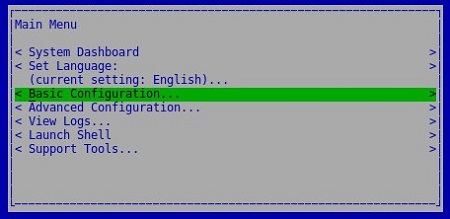
- From the Main Menu, select Basic Configuration and then press Enter.
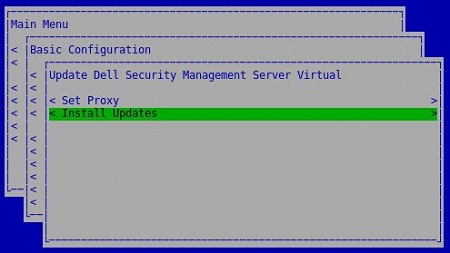
- Select Update Dell Security Management Server Virtual and then press Enter.

- Select Install Updates and then press Enter.
- Select Yes and then press Enter.

- Select Yes and then press Enter.

- If the installation becomes unresponsive, press Enter.
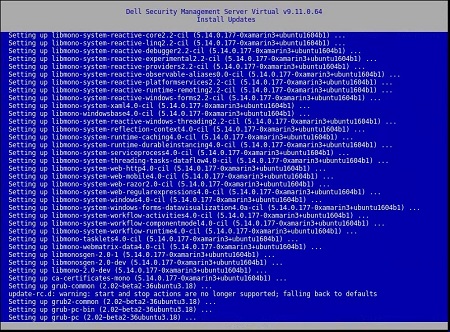 Note: For more information, reference Upgrading Dell Security Management Server Virtual Appears to Stop Responding.
 - From the database access menu:
- Optionally, enable remote access for IPv4.
- Optionally, enable remote access for IPv6.
- Enter the new database password.
- Confirm the new database password.
- Select Reboot Appliance and then press Enter.

v9.10.1
Version 9.10.1 requires a manual upgrade to version 9.11 through 10.2.13.14.
Dell Data Security - Security Management Server Virtual 9.10.1 to 9.11 Upgrade
Duration: 00:08:38 (hh:mm:ss)
When available, closed caption (subtitles) language settings can be chosen using the CC icon on this video player.
- On your current Dell Security Management Server Virtual:
- Stop services.
- Create a backup.
- Offload the backup to an external location.
- Shut down the Dell Security Management Server Virtual instance.
Note:- For more information, reference How to Stop and Start Services in Dell Security Management Server Virtual.
- For more information, reference How to Back Up and Restore Dell Security Management Server Virtual.
- Install a new instance of Dell Security Management Server Virtual v9.11 to 10.2.13.14.
Note: For more information, reference How to Install Dell Security Management Server Virtual.
- Upload the backup (Step 1C) to the new instance of Dell Security Management Server Virtual.
Note: SFTP must be enabled to load the backup. For more information, reference How to Create an FTP User in Dell Security Management Server Virtual.
- On the new instance of Dell Security Management Server Virtual, restore the backup from Step 3.
- Once the new instance has been tested and verified, decommission the legacy Dell Security Management Server Virtual from Step 1.
v9.8.2 to 9.10.0
For more information, click either Download or Install.
Download
- Log in to the Dell Enterprise Server Virtual administration console.
 Note:
Note:- The default credentials for Dell Data Protection Enterprise Server Virtual Edition are:
- Username:
ddpuser - Password:
ddpuser
- Username:
- An administrator can change the default password within the product’s virtual appliance menu.
- The default credentials for Dell Data Protection Enterprise Server Virtual Edition are:
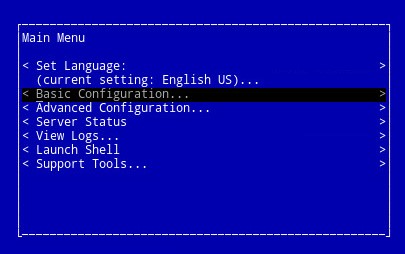
- From the Main Menu, select Basic Configuration and then press Enter.
- Select Update Dell Security Management Server Virtual and then press Enter.
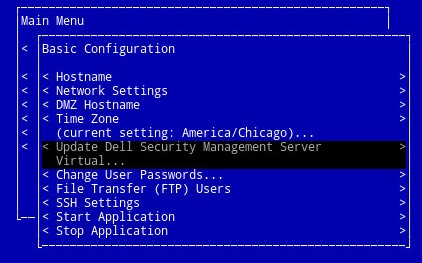
- Select Download Update and then press Enter.

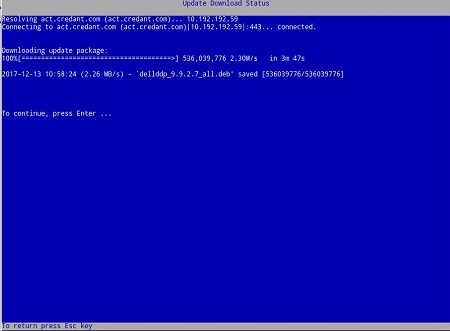
- Once the download is complete, press Enter to continue.
Install
- Log in to the Dell Enterprise Server Virtual administration console.
 Note:
Note:- The default credentials for Dell Data Protection Enterprise Server Virtual Edition are:
- Username:
ddpuser - Password:
ddpuser
- Username:
- An administrator can change the default password within the product’s virtual appliance menu.
- The default credentials for Dell Data Protection Enterprise Server Virtual Edition are:
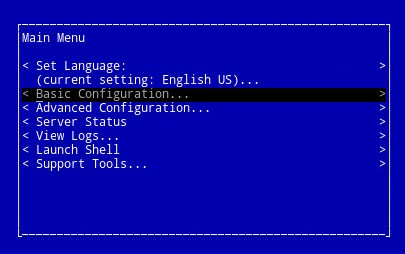
- From the Main Menu, select Basic Configuration and then press Enter.
- Select Update Dell Security Management Server Virtual and then press Enter.
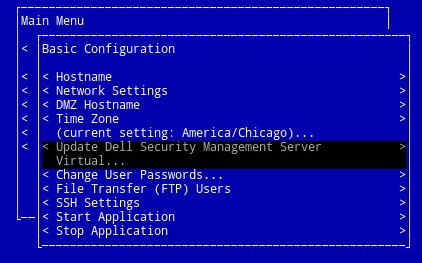
- Select Apply Update and then press Enter.
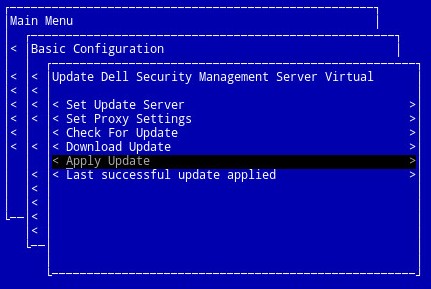
- Select an update file to be installed and then press Enter.
 Note:
Note:- The update file may vary based on the above example.
- A "pending policy commit detected" error may occur after selecting the update file. To resolve the issue, reference How to Commit Policies for Dell Data Security Servers. Once resolved, restart the Install Update steps.
- Upon successful installation, the server automatically reboots itself.
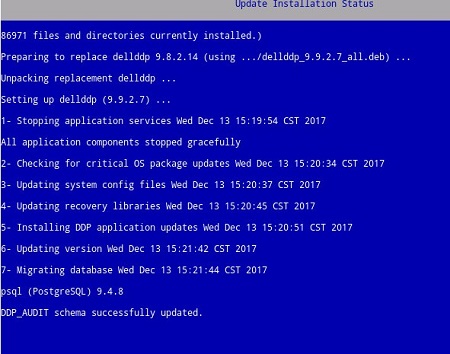
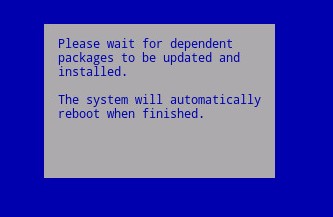 Note: The Update Installation Status example may differ based on your version.
 - Log in to the server.

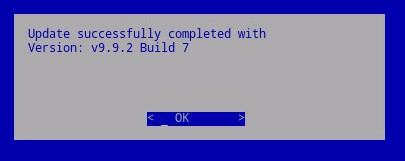
- On login, the server update is confirmed. Press Enter on OK to return to the Administration Console.
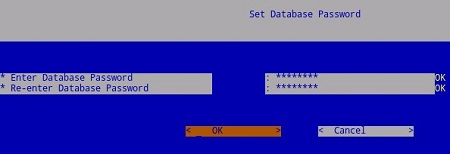
- Enter and then reenter the new Database Password. Once populated, select OK, and then press Enter.
v8.2.0 to 9.7.0
For more information, click either Download or Install.
Download
- Log in to the Dell Enterprise Server Virtual administration console.
 Note:
Note:- The default credentials for Dell Data Protection Enterprise Server Virtual Edition are:
- Username:
ddpuser - Password:
ddpuser
- Username:
- An administrator can change the default password within the product’s virtual appliance menu.
- The default credentials for Dell Data Protection Enterprise Server Virtual Edition are:
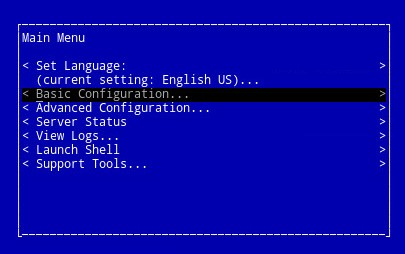
- From the Main Menu, select Basic Configuration and then press Enter.
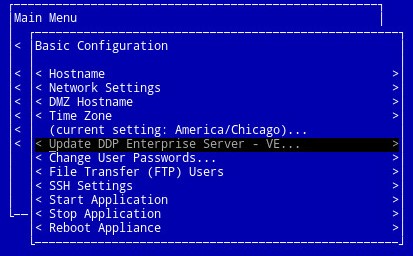
- Select Update DDP Enterprise Server - VE, then press Enter.
- Select Download Update and then press Enter.
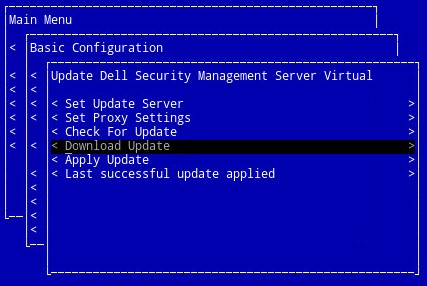
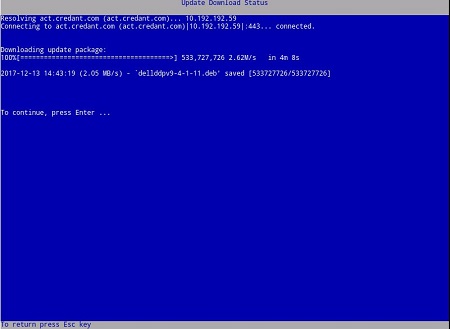
- Once the download is complete, press Enter to continue.
Install
- Log in to the Dell Enterprise Server Virtual administration console.
 Note:
Note:- The default credentials for Dell Data Protection Enterprise Server Virtual Edition are:
- Username:
ddpuser - Password:
ddpuser
- Username:
- An administrator can change the default password within the product’s virtual appliance menu.
- The default credentials for Dell Data Protection Enterprise Server Virtual Edition are:
- From the Main Menu, select Basic Configuration and then press Enter.
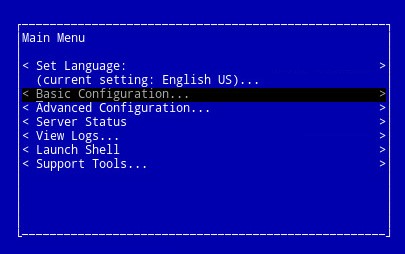
- Select Update DDP Enterprise Server - VE, then press Enter.
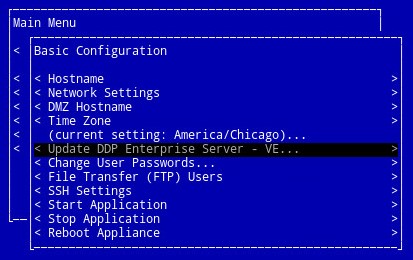
- Select Apply Update and then press Enter.
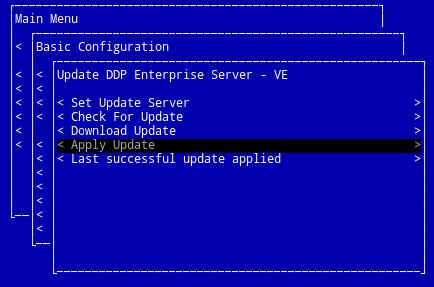
- Select an update file to be installed and press Enter.
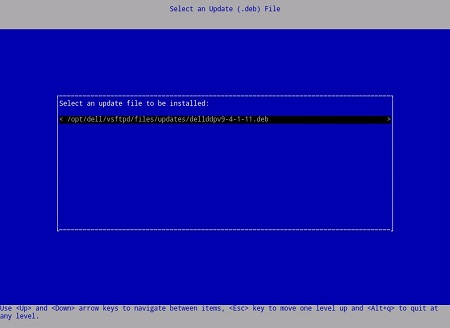 Note:
Note:- The update file may vary based on the above example.
- A "pending policy commit detected" error may occur after selecting the update file. To resolve the issue, reference How to Commit Policies for Dell Data Security Servers. Once resolved, restart the Install Update steps.
- Upon successful installation, the server automatically reboots itself.
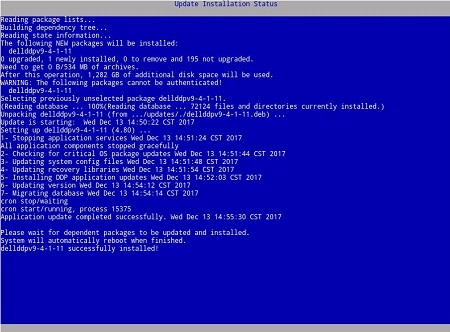
- Log in to the server.

- The server update can be confirmed by seeing the new version on the top of the administration console.

To contact support, reference Dell Data Security International Support Phone Numbers.
Go to TechDirect to generate a technical support request online.
For additional insights and resources, join the Dell Security Community Forum.