NetWorker: AD over SSL (LDAPS) NetWorker Login Fails With HTTP 404 or HTTP 500
Summary: You have created or updated an external authority in the NetWorker Management Console (NMC) for Active Directory (AD) using the "LDAP over SSL" option. The configuration succeeded, but AD logins fail with HTTP 404 or HTTP 500. This issue occurs because the LDAP over SSL option sets an internal authc flag "Is active directory" to "false." This option must be set to "true" when the authentication method is active directory. ...
Symptoms
- You have created or updated an external authority in the NetWorker Management Console (NMC) for Active Directory (AD) using the "LDAP over SSL" option. The configuration succeeded.
- NetWorker AD authentication fails with one of the following errors:
-
- POST failed with HTTP-ERROR: 500 (Internal server error)
- POST failed with HTTP-ERROR: 404 (Could not parse server-response from JSON string)
- Local NetWorker user accounts (such as the default Administrator account) successfully log in to the NMC.
Cause
The LDAP over SSL option defaults an internal configuration parameter "is active directory" to false. This means that the configuration expects LDAP server (Linux based LDAP servers) configuration parameters. Since the values set in the Advanced Configuration Parameters are AD-specific, the login fails.
The following commands on the NetWorker server determine if this is occurring:
authc_config -u Administrator -e find-all-configsauthc_config -u Administrator -e find-config -D config-id=CONFIG-ID#
Example:
[root@nsr ~]# authc_config -u Administrator -e find-all-configs
Enter password:
The query returns 1 records.
Config Id Config Name
1         AD

[root@nsr ~]# authc_config -u Administrator -e find-config -D config-id=1
Enter password:
Config Id                    : 1
Config Tenant Id             : 1
Config Name                  : AD
Config Domain                : amer.lan
Config Server Address        : ldaps://dc.amer.lan:636/dc=amer,dc=lan
Config User DN               : cn=Administrator,cn=users,dc=amer,dc=lan
Config User Group Attribute  :
Config User ID Attribute     : sAmAccountName
Config User Object Class     : person
Config User Search Filter    :
Config User Search Path      :
Config Group Member Attribute: member
Config Group Name Attribute  : cn
Config Group Object Class    : group
Config Group Search Filter   :
Config Group Search Path     :
Config Object Class          : objectclass
Is Active Directory          : false
Config Search Subtree        : true
Resolution
There are two options available.
Option 1:
Use the NetWorker Web User Interface (NWUI) update the configuration to use AD over SSL.
https://NetWorker_ServerName:9090/nwui
2. Log in as the default NetWorker Administrator account.
3. Go to Authentication Server->External Authorities.
4. Select the external authority repository and click Edit.
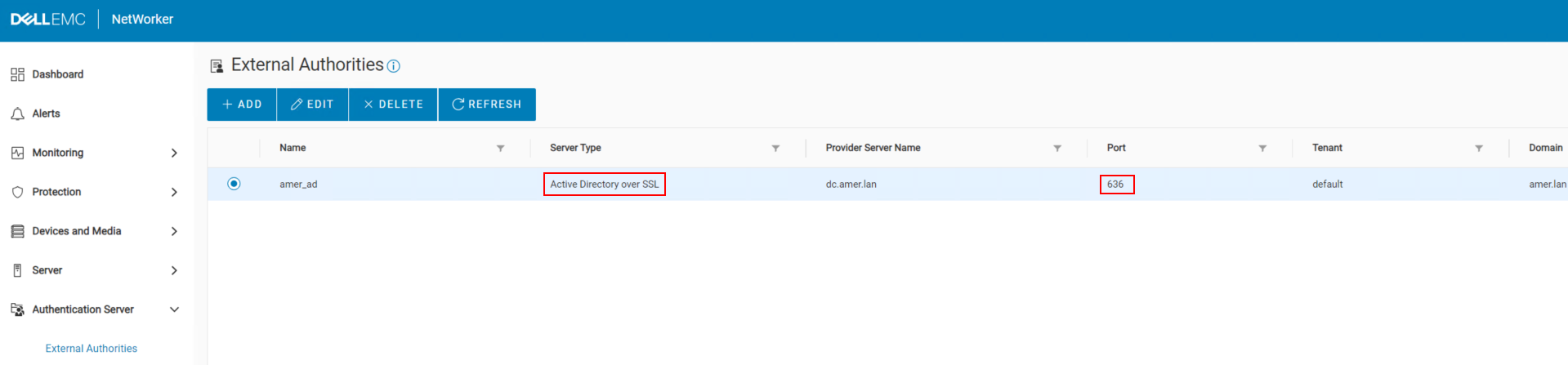
5. In the Basic Configuration tab, select AD over SSL from the Server Type drop-down.
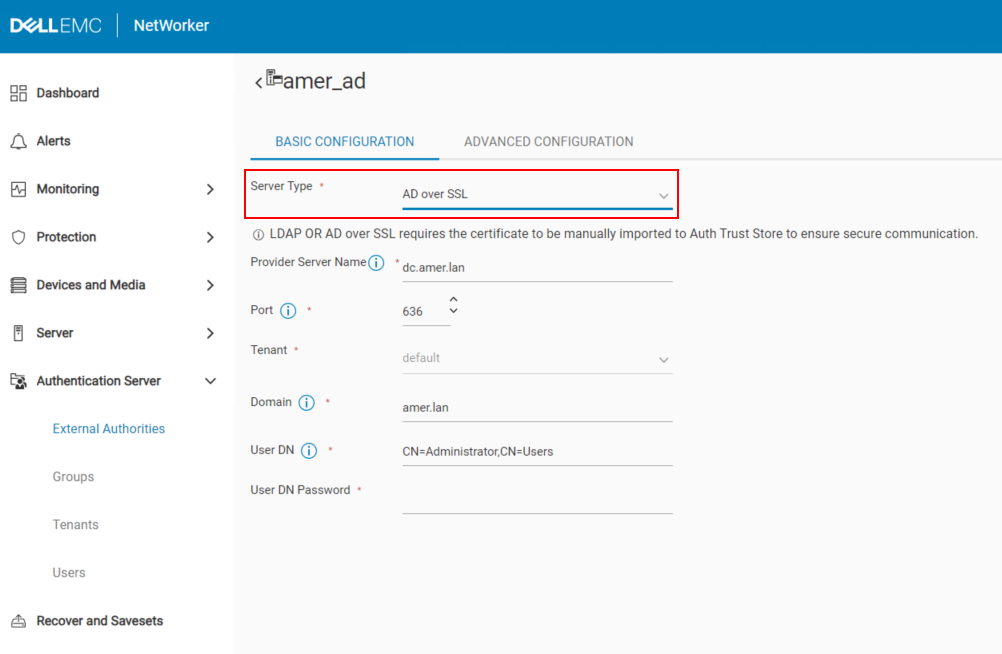
6. Enter the User DN Password and click Save.
Option 2:
Update the configuration using the authc_config command to set "is active directory : True"
1. Collect your config id:
authc_config -u Administrator -e find-all-configs
2. Update the "is active directory" value to equal true:
authc_config -u Administrator -e update-config -D config-id=CONFIG_ID -D config-user-dn-password=BIND_ACCOUNT_PASSWORD -D config-active-directory=y
- You are prompted to enter the NetWorker Administrator account password (hidden).
- Replace
CONFIG_IDwith theconfig idshown in step 1. - Replace
BIND_ACCOUNT_PASSWORDwith the password for the account used to add AD to NetWorker.
authc_config -u Administrator -e find-config -D config-id=CONFIG_ID
[root@nsr ~]# authc_config -u Administrator -e update-config -D config-id=1 -D config-user-dn-password='!Password1' -D config-active-directory=y
Enter password:
Configuration AD is updated successfully.

[root@nsr ~]# authc_config -u Administrator -e find-config -D config-id=1
Enter password:
Config Id                    : 1
Config Tenant Id             : 1
Config Name                  : AD
Config Domain                : amer.lan
Config Server Address        : ldaps://dc.amer.lan:636/dc=amer,dc=lan
Config User DN               : cn=Administrator,cn=users,dc=amer,dc=lan
Config User Group Attribute  :
Config User ID Attribute     : sAmAccountName
Config User Object Class     : person
Config User Search Filter    :
Config User Search Path      :
Config Group Member Attribute: member
Config Group Name Attribute  : cn
Config Group Object Class    : group
Config Group Search Filter   :
Config Group Search Path     :
Config Object Class          : objectclass
Is Active Directory          : true
Config Search Subtree        : true
4. You can confirm authentication by running the following command on your NetWorker server:
nsrlogin -t TENANT_NAME -d DOMAIN -u AD_USER_NAME
- Replace
TENANT_NAMEwith the name of the tenant used in your configuration. Unless you manually created a tenant, the value is default. - Replace
DOMAINwith the domain value set in your configuration. - Replace
AD_USER_NAMEwith an Active Directory username. - You are prompted to enter the password for the AD user specified.
nsrlogout
Accessing the NetWorker server from the NMC
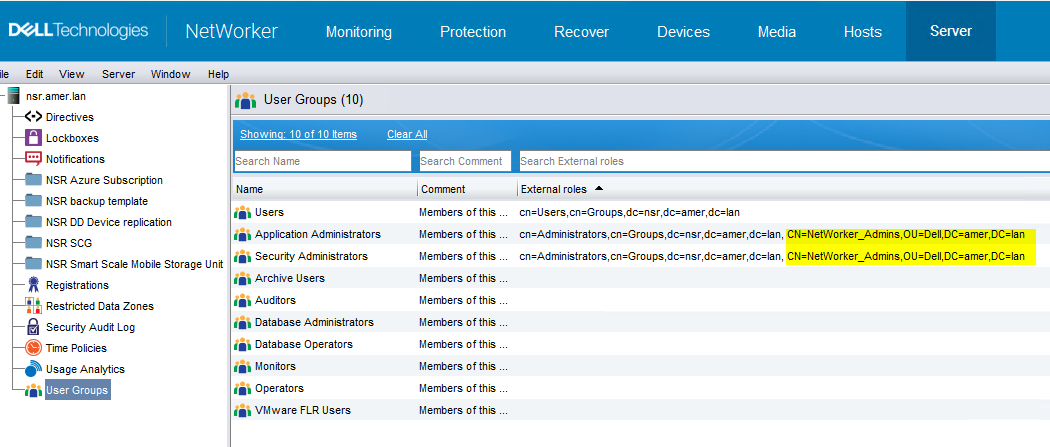
You must set the Distinguished Name (DN) of an AD group in the NMC Roles and NetWorker server User groups before you can log in to the NMC with your AD users. This can be done when logged in with the default Administrator account: