Use Disk Defragmenter to boost performance in Windows
Summary: Learn how to defragment a hard drive with the Disk Defragmenter tool in Windows. Improve performance by reducing fragmentation and speeding up your personal computer.
This article applies to
This article does not apply to
This article is not tied to any specific product.
Not all product versions are identified in this article.
Instructions
Summary
Defragmentation, also known as defragmenting or defragment, is the process of rearranging the data on a hard disk drive (HDD), for efficient storage and access.
Defragmenting a hard drive can improve a computer's performance and speed. To reduce fragmentation, a disk optimization tool typically uses compaction to free up larger areas of space. Certain disk defragmentation tools might try to keep smaller files together, especially if they are often accessed sequentially.
Fragmentation does not happen as often in Linux-based file systems as the Linux journaling system stores the data across multiple locations in the disk and automatically moves it around when it senses fragmentation.
The process of finding and consolidating fragmented files is called defragmentation. Disk Defragmenter consolidates the fragments to one location on the disk drive. As a result, Windows accesses files faster, and new files are less likely to be fragmented.
If you are experiencing a system performance issue, see our Make Your Computer Faster: Boost Performance and Speed Up Your PC library page.
NOTE Do not defragment a solid state drive (SSD); Windows optimizes SSDs differently and automatically.
To determine if you have a HDD or SSD in my computer, perform the following steps:
- In the Search type
Defragment and Optimize Drives, select Defragment and Optimize Drives from the list. - Locate the drive you want to defragment (e.g., C:) and see if it is listed as a Solid state drive. If it is listed as a Solid state drive there is no need to Optimize the drive.
Quick Answer Table
|
Question |
Short answer |
|---|---|
|
What does it do? |
Consolidates fragmented file pieces on an HDD so files are read faster |
|
Which tool? |
Defragment and Optimize Drives (formerly Disk Defragmenter) |
|
Can I defrag an SSD? |
No. It is not recommended. |
|
Does Windows do it automatically? |
Yes, on a schedule, unless the computer is usually off during that time |
|
How often should I run it manually? |
About once a month on an HDD, if automatic optimization is not running |
|
Free space needed |
At least 15% free on the drive |
Frequently Asked Questions
What is hard drive defragmentation and why is it needed?
Defragmentation (or defragging) finds fragmented files on a hard disk drive and rearranges their pieces so they are stored sequentially in one location.
Files become fragmented when a drive lacks contiguous free space, forcing Windows to split data across multiple sectors. Reorganizing these pieces allows Windows to read files faster with fewer disk reads, which can resolve:
- Slow applications and boot-up times
- System crashes and extended freeze-ups
- Slow backup and data transfer speeds
Can you defrag an SSD?
No. Defragmenting a solid-state drive (SSD) is not recommended and provides no performance benefit because SSDs have no moving parts. Instead, Windows automatically sends TRIM commands to optimize SSDs and maintain drive health.
Does Windows defragment automatically, and how often should I run it?
Yes. Windows includes an integrated utility that runs on a schedule. However, if your computer is typically shut down during scheduled times. For more infromation see Microsoft Knowedge Base article Defragment / optimize your data drives in Windows 
How to Defragment a Hard Drive in Windows 11 or Windows 10
- Before you begin: Confirm the drive is an HDD and has at least 15% free space.
- Right-click the Windows icon and select File Explorer.
- Right-click the drive you want to check (e.g., C:) and select Properties.
- Under the General tab, you will see a pie chart and numerical breakdown of Used space and Free space.
- Calculate the percentage: Divide the Free space by the Total capacity (or look at the visual bar—if more than roughly one-sixth of the bar is blue/used, or if free space bytes/gigabytes divided by total capacity is ≥ 0.15), you meet the 15% threshold.
- In the Search type
Defragment and Optimize Drives, select Defragment and Optimize Drives from the list.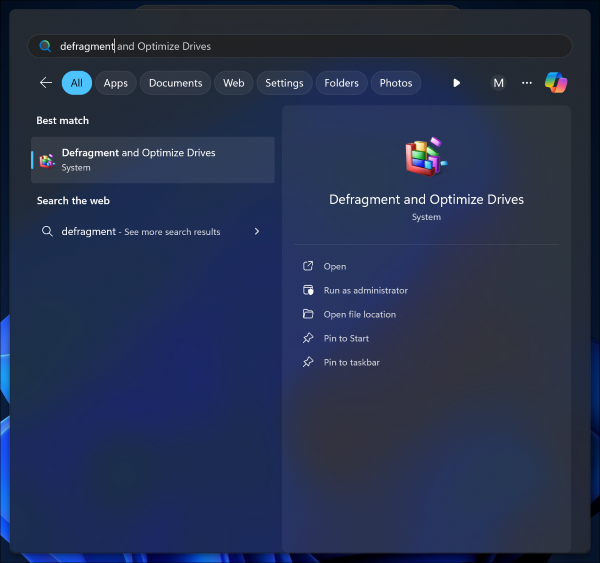
-
In the Optimize Drives window, choose a hard drive to defragment, and then select Optimize. If the hard drive is not listed, try to reconnect the hard drive or check the Advanced View option.
-
The hard drive is analyzed and defragmented.
-
After the defragmentation is complete, the current status shows OK.
Troubleshooting
Problem: Defragmentation will not run or fails.
- Close other programs, including background programs, before starting.
- Sign in as an Administrator or as a member of the Administrators group.
- Make sure the drive has at least 15% free space.
- If the computer is on a managed network, network policy may prevent defragmentation. Contact your network administrator.
Problem: The message "Drive Contents Have Changed: Restarting" appears.
See the Microsoft Knowledge Base article referenced in the original article for this error.
Problem: The drive is not listed in Optimize Drives.
Reconnect the drive, or select Advanced View in the Optimize Drives window.
Additional Frequently Asked Questions
How long does defragmentation take?
It can take from a few minutes to several hours, depending on the size and fragmentation level of the drive. You can continue using your computer during the process.
Does defragmentation fix disk errors or bad sectors?
No. Defragmentation only reorganizes file data; it does not repair bad sectors or disk errors.
Do Linux systems need defragmentation?
Fragmentation happens less often on Linux-based file systems because they allocate and move data automatically to prevent fragmentation.
Related Information
Affected Products
Alienware, Dell All-in-One, Dell Pro All-in-One, Dell Pro Max Micro, Dell Pro Max Slim, Dell Pro Max Tower, Dell Pro Micro, Dell Pro Slim, Dell Pro Tower, Dell Slim, Dell Tower, Inspiron, Legacy Desktop Models, OptiPlex, Vostro, XPS, G Series
, G Series, Alienware, Dell Laptops, Dell Plus, Dell Pro, Dell Pro Max, Dell Pro Plus, Dell Pro Premium, Inspiron, Latitude, Dell Pro Rugged, Vostro, XPS, Legacy Laptop Models, Fixed Workstations, Mobile Workstations
...
Article Properties
Article Number: 000177397
Article Type: How To
Last Modified: 17 Oct 2026
Version: 14
Find answers to your questions from other Dell users
Support Services
Check if your device is covered by Support Services.