PowerEdge: Enabling serial-line logging for VMware ESXi host

Summary: This article provides information about how to enable serial-line logging for a VMware ESXi host.

This article applies to This article does not apply to This article is not tied to any specific product. Not all product versions are identified in this article.

Instructions

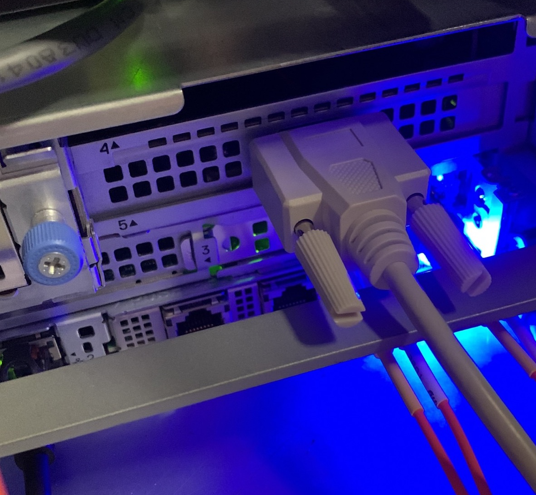
  1. Use the Serial cable to connect to server`s serial port.
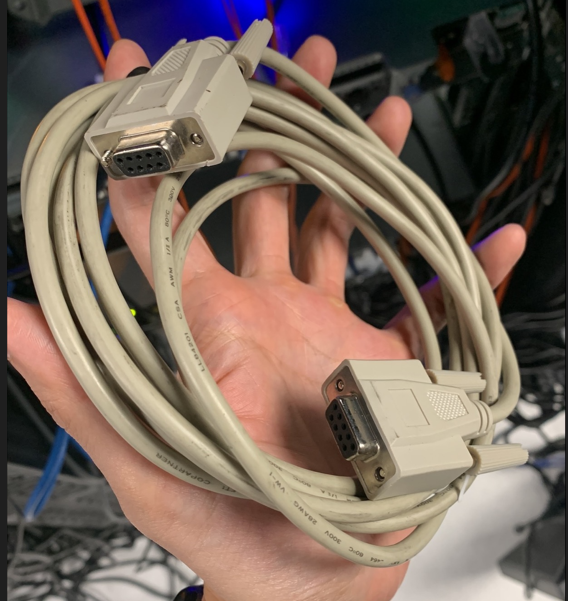

serial cable 
serial cable connected 


     2. Connect the other side of the serial cable to your personal computer. If your personal computer does not have a serial port, you can use the serial-usb cable.
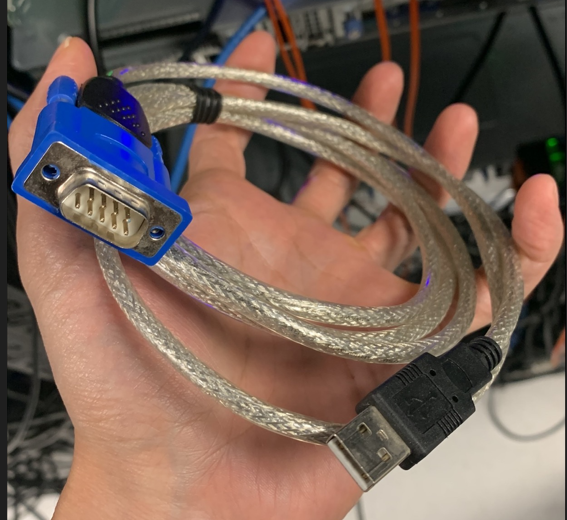

serial-usb cable 
two serial cables connected to each other 


    3. Open the serial connect tools like PuTTY and verify the COM# of your personal computer.


    Note that you can open Windows Device Manager to verify your COM port number.


com port in windows device manager 

    Note that if you use the usb-serial cable and you do not see any COM device, you can try to install the use-serial cable driver first. The most popular usb-serial windows driver is the Prolific PL2303 driver.


    4. Change the logging option to make the serial connect tool write the output data to the local disk. Enter the COM# to the Serial line, change the speed to 115200, and click Open.
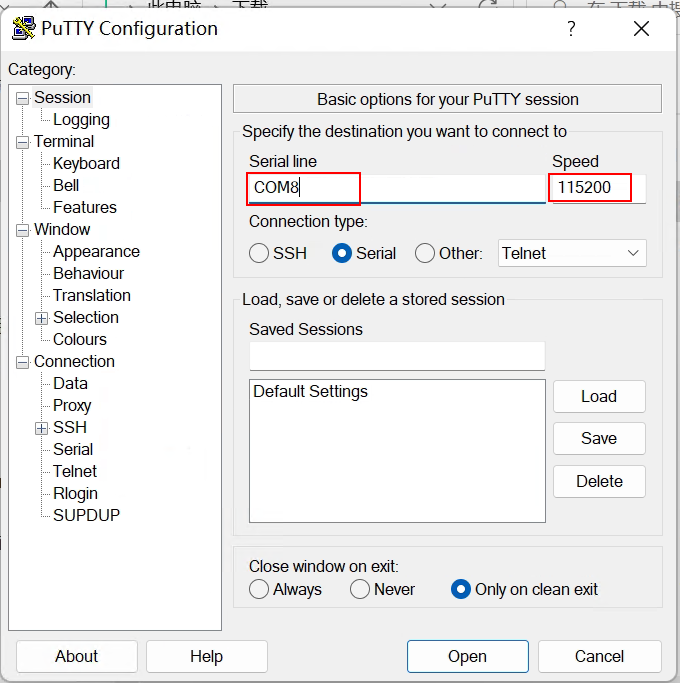

putty 
 
    After setting successful, you should see ESXi showing vmkernel logs to your personal computer.
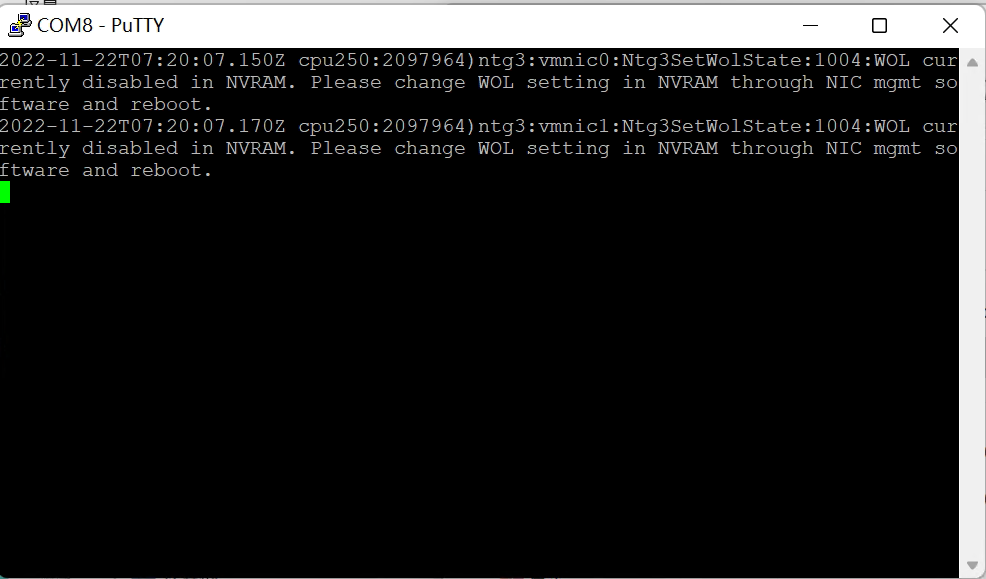

putty console 
 

Affected Products

PowerEdge R240, PowerEdge R250, PowerEdge R260, PowerEdge R340, PowerEdge R350, PowerEdge R360, PowerEdge R440, PowerEdge R450, PowerEdge R470, PowerEdge R540, PowerEdge R550, PowerEdge R570, PowerEdge R640, PowerEdge R6415, PowerEdge R650 , PowerEdge R650xs, PowerEdge R6515, PowerEdge R6525, PowerEdge R660, PowerEdge R660xs, PowerEdge R6615, PowerEdge R6625, PowerEdge R670, PowerEdge R740, PowerEdge R740XD, PowerEdge R740XD2, PowerEdge R7415, PowerEdge R7425, PowerEdge R750, PowerEdge R750XA, PowerEdge R750xs, PowerEdge R7515, PowerEdge R7525, PowerEdge R760, PowerEdge R760XA, PowerEdge R760xd2, PowerEdge R760xs, PowerEdge R7615, PowerEdge R7625, PowerEdge R770, PowerEdge R7715, PowerEdge R7725, PowerEdge R840, PowerEdge R860, PowerEdge R940, PowerEdge R940xa, PowerEdge R960, PowerEdge T140, PowerEdge T340, PowerEdge T350, PowerEdge T360, PowerEdge T40, PowerEdge T440, PowerEdge T550, PowerEdge T560, PowerEdge T640 ...
Article Properties
Article Number: 000205816
Article Type: How To
Last Modified: 13 Nov 2025
Version:  3
Find answers to your questions from other Dell users
Support Services
Check if your device is covered by Support Services.