Inspiron 筆記型電腦診斷指示燈的參考指南
Summary: 本文是每個 Inspiron 筆記型電腦機型上會出現的診斷代碼,以及這些代碼代表意義的參考指南。
This article applies to
This article does not apply to
This article is not tied to any specific product.
Not all product versions are identified in this article.
Instructions
Dell Inspiron 筆記型電腦具有內建診斷指示器,例如嗶聲代碼或 LED 代碼。它們有助於診斷和解決筆記型電腦在啟動期間可能遇到的問題。以指出裝置在開機自我測試 (POST) 期間的哪一點發生問題。這些可以是:
- 發出嗶聲
- 顯示不同狀態和顏色的電源按鈕
- 特定診斷 LED
- 兩者的結合
本文是每個 Inspiron 筆記型電腦上會出現的代碼以及這些代碼代表意義的參考指南。診斷指示器可能會因不同機型而有所不同,請參閱 Dell 筆記型電腦的說明文件,以取得特定裝置的資訊。這些指示器主要是協助您找出解決啟動問題的故障診斷步驟的起點。
目錄:
- Inspiron 筆記型電腦系列的診斷 LED (2020 年至 2025 年)
- Inspiron 筆記型電腦系列的診斷 LED (2016 年至 2020 年)
- Inspiron 筆記型電腦系列的診斷 LED (2006 年至 2016 年)
- Inspiron 筆記型電腦系列的診斷 LED (2006 年之前)
- Inspiron 筆記型電腦嗶聲代碼
- 縮寫詞彙表
下表內的診斷 LED 僅作為 POST 程序進度的指示燈。這些 LED 無法指出造成 POST 故障的問題。
注意:筆記型電腦無法開機至與 POST 問題無關的作業系統的可能原因是什麼?筆記型電腦可完成 POST,且不會停止在特定錯誤代碼處,然後顯示黑色畫面。
Inspiron 系列的診斷 LED (2020 年至今)
在最新系列中,電源或電池 LED 狀態提高了閃爍次數和色彩變換模式,以指出發生問題的所在位置。
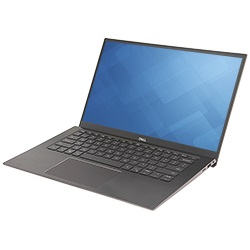
若要查看內容,請按一下您要在下方開啟的章節標題。
診斷錯誤代碼一律取代任何其他的 LED 使用。例如,當診斷錯誤代碼顯示時,電力偏低或電池故障情況的電池代碼將不會顯示。
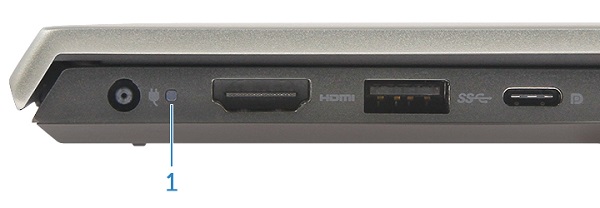
電源與電池按鈕 LED
電源狀態
| 電源 LED 狀態 | 說明 |
|---|---|
Solid White |
|
On |
|
Flashing White |
Standby |
Off |
Hibernate |
Off |
Soft Off |
Off |
No AC Power or Battery |
電池 LED
| 電源 LED 狀態 | 說明 |
|---|---|
Alternatively Flashing Amber and then White |
An unsupported Non-Dell AC Adapter or Battery is attached to your PC. |
Constantly Flashing Amber |
Below Low Battery Level |
LEDs Off |
Battery in full charge mode with AC Adapter present |
Constant White |
Battery in charge mode with AC Adapter present |
閃爍模式包含兩組數字 (分別代表,第一組:琥珀色閃爍、第二組:白色閃爍)。
例如:未偵測到記憶體 (2, 3)。例如未偵測到記憶體 (2, 3),電池 LED 會以琥珀色閃爍兩次,接著暫停,然後以白色閃爍三次,然後暫停並重複。這種模式會持續直到筆記型電腦關機為止。
- 電池 LED 會以琥珀色閃爍最多九次,然後暫停 1.5 秒,然後再執行第二組。
- 電池 LED 會以白色閃爍最多九次,然後暫停 3 秒,然後再次執行第一組。
例如:未偵測到記憶體 (2, 3)。例如未偵測到記憶體 (2, 3),電池 LED 會以琥珀色閃爍兩次,接著暫停,然後以白色閃爍三次,然後暫停並重複。這種模式會持續直到筆記型電腦關機為止。
| 電源 LED 狀態 | 問題說明 | 建議的解決方案 | |
|---|---|---|---|
| 琥珀色 | 白色 | ||
1 |
1 |
M-BIST: Trusted Platform Module failure |
|
1 |
2 |
M-BIST: SPI Flash Unrecoverable |
|
1 |
5 |
I-Fuse failure |
|
1 |
6 |
EC Internal failure |
|
2 |
1 |
CPU Failure |
|
2 |
2 |
System Board: BIOS, ROM Failure |
|
2 |
3 |
No Memory/RAM detected |
|
2 |
4 |
Memory/RAM failure |
|
2 |
5 |
Invalid Memory Installed |
|
2 |
6 |
System board, Chipset Error |
|
2 |
7 |
LCD failure |
|
2 |
8 |
LCD Power Rail failure |
|
3 |
1 |
CMOS battery failure |
|
3 |
2 |
PCI or Video card/chip failure |
|
3 |
3 |
BIOS Recovery 1 |
|
3 |
4 |
BIOS Recovery 2 |
|
3 |
5 |
Power Rail Failure |
|
3 |
6 |
SBIOS Flash Corruption |
|
3 |
7 |
ME Error |
|
4 |
1 |
Memory Dual Inline memory modeul (DIMM) power rail failure |
|
4 |
2 |
CPU Power Cable Connection issue |
|
Inspiron 筆記型電腦系列的診斷 LED (2016 年至 2020 年)
在本系列中,移除了大部分的診斷指示燈嗶聲。改由電源按鈕狀態呈現閃爍和色彩變換模式來表示問題所在位置。
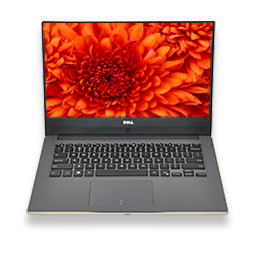
若要查看內容,請按一下您要在下方開啟的章節標題。
診斷錯誤代碼一律取代任何其他的 LED 使用。例如,當診斷錯誤代碼顯示時,電力偏低或電池故障情況的電池代碼將不會顯示。
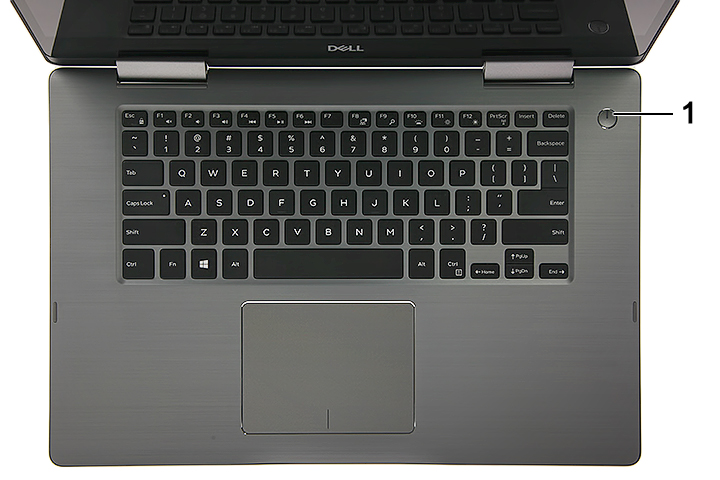
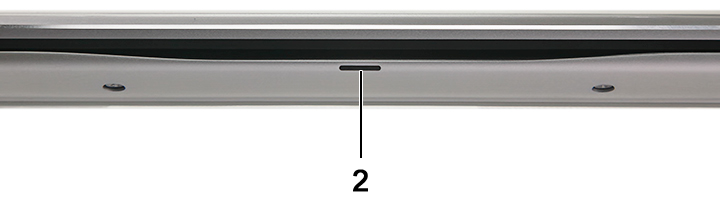
1 |
Power Button LED |
2 |
Front Battery LED |
電源狀態
| 電源 LED 狀態 | 說明 |
|---|---|
Solid White |
On |
Flashing White |
Standby |
Off |
Hibernate |
Off |
Soft Off |
Off |
No AC Power or Battery |
電池管理
| 電源 LED 狀態 | 說明 |
|---|---|
Alternatively Flashing Amber and then White |
An unsupported Non-Dell AC Adapter or Battery is attached to your PC |
Constantly Flashing Amber |
Below Low Battery Level |
LEDs Off |
Battery in full charge mode with AC Adapter present |
Constant White |
Battery in charge mode with AC Adapter present |
閃爍模式包含兩組數字 (分別代表,第一組:琥珀色閃爍、第二組:白色閃爍)。
例如:未偵測到記憶體 (2, 3)。例如未偵測到記憶體 (2, 3),電池 LED 會以琥珀色閃爍兩次,接著暫停,然後以白色閃爍三次,然後暫停並重複。這種模式會持續直到筆記型電腦關機為止。
- 電池 LED 會以琥珀色閃爍最多九次,然後暫停 1.5 秒,然後再執行第二組。
- 電池 LED 會以白色閃爍最多九次,然後暫停 3 秒,然後再次執行第一組。
例如:未偵測到記憶體 (2, 3)。例如未偵測到記憶體 (2, 3),電池 LED 會以琥珀色閃爍兩次,接著暫停,然後以白色閃爍三次,然後暫停並重複。這種模式會持續直到筆記型電腦關機為止。
| 電源 LED 狀態 | 問題說明 | 建議的解決方案 | |
|---|---|---|---|
| 琥珀色 | 白色 | ||
2 |
1 |
CPU Failure |
|
2 |
2 |
System Board: BIOS, ROM Failure |
|
2 |
3 |
No Memory/RAM detected |
|
2 |
4 |
Memory/RAM failure |
|
2 |
5 |
Invalid Memory Installed |
|
2 |
6 |
System board, Chipset Error |
|
2 |
7 |
LCD failure |
|
3 |
1 |
CMOS battery failure |
|
3 |
2 |
PCI or Video card/chip failure |
|
3 |
3 |
BIOS Recovery 1 |
|
3 |
4 |
BIOS Recovery 2 |
|
3 |
5 |
Power Rail Failure |
|
3 |
6 |
SBIOS Flash Corruption |
|
3 |
7 |
ME Error |
|
Inspiron 筆記型電腦系列的診斷 LED (2006 年至 2016 年)
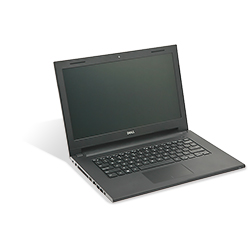
在此期間,系統僅會使用 LED 狀態顯示電池和硬碟狀態。請查看嗶聲代碼區段,以瞭解嗶聲代碼表。
若要查看內容,請按一下您要在下方開啟的章節標題。
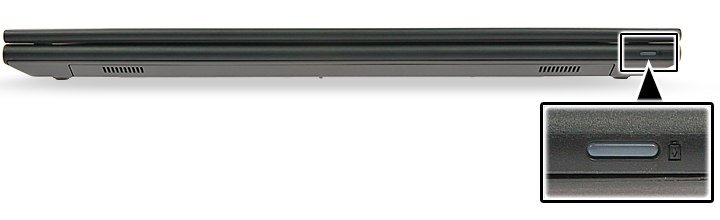
| 系統 LED 狀態 | 系統狀態 |
|---|---|
White |
The power adapter is connected, and the battery is being charged. |
Amber |
The battery charge is low or critical. |
Off |
Off
|
Inspiron 筆記型電腦系列的診斷 LED (2006 年之前)
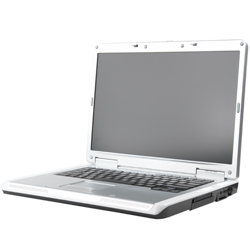
這些筆記型電腦使用鍵盤按鈕 LED。這些系統使用鍵盤按鈕 LED,但除了 Inspiron 1501 外,這個時間的所有其他 Inspiron 機型均使用聽覺嗶聲代碼做為筆記型電腦上的診斷指示。
若要查看內容,請按一下您要在下方開啟的章節標題。
這些機型的機箱正面有一個鍵盤狀態 LED 區塊,會穩定亮起綠色、閃爍綠色或熄滅。
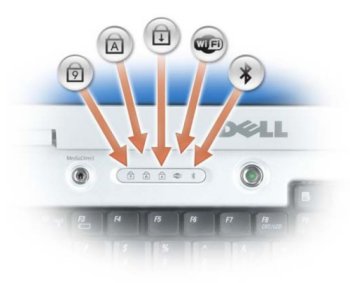
| 鍵盤 LED 圖示 | 說明 |
|---|---|
|
Caps Lock light - Turns on when the Caps Lock is engaged. |
|
Scroll Lock light - Turns on when the Scroll Lock is engaged. |
|
Number Lock light - Turns on when the Number Lock is enabled. |


| Num Lock | Caps Lock | 捲動鎖定 | 說明 | 後續步驟 |
|---|---|---|---|---|
Off |
Flash |
Off |
The memory is believed to be good, but it is about to be exercised (such as when shadowing the BIOS and when testing or zeroing all memory). |
|
Off |
On |
Off |
The system is performing diskette and hard disk initialization. |
|
Off |
On |
Flash |
Flash USB controller initialization. |
|
Off |
On |
On |
No DIMM is installed. |
|
Flash |
On |
On |
EC turn on Pentium. |
|
Flash |
Flash |
On |
Call option ROM for Video. |
|
Flash |
Flash |
Flash |
CMOS initialization, SMI initialization, timer, gate A20, and mouse. |
|
On |
On |
On |
POST has completed, and the BIOS is about to go to the PSA module. |
|
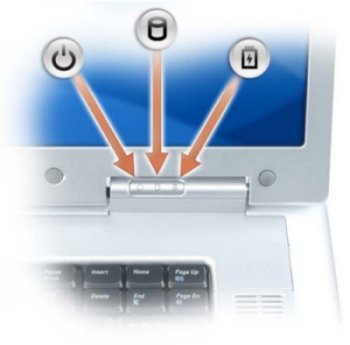
如果筆記型電腦已連接至電力插座,電源或電池指示燈會如下運作:
- 穩定亮起綠色 – 電池正在充電。
- 閃爍綠色 – 電池已幾乎充飽。
如果電腦以電池的電力運作,則電池指示燈的運作狀態如下:
- 熄滅 – 電池已充飽電 (或電腦已關機)
- 閃爍琥珀色 – 電池電量低。
- 琥珀色穩定 – 電池電量極低。
Inspiron 筆記型電腦嗶聲代碼
除了各種類型的診斷 LED 之外,這些系統的所有機型都有多種嗶聲代碼。
這些代碼可在不同製造商中識別,且在一段時間內仍維持不變。
這些代碼的金鑰會顯示在下表中。
若要查看內容,請按一下您要在下方開啟的章節標題。
| 診斷嗶聲代碼 | ||
|---|---|---|
| 程式碼 | 原因 | 建議的解決方案 |
1 |
BIOS ROM Checksum in progress or failure |
Contact Technical Support |
2 |
No memory modules detected |
Learn How to Diagnose and Resolve Common Memory Issues on a Dell Desktop Computer. |
3 |
Chipset Error
Time-of-day clock test failure
Gate A20 Failure
Super I/O chip Failure
Keyboard controller test failure |
Contact Technical Support |
4 |
RAM read/write error |
Learn How to Diagnose and Resolve Common Memory Issues on a Dell Desktop Computer. |
5 |
Real-Time Clock Failure |
Replace the CMOS Battery, Contact Technical Support if problem persists. |
6 |
Video BIOS test Failure |
Learn How to Run a Preboot Diagnostic Test on a Dell Computer. |
7 |
CPU Cache Test Failure |
Contact Technical Support |
8 |
LCD Failure |
Contact Technical Support |
縮寫詞彙表:
請參閱此文章中縮寫的定義表格。
| 縮寫 | 定義 |
|---|---|
BIOS |
Basic Input/Output System |
CFG |
Resource Configuration |
CPU |
Central Processing Unit |
DIMM |
Dual In-line Memory Module |
DMA |
Direct Memory Access |
EC |
Embedded Controller |
HECI |
Host Embedded Controller Interface |
LCD |
Liquid Crystal Display |
LED |
Light Emitting Diode |
MBF |
Motherboard Failure |
MBIST |
Memory Built-in Self Test |
ME |
Management Engine |
MEM |
Memory |
NVRAM |
Non-Volatile Random Access Memory |
PCI |
Peripheral Component Interconnect |
POV |
Post-video Activity |
PRV |
Pre-video Activity |
PSU |
Power Supply Unit |
RAM |
Random Access Memory |
RCM |
Recovery Mode |
ROM |
Read Only Memory |
RTC |
Real-Time Clock |
S0 |
System Power State S0 - This is the Working State, where your Windows PC is awake. |
S1 |
System Power State S1 - In this sleep state, the CPU is stopped, and your computer is in standby mode. |
S2 |
System Power State S2 - This state is similar to S1 except that the CPU and system cache are lost because the processor loses power. |
S3 |
System Power State S3 - In this state, data is saved to RAM, hard drives, and other hardware are shut down. |
S4 |
System Power State S4 - In this state, RAM, and other data are saved to the hard disk. |
S5 |
System Power State S5 - The System is off. |
SBIOS |
Small Board Interface Operating System |
SPI |
Serial Peripheral Interface |
STD |
Boot Hand Off |
STO |
Storage Device |
TPM |
Trusted Platform Module |
USB |
Universal Serial Bus |
VID |
Video |
注意:
如果您看到本文列出的錯誤代碼,請依照指示進行故障診斷並修正問題。當您聯絡 Dell 技術支援時,請務必提供錯誤代碼,協助我們更清楚地診斷問題。
如果您看到未在本文或 Dell 筆記型電腦說明文件中列出的錯誤代碼,請聯絡 Dell 技術支援。
如果您看到本文列出的錯誤代碼,請依照指示進行故障診斷並修正問題。當您聯絡 Dell 技術支援時,請務必提供錯誤代碼,協助我們更清楚地診斷問題。
如果您看到未在本文或 Dell 筆記型電腦說明文件中列出的錯誤代碼,請聯絡 Dell 技術支援。
Additional Information
Affected Products
InspironArticle Properties
Article Number: 000140521
Article Type: How To
Last Modified: 01 May 2026
Version: 15
Find answers to your questions from other Dell users
Support Services
Check if your device is covered by Support Services.