Ethernet Ports on Dell Devices: Complete Guide
Summary: Connect your Dell device with Ethernet for faster, more reliable internet. Discover port locations, speed capabilities, cable types, and quick troubleshooting solutions.
Instructions
Connect to the internet using an Ethernet cable on your Dell computer, laptop, docking station, or USB hub. This guide explains what Ethernet ports are, how to find them, and how to troubleshoot connection issues.
Quick solution: Troubleshoot Ethernet connection problems
What is an Ethernet port?
An Ethernet port (also called a network port, LAN port, or RJ45 port) is a rectangular socket that connects your Dell device to the internet or local network using a cable.
Why use Ethernet instead of Wi-Fi?
Ethernet connections provide several advantages:
- Faster speeds - Get the full speed of your internet plan
- More reliable - No dropped connections during video calls or downloads
- Lower latency - Better for online gaming and real-time applications
- Better security - Physical connection is harder to intercept
- No password required - Automatic connection when you plug in the cable
- Works as backup - Available when Wi-Fi has issues
Find your device manual for specific information
This article provides general information for most Dell devices. For details about your specific model, refer to your device documentation.
Get your device manual
- Go to Dell Product Manuals.
- Enter your Service Tag, Express Service Code or model name (for example, "Inspiron 15 5530").
- View or download the Setup and Specifications document or User Guide.
Your Service Tag is a 7-character code located:
- On a sticker or engraved on the bottom of laptops
- On the back panel of desktops
- In your system BIOS (press F2 during startup)
Model-specific information includes:
- Ethernet port location on your device
- Maximum supported speed (100 Mbps, 1 Gbps, 2.5 Gbps, or 10 Gbps)
- Availability of LED indicator lights and their status meanings (e.g., Solid Green = active connection, Blinking = data transfer, Off = no link detected)
Find and identify Ethernet ports
Locate the Ethernet port on your device
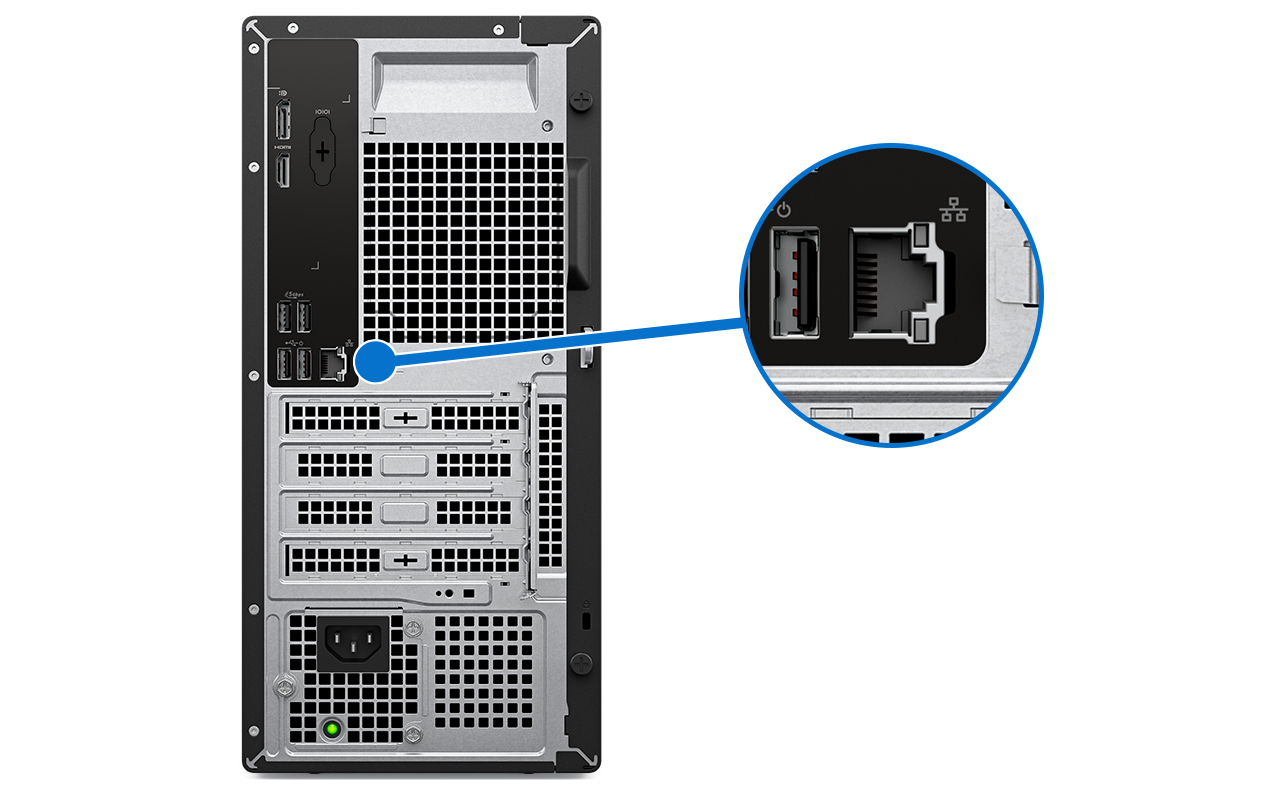
Desktop computers
- Back panel near USB ports and audio jacks (most common)
- Multiple ports on select business or workstation models
Laptop computers
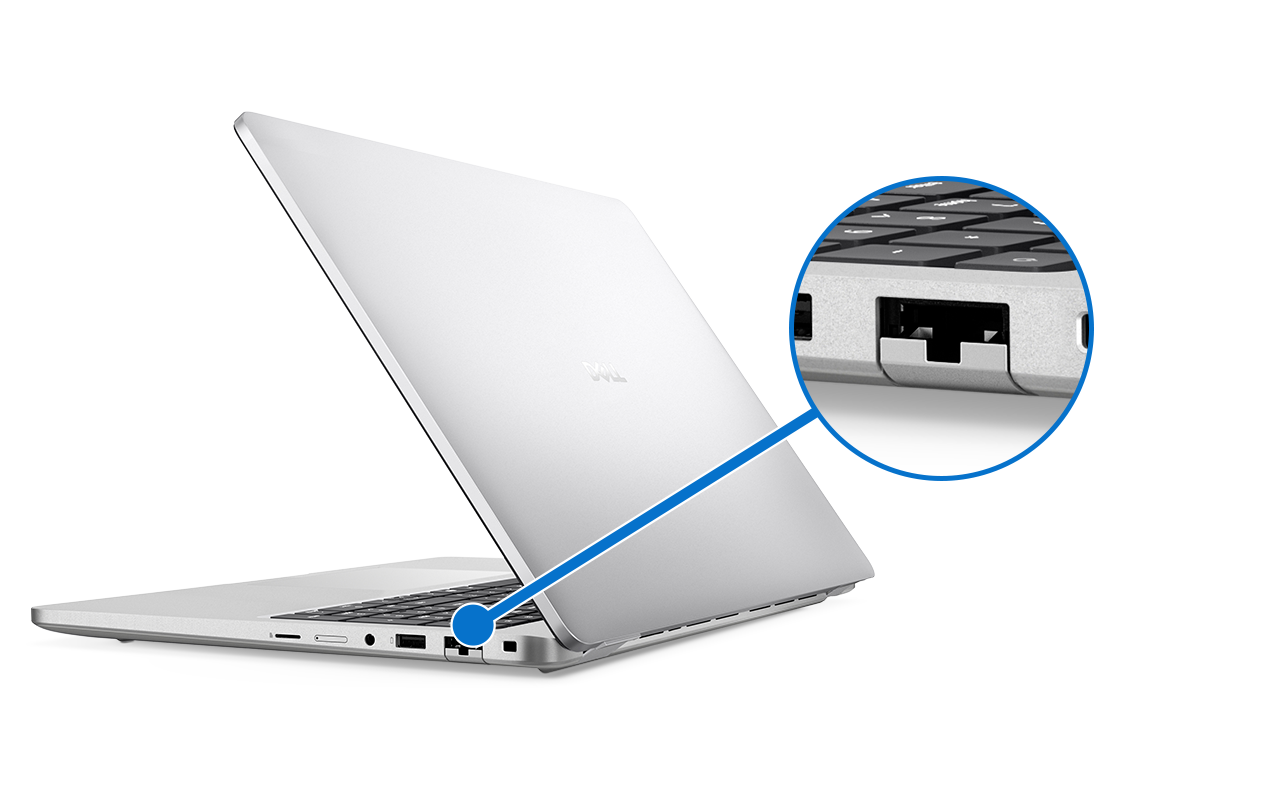
- Left or right side
- Some thin models (select laptops) don't include built-in ports
- May have a protective door or flap
Docking stations
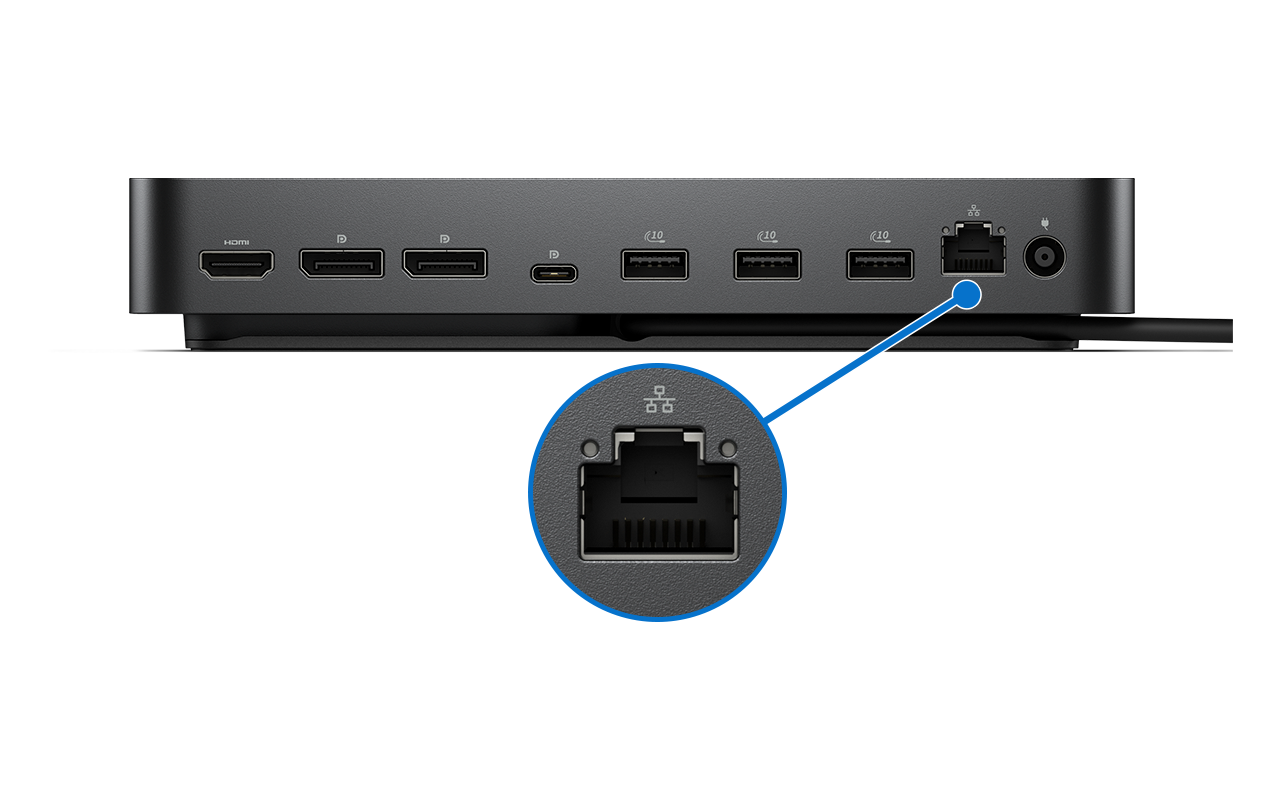
- Back panel (most common)
- All Dell docks include at least one Ethernet port
USB hubs and adapters
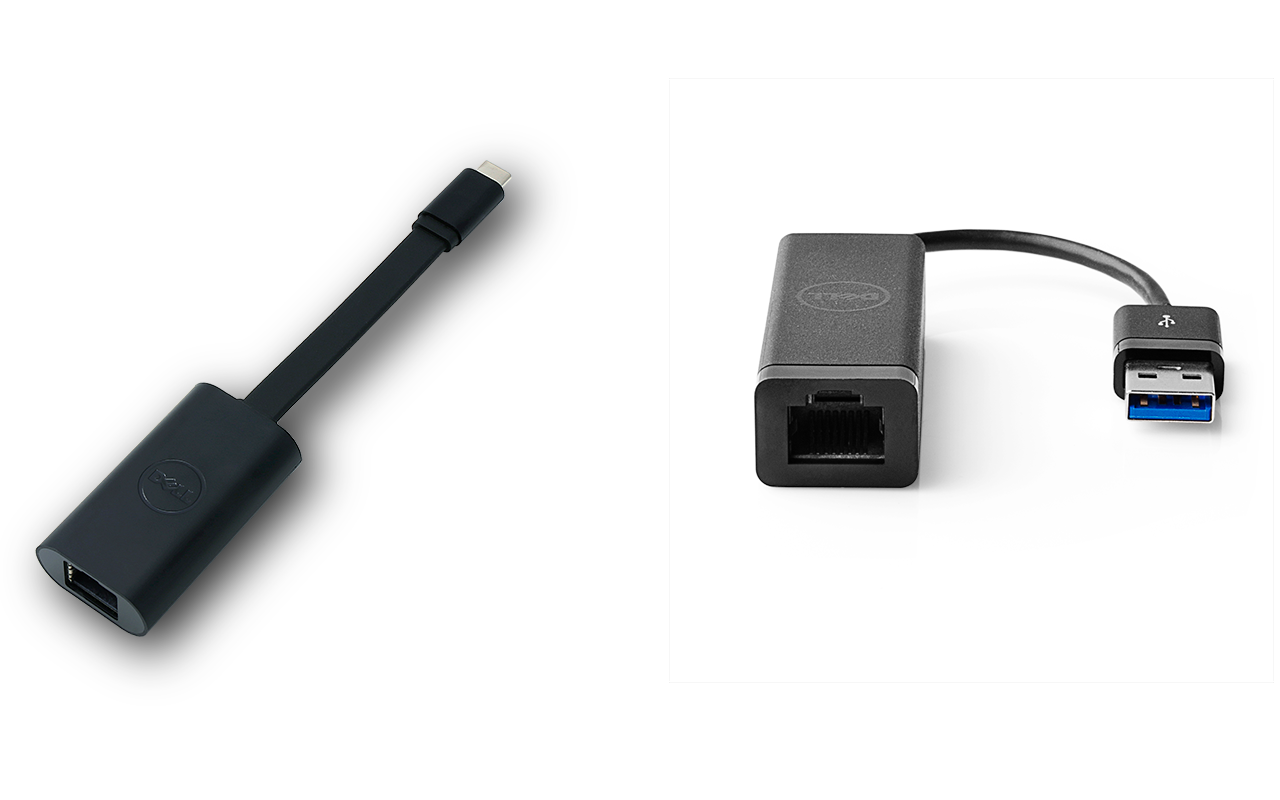
- USB hubs with Ethernet port
- USB-A or USB-C to Ethernet adapters
- Integrated into the hub body
- Clearly labeled with Ethernet symbol
Identify Ethernet connection types
Standard RJ45 Ethernet port (most common)
The RJ45 port is rectangular and slightly larger than a USB port. It accepts a standard Ethernet cable with an RJ45 connector.
Connect an Ethernet cable
- Align the RJ45 connector with the Ethernet port.
- Push the connector in until you hear or feel a click.
- Verify the cable sits flush against the port with no gaps.
- Check that LED lights (if present) turn on within a few seconds.
To disconnect: Press the small plastic tab on the connector and pull gently.
Understand LED indicator lights
Some Dell devices include LED lights built into the Ethernet port. These lights show connection status.
LED light meanings
|
Light color and pattern |
Status |
Action needed |
|
Green (solid) |
Connected to network |
None, working normally |
|
Green (blinking) |
Data transferring |
None, working normally |
|
Amber/Orange (solid) |
Connected at lower speed (10 or 100 Mbps) |
Check cable quality or router if faster speeds needed |
|
Amber/Orange (blinking) |
Data transferring at lower speed |
Check cable quality or router if faster speeds needed |
|
No lights |
No connection detected |
Check cable connections; try different cable |
Check if your device has LED lights
Not all devices include LED indicator lights on the Ethernet port. To confirm LED availability and status, check your device manual.
Add Ethernet to devices without built-in ports
Some Dell laptops don't include built-in Ethernet ports. You can add Ethernet connectivity using USB adapters, hubs, or docking stations.
Option 1: USB to Ethernet adapter
A USB to Ethernet adapter is a small accessory that plugs into your USB or USB-C port.
Choose this option if you:
- Travel frequently and occasionally need wired connections
- Want minimal desk clutter
- Have a limited budget
Adapter types and speeds
|
Adapter type |
Maximum speed |
Compatible ports |
|
USB 2.0 to Ethernet |
100 Mbps |
USB 2.0, 3.0, 3.1, USB-C (with adapter) |
|
USB 3.0 to Ethernet |
1000 Mbps (1 Gbps) |
USB 3.0, 3.1, USB-C (with adapter) |
|
USB-C to Ethernet |
1000 Mbps to 2.5 Gbps |
USB-C, Thunderbolt 3, Thunderbolt 4 |

Compatible Dell adapters
- Dell Adapter - USB-C to Ethernet
- Dell Adapter - USB Type-A to Ethernet
Option 2: Docking station
A docking station connects to your laptop with one cable and provides Ethernet, USB, display outputs, and power delivery.
Choose this option if you:
- Have a permanent desk setup
- Connect multiple monitors
- Want one-cable simplicity
Dell docking stations with Ethernet

Benefits of docking stations
- Gigabit Ethernet (1000 Mbps) standard on most models
- Charges compatible laptops while connected
- Simplified cable management
- Additional USB, audio, and video ports
Option 3: USB hub with Ethernet
A USB hub provides Ethernet and additional USB ports in one compact device.
Choose this option if you:
- Need extra USB ports along with Ethernet
- Want moderate portability
- Have a semi-permanent setup
Example: Dell Mobile Adapter DA310
The DA310 provides:
- 1 Gbps Ethernet
- USB-A ports
- HDMI output
- VGA output
- USB-C pass-through for power

Check Ethernet port speeds
Ethernet ports support different maximum speeds. Your actual performance depends on your port, router or switch, cable quality, and internet plan.
Ethernet speeds on Dell devices
|
Speed |
Name |
Typical devices |
Approximate Download time (1 GB file) |
|
10 Mbps |
Ethernet |
Very old systems (2000s) |
13 minutes |
|
100 Mbps |
Fast Ethernet |
Older systems (2010s), basic USB adapters |
80 seconds |
|
1 Gbps (1000 Mbps) |
Gigabit Ethernet |
Most current laptops and desktops |
8 seconds |
|
2.5 Gbps |
2.5 Gigabit |
Newer Precision, some Latitude/OptiPlex |
3 seconds |
|
5 Gbps |
5 Gigabit |
Select high-end workstations |
1.6 seconds |
|
10 Gbps |
10 Gigabit |
Precision workstations, PowerEdge servers |
<1 second |
Find your device's Ethernet speed
Method 1: Check your device manual (recommended)
- Go to Dell Product Manuals.
- Enter your Service Tag or model name.
- Open the Setup and Specifications document.
- Look under Network Adapter or Ethernet.
Method 2: Check in Windows
- Connect your Ethernet cable.
- Select Start > Settings > Network & Internet > Ethernet.
- Select your connection name.
- Look for Link speed.
Note: Link speed shows your current connection speed, not the maximum supported speed.
Method 3: Check Device Manager
- Right-click Start and select Device Manager.
- Expand Network adapters.
- Look for your Ethernet adapter name (often includes "Gigabit", "GbE" or "10/100/1000").
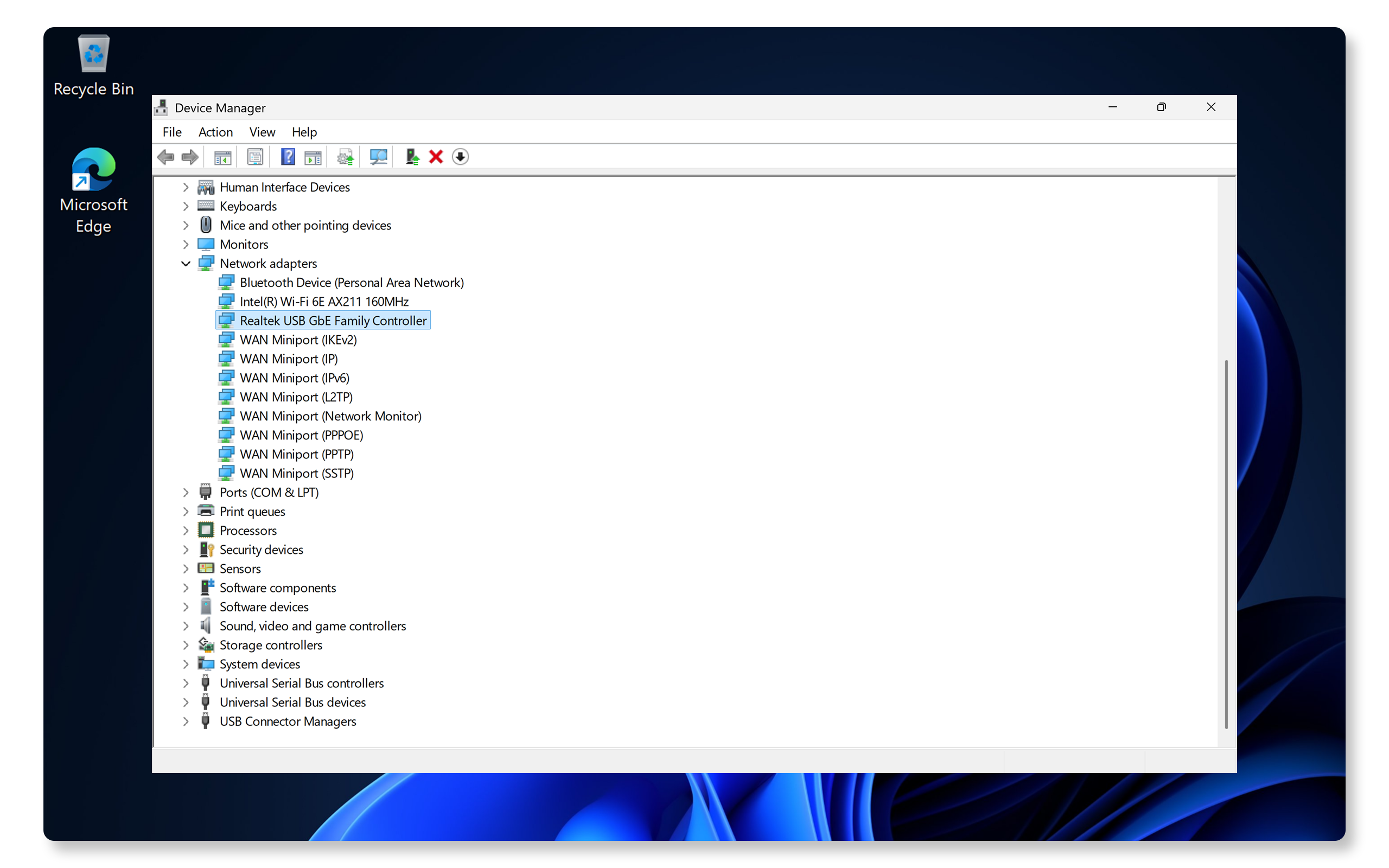
Method 4: Check LED lights
- Amber/Orange light typically indicates 10 or 100 Mbps
- Green light typically indicates 1000 Mbps or higher
Note: LED meanings vary by device. Check your manual for confirmation.
Understand speed factors
Your internet speed ≠ your Ethernet port speed.
Actual internet speed depends on:
- Internet service plan (for example, 100 Mbps, 500 Mbps, 1 Gbps)
- Router capabilities (including network switches)
- Ethernet cable quality (Cat 5e, Cat 6, Cat 6a)
- Network congestion
Example: A 1 Gbps Ethernet port on your device paired with a 200 Mbps internet plan usually supports up to 200 Mbps internet speeds. The port supports faster speeds for local network transfers between devices.
Choose an Ethernet cable
All Ethernet cables use RJ45 connectors, but different categories support different speeds.
Ethernet cable categories
|
Cable type |
Maximum speed |
Maximum distance |
Best for |
|
Cat 5 |
100 Mbps |
100 m |
Legacy systems only |
|
Cat 5e |
1 Gbps |
100 m |
Budget option |
|
Cat 6 |
10 Gbps (short) |
100 m |
Recommended for most users |
|
Cat 6a |
10 Gbps |
100 m |
Future-proofing, 2.5+ Gbps ports |
|
Cat 7 |
10 Gbps+ |
100 m |
High-interference environments |
|
Cat 8 |
25-40 Gbps |
30 m |
Data centers, servers only |
Identify your cable type
Look at the cable jacket for printed text showing the category (for example, "Cat 6" or "Category 6").
The text repeats every few inches along the cable.
Can't find markings? If your cable is several years old and unmarked, it's likely Cat 5 or Cat 5e.
Buy the right cable
For most Dell users: Buy Cat 6 cables
- Affordable (similar price to Cat 5e)
- Handles Gigabit speeds perfectly
- Future-proof
- Widely available
For Precision workstations with 2.5 Gbps or 10 Gbps ports: Buy Cat 6a or Cat 7
- Required for speeds above 1 Gbps
- Better shielding
Cable length considerations:
- Buy only the length you need
- Cables under 100 meters work well
- Very long runs may need Cat 6a or Cat 7
Shielding types:
- UTP (Unshielded) - Good for home and most offices
- STP/FTP (Shielded) - Better for high-interference environments
Most home users don't need shielded cables.
Fix common connection issues
Try these solutions before detailed troubleshooting.
Check physical connections
- Verify the cable clicks firmly into the port at both ends (computer and router).
- Look for visible damage (bent pins, cracked plastic, frayed cable).
- Check for sharp bends or kinks in the cable.
- Gently wiggle the cable while watching the LED lights (if present).
If lights flicker when you move the cable, the connection is loose or damaged.
If you see damage: Try a different cable.
Check LED indicators
If your device has LED lights:
If lights are off:
- Cable isn't fully connected
- Cable is damaged
- Router port is faulty
- Ethernet adapter is disabled (Windows and/or BIOS)
If lights are on or blinking:
- Physical connection works
- Issue is likely software/driver related
No LED lights? Continue to the next step.
Restart your devices
- Unplug your router and modem from power.
- Shut down your Dell device.
- Wait 30 seconds.
- Plug in the modem and wait for it to start (1-2 minutes).
- Plug in the router and wait for it to start (1-2 minutes).
- Start your Dell device.
- Test the connection.
This clears temporary network glitches and resets connections.
Try a different cable
- Disconnect the current cable.
- Connect a known working cable.
- Test the connection.
If the new cable works: Replace the original cable. If the new cable fails: Continue troubleshooting.
Try different ports
On your router:
- Note which port you're currently using.
- Unplug the cable.
- Plug into a different port on the router.
- Test the connection.
On your Dell device (if multiple ports available):
- Unplug from the current port.
- Plug into the other port.
- Test the connection.
Check Ethernet adapter in Windows
Enable the Ethernet adapter
- Right-click Start and select Device Manager.
- Expand Network adapters.
- Look for your Ethernet adapter.
- If you see a down arrow on the icon, right-click the adapter and select Enable device.
Run Windows Network Troubleshooter
- Right-click the network icon in the taskbar (bottom-right corner).
- Select Troubleshoot problems or Diagnose network problems.
- Follow the on-screen instructions.
Windows automatically attempts to fix common issues.
Check BIOS settings
Your Ethernet adapter might be disabled in BIOS.
Enable Ethernet in BIOS
- Restart your Dell device.
- Press F2 repeatedly as the device starts (before Windows loads).
- In BIOS setup, look for one of these settings:
- Onboard LAN
- Integrated NIC
- Onboard Ethernet
- Network Controller
- Set the option to Enabled.
- Save and exit the BIOS.
Note: Setting locations vary by model. Check your device manual if needed.
Get more help
For advanced troubleshooting, use these resources.
Comprehensive troubleshooting guide
Visit the complete Ethernet troubleshooting guide for:
- Update or reinstall network drivers
- Use Dell SupportAssist to optimize network
- Reset TCP/IP and DNS settings
- Advanced Windows network configuration
- Hardware diagnostics
- Specific error message solutions
Related topics
Wi-Fi issues? Wireless networking troubleshooting
Bluetooth problems? Bluetooth connectivity guide
Frequently asked questions
General questions
Q: Does the Ethernet port need power?
A: No. The Ethernet port works whenever your device is on. It doesn't require separate power.
Q: Can I plug and unplug the Ethernet cable while my computer runs?
A: Yes. Ethernet cables are hot-swappable. You can safely connect and disconnect them anytime.
Q: Is Ethernet more secure than Wi-Fi?
A: Yes. Someone needs physical access to your cable to intercept Ethernet data. Wi-Fi signals can potentially be intercepted wirelessly, though WPA3 encryption makes modern Wi-Fi quite secure.
Q: Will Ethernet drain my laptop battery faster than Wi-Fi?
A: No. Ethernet typically uses slightly less power than Wi-Fi because it doesn't need a wireless radio.
Compatibility questions
Q: Why doesn't my Dell laptop have an Ethernet port?
A: Many thin laptops omit built-in Ethernet ports because of limited space. You can add Ethernet using:
- USB-C to Ethernet adapter
- USB 3.0 to Ethernet adapter
- USB hub with an Ethernet port
- Docking station
Q: Will any USB to Ethernet adapter work with my Dell device?
A: Most adapters work with Dell devices running Windows 10 or 11. For best compatibility:
- Choose Dell-branded adapters when possible
- Verify adapter supports your Windows version
- Ensure USB adapters match your port type
- Check speed requirements (USB 3.0 for Gigabit)
Q: Can I use both Ethernet and Wi-Fi simultaneously?
A: Yes. Your computer can have both active. Windows automatically prioritizes Ethernet. If Ethernet disconnects, Windows switches to Wi-Fi.
Q: Do all Dell docking stations include Ethernet?
A: Dell docks always include an Ethernet port.
Q: My Dell desktop has two Ethernet ports. What's the difference?
A: Some Dell business desktops may include dual Ethernet ports for:
- Connecting to two separate networks
- Network redundancy (automatic failover)
- Link aggregation (combining bandwidth)
Check your manual for your model's capabilities.
Speed and performance questions
Q: How do I know my Ethernet port speed?
A: Check your device manual for specifications. Generally:
- Most Dell devices from 2015+ have Gigabit Ethernet (1000 Mbps)
- Older devices may have Fast Ethernet (100 Mbps)
- Newer Precision, Dell Pro, or Dell ProMax systems may have 2.5 Gbps or 10 Gbps
You can also check in Settings > Network & Internet > Ethernet after connecting.
Q: Why is my Ethernet connection slower than expected?
A: Speed factors include:
- Internet plan - If your current internet plan is 100 Mbps, you won't get faster speeds
- Cable quality - Old Cat 5 cables limit you to 100 Mbps
- Router capabilities - Older routers or switches may not support Gigabit
Q: Can a damaged cable cause slow speeds?
A: Yes. A damaged or low-quality cable can limit speeds to 10 or 100 Mbps even if your port and router support Gigabit. Use high quality Cat 6 cables for best results.
Q: Do I need Cat 6 cable if my internet is only 100 Mbps?
A: Cat 5e is sufficient for 100 Mbps internet. However, Cat 6 is recommended because:
- Similar price to Cat 5e
- Future-proofs for faster internet speeds
- Better for local network transfers
- More durable
Troubleshooting questions
Q: My Ethernet port LED lights are off. What does this mean?
A: Lights completely off usually means:
- Cable isn't fully inserted
- Cable is damaged
- Ethernet adapter is disabled
- Router isn't powered on or port is faulty
Q: What does amber/orange LED mean?
A: Amber or orange typically indicates:
- Connected at lower speed (10 or 100 Mbps instead of 1000 Mbps)
This might mean:
- Your cable is Cat 5 instead of Cat 5e or Cat 6
- Router port only supports 10/100 speeds
- Cable is damaged
Try a Cat 6 cable if you need faster speeds.
Q: Windows shows "Network cable unplugged" but my cable is connected. Why?
A: This means Windows doesn't detect a physical connection:
- Remove and firmly reinsert the cable (should click).
- Try a different cable.
- Try a different router port.
- Check if Ethernet adapter is enabled in Device Manager.
- Check BIOS settings (press F2 at startup).
Q: I see "Unidentified Network" or "Limited Connectivity." How do I fix this?
A: This usually means your device can't get an IP address:
- Restart router and modem (unplug 30 seconds, plug back in).
- Run Windows Network Troubleshooter (right-click network icon).
- Visit the full troubleshooting guide.
Q: My Ethernet adapter doesn't appear in Device Manager. What should I do?
A: If your adapter is completely missing:
- Check BIOS settings, it may be disabled (press F2 at startup).
- Update BIOS and Windows to ensure all drivers are installed.
- Download and install Ethernet drivers from Dell Drivers & Downloads.
- If still missing, contact Dell Support for repair options, may be hardware issue.
Q: How do I assign a static IP address?
A: For advanced users who need a static IP:
- Go to Settings > Network & Internet > Ethernet.
- Select your connection.
- Next to IP assignment, select Edit.
- Select Manual.
- Turn on IPv4.
- Enter IP address, subnet mask, and gateway.
- Select Save.
Note: Most users should keep automatic (DHCP) settings.
Related network topics
Q: Can my Dell laptop use a SIM card for mobile data?
A: Some Latitude and Precision models include WWAN (mobile broadband) and a SIM card slot for cellular data. This is separate from Ethernet or Wi-Fi. Check your device manual to confirm this feature.
Q: What's the difference between Ethernet and Wi-Fi?
A:
- Ethernet - Wired connection using cable; faster, more reliable, lower latency
- Wi-Fi - Wireless connection using radio signals; more convenient, works anywhere in range
Q: My device shows multiple network adapters in Device Manager. Which is Ethernet?
A: Common Ethernet adapter names:
- Realtek PCIe GbE Family Controller
- Intel Ethernet Connection
- Killer Ethernet Controller
- Dell Universal Adapter (USB adapters)
Look for "Ethernet," "GbE," "LAN," or "Network Controller." Wi-Fi adapters say "Wireless" or "Wi-Fi."