Avamar: How to upgrade Avamar proxy with Proxy Deployment Manager(PDM) post server upgrade
Summary: This knowledge base article shows how to upgrade avamar virtual machine proxy using proxy deployment manager (PDM).
This article applies to
This article does not apply to
This article is not tied to any specific product.
Not all product versions are identified in this article.
Instructions
Below are the steps involved in upgrading the proxy using the proxy deployment manager.
Verify the below steps before upgrading the proxy.
- Ensure that the Avamar version upgrade activity has been completed.
- No VMware backup or restore in progress.
There are two methods to upgrade Proxy, using the Administrator User Interface(AUI) and using the MCGUI.
Use only one do not attempt both the methods.
Note:
- Upgrading a proxy using PDM only works if the proxy were previously deployed using PDM.
- If the existing proxies were not deployed using PDM, they can convert those proxies to be managed with PDM and to then perform upgrade.
- Nonstandard proxy would not get upgraded by PDM for example: Having more than one nic.
Upgrading proxy using AUI Starting 18.2 there is a new web console that provides a version of proxy deployment called proxy management and upgrade proxy. It is accessed by typing the following in a browser:https://<hostname>/auiOpen the left side pane > Select Proxy Management > Select Appropriate vCenter > Create Recommendation. Proxies that require an upgrade have the thunderbolt icon.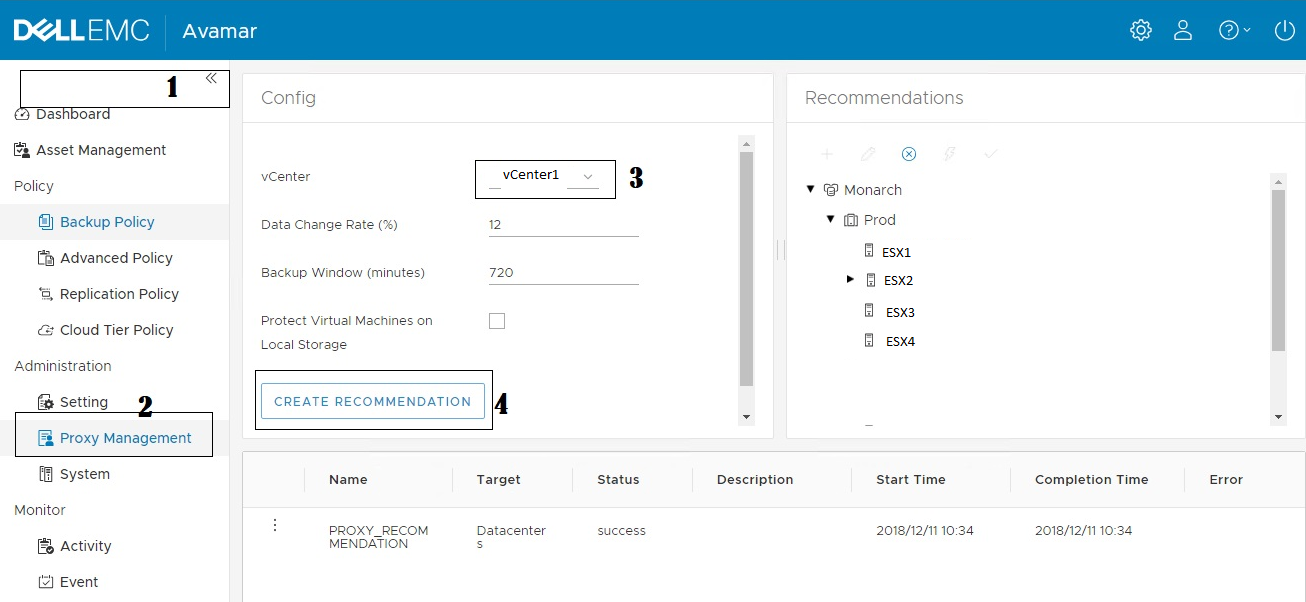
Upgrading proxy using MC GUI. 1. Log in to Avamar administrator and select VMware to access Proxy Deployment Manager.
2. Select correct the vCenter from " choose a vCenter " and click " Create Recommendation."
3. Once the recommendation has been created, the Proxy which requires an upgrade is shown with the UP arrow. Select Apply.
4. Confirm Upgrade by clicking "Continue" PDM would contact vCenter in the background and upgrade proxy.
Verify that the upgraded proxy is deployed in Vcenter. Upgrade of the proxy is now complete. Converting existing Proxy to be managed with PDM. If the existing proxies were not deployed using PDM, they do not appear in the Proxy upgrade using AUI or MCGUI. (Ideally on such cases a new proxy is required to be deployed. ) Instead, the proxies must be converted to be managed with PDM and make it eligible for upgrade using AUI or MCGUI. Log in to the existing proxy as admin. 1. Switch to the root user.
su -2. Move to below location.
cd /etc/init.d3. Run the below command.
./initproxyappliance manageby4. Confirm the Avamar address [Y/N], provide the Vcenter IP, username, and password.
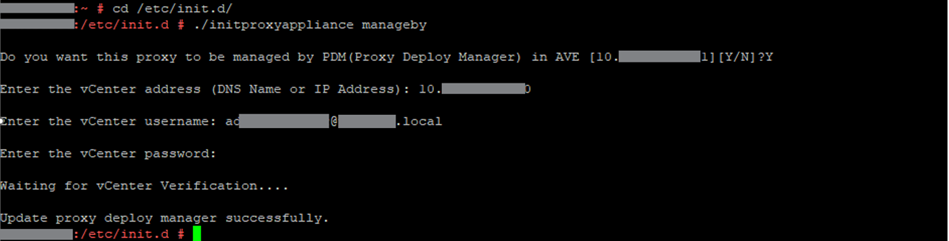
If Verified successfully, the proxy should be available on the PDM tab ready for upgrade.
Verify that the upgraded proxy has been deployed in Vcenter.
Upgrade of the proxy is now complete.
Affected Products
Avamar, PowerProtect DP4400Products
PowerProtect Data Protection Appliance, Avamar, Avamar Server, Avamar Virtual EditionArticle Properties
Article Number: 000020235
Article Type: How To
Last Modified: 08 Jan 2026
Version: 9
Find answers to your questions from other Dell users
Support Services
Check if your device is covered by Support Services.