Windows Server: Hyper-V Live Migration may fail as a result of recovery checkpoints.
Summary: This article contains information about errors that may occur during a Hyper-V Live Migration when backup software is used to perform virtual machine backups. The errors are "Virtual machine failed to generate VHD tree: 'Catastrophic failure'('0x8000FFFF')." ad "Virtual machine failed to generate VHD tree: 'The system cannot find the file specified.'('0x80070002')." ...
Symptoms
Article Summary: Hyper-V Live Migration between Hyper-V hosts can fail when recovery checkpoints are used for VMs (virtual machines).
Issue:
Virtual machine failed to generate VHD tree: 'Catastrophic failure'('0x8000FFFF').

Virtual machine failed to generate VHD tree: 'The system cannot find the file specified.'('0x80070002').
Live Migration fails and times out. The Hyper-V-VMMS log located under "Applications and Services Logs\Microsoft\Windows" in Event Viewer reports the Live Migration timed out or failed at the source. Attempting to remove recovery checkpoints using PowerShell can generate one of the following errors.
C:\ProgramData\Microsoft\Windows\Hyper-V\Groups\groupregistry.vmcx". Deleting this file may result in the inability to resolve this issue. Contact Dell Technical Support at the numbers below.
Cause
Resolution
Solution:
Dell customers with ProSupport or ProSupport Plus services should contact Dell Technical Support at 800-456-3355 for assistance. Otherwise, contact Dell Avamar Technical Support at 800-782-4362 for assistance.
Additional Information:
If the VM that Live Migrated previously is no longer running on the original source node, then Windows fails to remove the checkpoint or vmgroup. This orphaned checkpoint or vmgroup may cause subsequent Hyper-V backups to fail. It may also prevent that VM from Live Migrating to another cluster nodes due to the orphaned vmgroup.
Before performing manual cleanup procedures, check the following Microsoft URL below. The KB article provides solutions that may address Live Migration failures due to environmental factors:

Identifying Hyper-V Checkpoint types
The following two examples of PowerShell commands help determine the type of Checkpoint (also seen as Snapshots).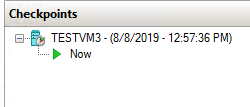
Figure 1: Virtual Machine Checkpoint as shown in Hyper-V Manager
Standard Checkpoint: In this example, change the "TESTVM3" name with the name of the virtual machine in the customer environment.
Figure 2: PowerShell command used to identify Checkpoint type.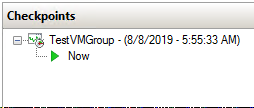
Figure 3: Virtual Machine Checkpoint as shown in Hyper-V Manager
Recovery Checkpoint: In this example substitute "MSCLOUD06" with the ComputerName the virtual machine resides on in the customer environment. Substitute "TESTVM1" with the name of the virtual machine in the customer environment.
Figure 4: PowerShell command used to identify Checkpoint type.