CloudLink: Getting error 'Cannot retrieve the requested certificate'
Summary: In vCenter when attempting to establish trust to CloudLink, receive the error message 'Cannot retrieve the requested certificate'.
Symptoms
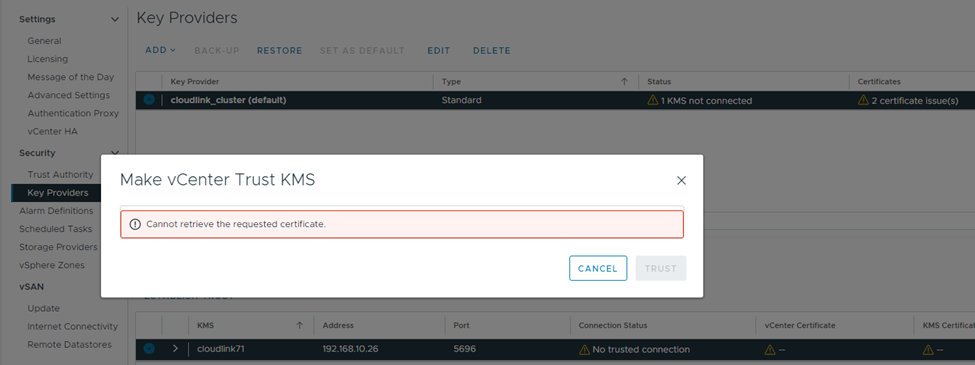
Receive an error message as seen below:
Cannot retrieve the requested certificate
Cause
Possible causes for this error:
- vCenter is unable to communicate to CloudLink over port 5696.
- The user is running versions of CloudLink and vCenter that are not compatible.
- The KMS Server certificates or KMIP Client certificate are expired or have an expiration date of 2050 or later.
- If none of the above steps worked, you can try rebooting the CloudLink VMs.
Resolution
Renew Certs or Upgrade CloudLink.
- If you must renew certificates or upgrade CloudLink, take backups before making any changes.
Take snapshots of all the CloudLink VMs and take backups in the CloudLink webUI in SYSTEM > Backup > Generate New Backup and then Actions > Download Backup. Ensure that the user can locate the CloudLink backup key (cckey.pem) that was downloaded during deployment.
- SSH into the vCenter appliance and run the following commands:
ping cloudlinkip
curl -v telnet://cloudlinkip:5696
curl -v --local-port 10000 telnet://cloudlinkip:5696
curl -v --local-port 20000 telnet://cloudlinkip:5696
curl -v --local-port 30000 telnet://cloudlinkip:5696
curl -v --local-port 40000 telnet://cloudlinkip:5696
curl -v --local-port 50000 telnet://cloudlinkip:5696
curl -v --local-port 60000 telnet://cloudlinkip:5696
- If
pingorcurlcommands are failing, this may indicate a firewall or network issue. User should check with the network team and ensure that the required ports are open and confirm CloudLink VMs are on the correct network or VLAN. - If
curlcommands are successful, a message is received saying Connected to x.x.x.x as seen in this screenshot:

- Check that CloudLink and vCenter versions are compatible. You may get Cannot retrieve the requested certificate if using vCenter 8.x with CloudLink 7.1.8 or earlier. Check the VMware Compatibility Guide
for the supported vCenter and CloudLink versions:
- CloudLink 7.0 is supported with vCenter 6.x and 7.x.
- CloudLink 7.1.x is supported with vCenter 6.x and 7.x.
- CloudLink 8.x is supported with vCenter 7.x and 8.x.
- CloudLink 8.x is the version officially supported with vCenter 8.x. However CloudLink 7.1.9 does appear to work with vCenter 8.x. Upgrading CloudLink to 7.1.9 or 8.x should address the issue and allow you to establish trust.
Disclaimer: If the user is running PowerFlex, they may be unable to upgrade to certain versions of CloudLink. They must remain at the CloudLink version listed in their RCM.
- Check the KMIP Client certificate and the KMS Server certificates to ensure that they are valid and have an expiration date of 2049 or earlier.
The KMIP Client certificate is the cert.pem found in kmipclient_key_cert.zip that was downloaded during deployment of CloudLink. You can check the expiration of the KMIP Client cert in the CloudLink web UI > KMIP SERVER > Clients.
Each CloudLink VM has its own KMS Server certificate. Each CloudLink VM has it own web UI. Go to each CloudLink web UI > KMIP SERVER > Information and confirm that this certificate looks good. In one instance, a certificate was blank in the UI and it had to be renewed to fix it. You can also view the KMS Server certificate in a browser at https://cloudlink.ip:5696.
Check that the above certificates have an expiration of 2049 or earlier. There is an issue with OpenSSL that causes an issue with certificates that have an expiration date of 2050 or later.
CloudLink 7.1.6 and earlier have a Certificate Lifetime of 25 years by default.
CloudLink 7.1.7 and later have a Certificate Lifetime of 1 year by default.
This means that if a customer attempts to deploy an older version of CloudLink, it has a 25-year lifetime, and the certificate expires in 2050 or later. You can resolve this issue by changing the certificate lifetime and renewing the certificates.
This is done in the Cloudlink UI > KMIP SERVER > Information > Change Lifetime. This automatically renews all the KMS Server certificates on every CloudLink node in the cluster. Then you have to reestablish trust in vCenter > Configure > Key Providers > Establish Trust > Make vCenter Trust KMS.
Changing the Lifetime does not automatically renew the KMIP Client certificate. To generate a new KMIP Client cert, go to CloudLink UI > KMIP SERVER > Client > Actions > Generate New Certificate. Then reestablish trust in vCenter by uploading the cert.pem and key.pem in vCenter > Configure > Key Providers > Establish Trust > Make KMS Trust vCenter > KMS Certificate and Private Key. Ensure that you reestablish trust in any vCenter that is using CloudLink as a Key Provider.
- If none of the above steps worked, you can try rebooting the CloudLink VMs to try to resolve the issue. Only reboot one CloudLink VM at a time and ensure that the cluster goes back into sync before rebooting the next CloudLink VM. You can check this in the CloudLink webUI > SYSTEM > Cluster, and confirm that incoming and outgoing sync is 'ok' for all nodes. Before rebooting any of the CloudLink VMs, also check the SYSTEM > Vault and confirm that the vault unlock mode is set to auto. If it is set to manual, confirm that you have the vault password before rebooting. The Vault can be configured differently on each node so log in to the UI for every node and check the vault settings.
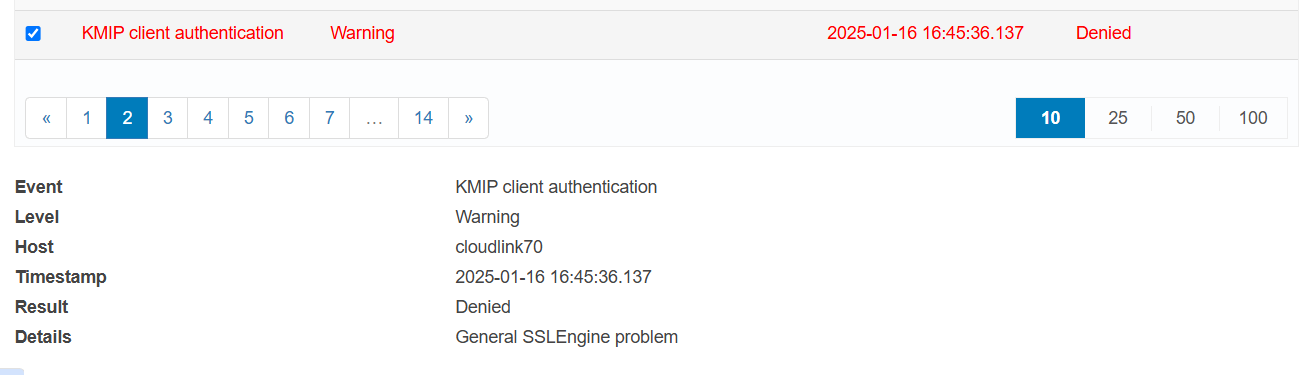
You see this error in the CloudLink UI if the KMS Server certificate expires in 2050 or later:
KMIP client authentication Warning Denied Details:General SSLEngine problem
You see this error in vCenter if you attempt to import a KMIP Client certificate that expires in 2050 or later:
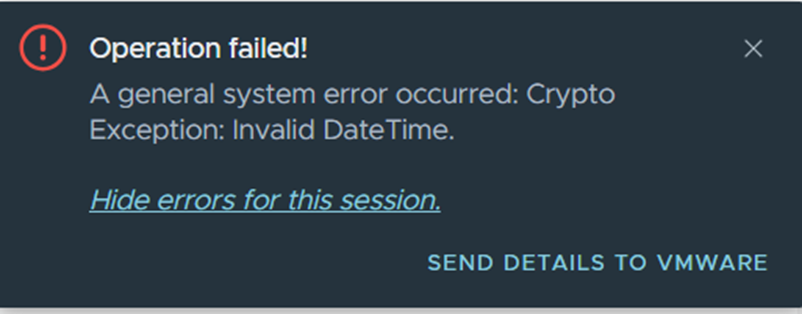
Operation failed!
A general system error occurred: Crypto
Exception: Invalid DateTime.