NVP-vProxy: vCenter Plugin and User Interface (VCUI) Troubleshooting
Summary: This article provides a general overview for backup administrators and NetWorker support for troubleshooting vSphere plugin and VCUI issues.
Instructions
The vCenter User Interface (VCUI) is a web interface built into the NetWorker server. VCUI and the vSphere plugin are optional NetWorker VMware Protection (NVP) administration interfaces. They are not required in order to successfully schedule or perform VMware backup or restore operations. These interfaces provide VMware administrations access to NVP operations without requiring access to other NetWorker management interfaces, such as the NetWorker Management Console (NMC) and NetWorker Web User Interface (NWUI).
VCUI is accessible using the following:
- Directly from a web browser:
https://<NETWORKER_SERVER_ADDRESS>:9090/vcui - The VCUI can be installed directly into VMware vSphere as plugin.
Both the standalone web page and the vSphere plugin use the same endpoint on the NetWorker server. For more information about the installation and usage of the vSphere plugin or VCUI, see the NetWorker VMware Integration Guide. NetWorker documentation is available through: Support for NetWorker | Manuals & Documents (You must sign in with your Dell support account).
Initial Troubleshooting Steps:
- Identify the NetWorker server version and Operating System: NetWorker: Methods for Identifying NetWorker Software version
- Identify the vCenter version.
- From VMware vSphere, select the vCenter (topmost object) in the inventory and click the summary tab:
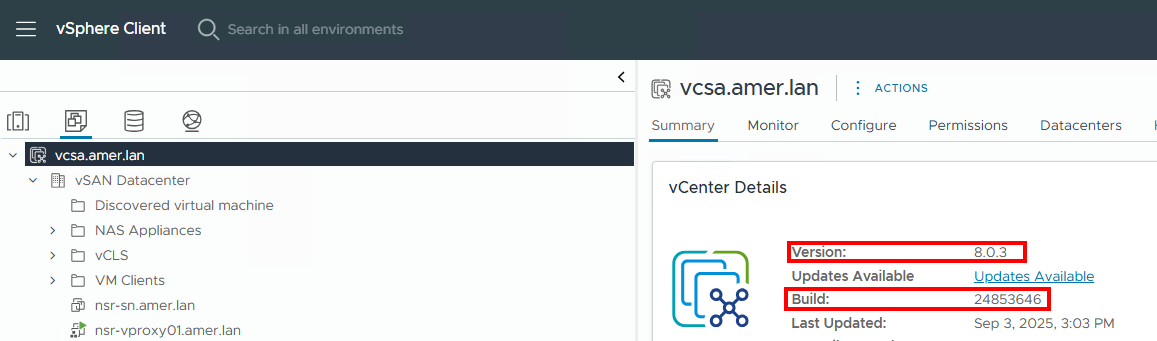
- From VMware vSphere, select the vCenter (topmost object) in the inventory and click the summary tab:
- Review NetWorker Compatibility documentation to ensure that the NetWorker version supports the VMware version: E-Lab Interoperability Navigator 2.0-HOME (You must sign in with your Dell support account).
- For issues specific to the vSphere plugin, is the same issue observed outside of vSphere? For example, when accessing
https://<NETWORKER_SERVER_ADDRESS>:9090/vcuidirectly. If the issue is specific to the vSphere plugin only, vCenter logs may need to be reviewed to further assess the issue. This may also require involvement from the VMware administrator or VMware support. - Is the issue observed across more than one web browser? Issues specific to one web-browser are occurring outside of NetWorker.
- Make note of any specific errors observed in the web-browser.
vSphere plugin installation issues:
- NVP vProxy: vSphere Web Client Plugin Reports Successful Installation, But Does Not Appear
- NVP-vProxy: Failed to install vCenter plugin "Unable to find valid certification path to requested target"
- NVP: Unable to install vCenter plugin in a multihomed environment
- NetWorker: vCenter plug-in and VCUI login fails with "vCenter not registered with NetWorker server"
Logging:
The VCUI and vSphere plugin log information to the following file on the NetWorker server:
- Linux:
/nsr/authc/logs/vcui.log - Windows (Default install path):
C:\Program Files\EMC NetWorker\nsr\authc-server\tomcat\logs\vcui.log
The standard logging level is INFO, in some scenarios this may be insufficient, to enable debugging, perform the following:
- Edit the VCUI
logback.xmlfile in a text editor:
- Linux:
/nsr/authc/webapps/vcui/WEB-INF/classes/logback.xml - Windows (Default install path):
C:\Program Files\EMC NetWorker\nsr\authc-server\tomcat\webapps\vcui\WEB-INF\classes\logback.xml
- Change the
root levelfromINFOtoDEBUG, and save the changes:
<?xml version="1.0" encoding="UTF-8"?>
<configuration>
    <appender name="STDOUT" class="ch.qos.logback.core.ConsoleAppender">
        <encoder>
            <pattern>%d{HH:mm:ss.SSS} [%thread] %-5level %logger{55} - %msg%n</pattern>
        </encoder>
    </appender>

  <appender name="FILE" class="ch.qos.logback.core.FileAppender">
    <file>${catalina.base}/logs/vcui.log</file>
    <append>true</append>
    <encoder>
      <pattern>%d{yyyy-MM-ddTHH:mm:ss.SSS} [%thread] %-5level %logger{25}.%M %L - %msg%n</pattern>
    </encoder>
  </appender>

    <root level="DEBUG">
        <appender-ref ref="FILE"/>
        <appender-ref ref="STDOUT"/>
    </root>
</configuration>
- Restart NetWorker server services:
Linux:
systemctl restart networker

or

nsr_shutdown
systemctl start networker
net stop nsrd
net start nsrd
Reproduce the issue in the VCUI or vSphere plugin, the vcui.log contains DEBUG messages. When debugging is no longer needed, repeat the above steps, returning root level back to INFO.
Authentication Issues:
For authentication issues, the NetWorker authentication server (AUTHC) logs must be reviewed:
| Log Path | Purpose |
|
Contains security audit messages for the NetWorker Authentication Service. Debugging is often required to enable logging in this file. |
|
Contains security audit messages for the NetWorker Authentication Service. |
|
Contains access information for the embedded Apache httpd web server. |
AUTHC debug can also be enabled: NetWorker: How To Enable AUTHC DEBUG for Troubleshooting Purposes
Functional Issues:
In addition to the vcui.log, browser inspect console and NetWorker REST API logs can be reviewed to determine operational issues:
- In the web browser, right-click within the window and click Inspect; or press
CTRL+SHIFT+I. (Exact options may differ depending on the browser.) - In the Inspect console, click the Network tab:

- Perform an operation in the vSphere plugin or VCUI that is producing an issue. The inspect console's Name column lists operations that are performed.
- Click the operation that appears during the issue and review the Headers tab. The general information shows what API operation is performed and the result.
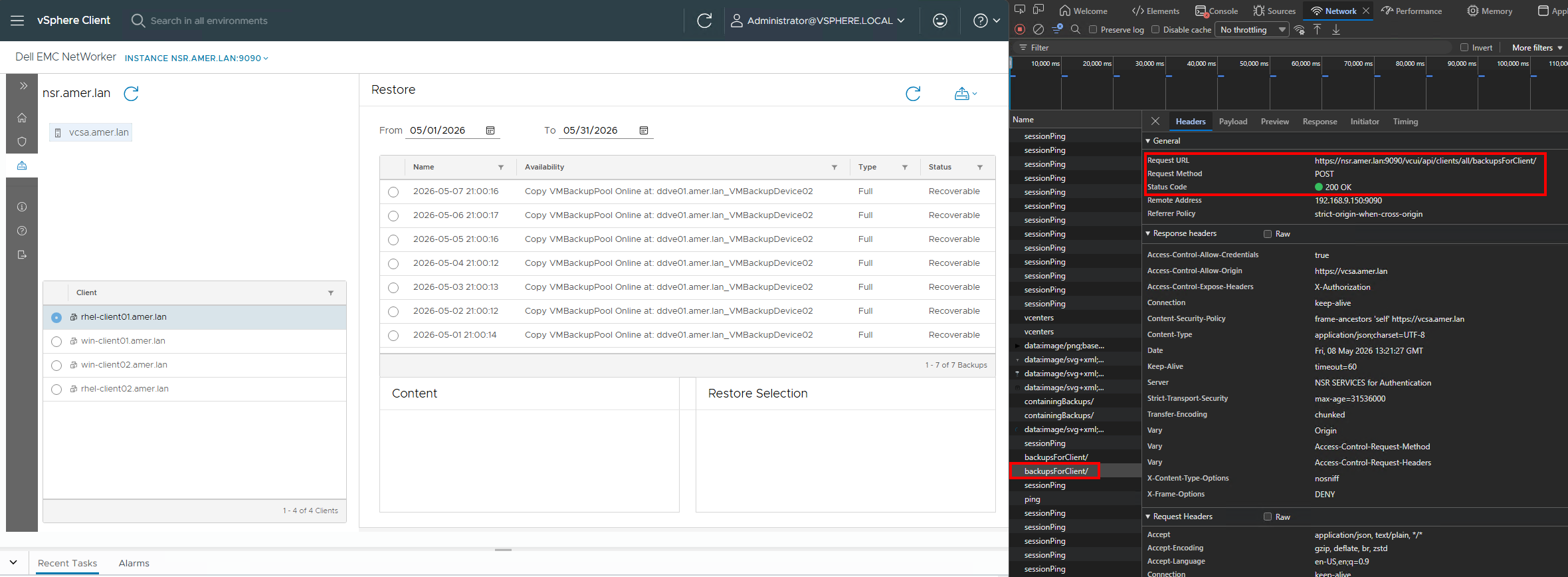
- Also review the Payload and Response tabs for additional information about the operation.
Additional NetWorker Logging:
The NetWorker server REST API logs should also include logging that aligns with operations performed in the vSphere plugin or VCUI. The REST API log is in the following NetWorker server location:
- Linux:
/nsr/logs/restapi/restapi.log - Windows (Default install path):
C:\Program Files\EMC NetWorker\nsr\logs\restapi\restapi.log
REST API debugging can also be enabled: NetWorker: How to Enable REST API Debugging
General NetWorker logs: NetWorker: Log Files and Locations
vCenter Logging:
The following logs can be reviewed from a vCenter Server Support Bundle:
| Log Path | Purpose |
/var/log/vmware/vsphere-ui/logs/vsphere_client_virgo.log |
Main log for HTML5 client (plugin UI loading, extension errors) |
/var/log/vmware/vsphere-ui/logs/vsphere-ui-runtime.log |
Runtime issues with UI services |
/var/log/vmware/vpxd/vpxd.log |
Primary vCenter server daemon. Extension registration problems, API failures, permissions issues, |
/var/log/vmware/lookupsvc/lookupserver-default.log |
Failed registrations, certificate trust issues, endpoint lookup failures. |
|
|
REST API failures, authentication or token errors, plugin backend communication problems. |