VPLEX: Unable to expand virtual-volume protected by RecoverPoint
Summary: This article talks about expanding a virtual-volume when protected by RecoverPoint.
This article applies to
This article does not apply to
This article is not tied to any specific product.
Not all product versions are identified in this article.
Symptoms
Failure of expansion for VPLEX virtual-volume(s) that are protected by RecoverPoint.
The Solve Desktop/Online procedure for virtual-volume expansion only targets the normal virtual-volumes that are not protected by RecoverPoint.
The below error is seen in the GUI/CLI when trying to expand the protected virtual-volume.
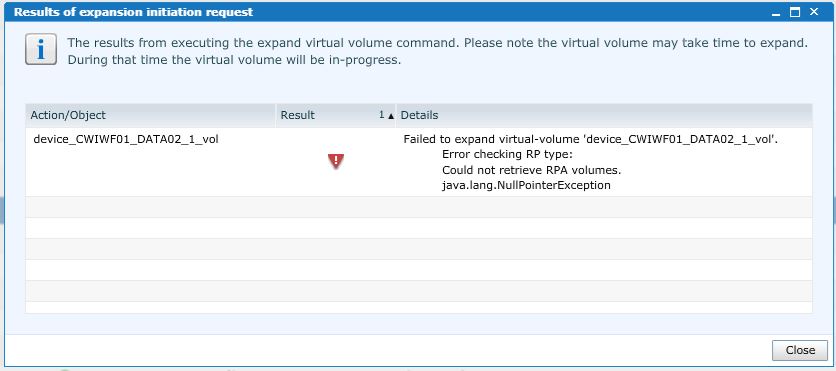
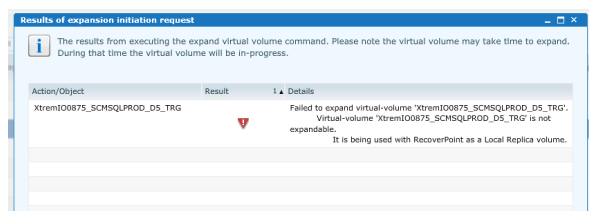
Cause
A virtual-volume that is actively protected by RecoverPoint and is splitting data cannot be expanded. The virtual-volume must be disassociated from RecoverPoint replication in order to make changes such as expanding the size.
Resolution
Follow the precaution steps before the deletion of the replication-set on RecoverPoint. The below precaution steps ensure consistent configuration before and after virtual-volume expansion.
Precaution Steps:
Performing these next steps delete previous bookmarks on RecoverPoint for this volume, there is no current method to avoid this.
Deletion Steps:
From the RecoverPoint Appliance:
Precaution Steps:
From the RecoverPoint:
- Detect the virtual-volume that needs expansion.
- Navigate to RecoverPoint GUI and detect the virtual-volume in the RecoverPoint Replication Set (Rset). The Rset name can be 0,1,2, etc. Confirm you are working with the right Rset name.
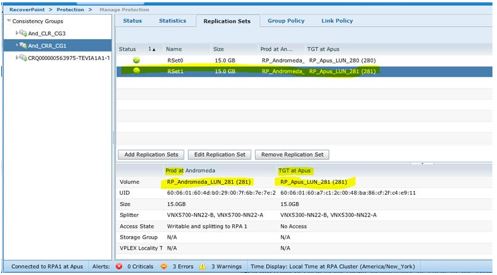
- Take note of the current configuration of this Rset including the current size, source, and target devices.
- Taking a screenshot from the GUI for this Rset, will be enough to save all current configuration and details.
- Refer to the below screenshot as an example.
Note: The above steps are important to make sure the end user correctly assigns the source device and the target device during the creation of the new Rset after the virtual-volume expansion.
Performing these next steps delete previous bookmarks on RecoverPoint for this volume, there is no current method to avoid this.
Deletion Steps:
From the RecoverPoint Appliance:
- Remove Replication-Set for this virtual-volume from the Consistency Group in the RecoverPoint GUI.
- Remove/Delete the Replication-Set.
From VPLEX:
- Expand the VPLEX virtual-volume(s) using the VPLEX GUI or VPlexcli (CLI) following the steps in the procedure available from SolVe Desktop/Online.
- Verify the virtual-volume is expanded and showing the correct new size by listing the virtual volume. Check the below example:
================
VPlexcli:/> cd /clusters/cluster-x/virtual-volumes/<virtual-volume-name>
VPlexcli:/clusters/cluster-x/virtual-volumes/<virtual-volume-name>> ll
Note : x is the cluster-id [1 or 2 ]===============
From the RecoverPoint Appliance:
- Once the expansion of the volume(s) is complete, proceed with re-configuring the Replication-Set on the RecoverPoint GUI.
- After the new Replication-Set is created, verify the Replication-Set is showing the virtual-volume with the new size.
Affected Products
VPLEX, VPLEX GeoSynchronyProducts
VPLEX for All Flash, VPLEX VS2, VPLEX VS6Article Properties
Article Number: 000170477
Article Type: Solution
Last Modified: 23 Dec 2025
Version: 4
Find answers to your questions from other Dell users
Support Services
Check if your device is covered by Support Services.