PowerVault: ML6000 - How To Update Drive Firmware Using the Web Interface RMU
Summary: Information about how to update the firmware of the present tape drives in your Dell PowerVault ML6000 tape library.
Instructions
This article provides information about how to update the firmware of the present tape drives in your Dell PowerVault ML6000 tape library.
Table of Contents:
1. Firmware Versions
For the latest firmware release, go to the ML6000 Drivers and Download page to select the correct firmware.
In the Category window, select Tape Automation.
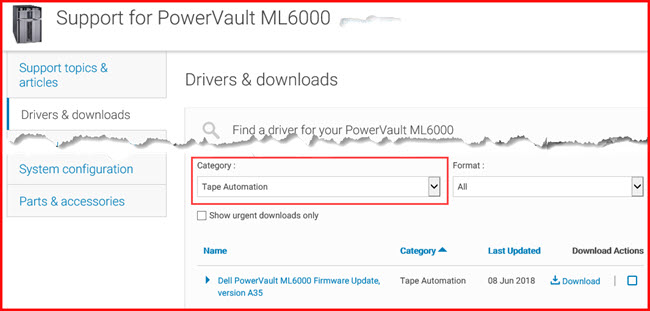
For updating your Tape Drive, search Dell.com for the model drive installed in your ML6000 tape Library.
Once you are on the LTO Drive page select the Drivers, and Download section and select the firmware package for your specific drive.
Then under Category selects Tap Drives to see the Firmware package, download the Firmware and follow the instructions in Section 2.
Here is and example for the LTO7 Tape Drive.
Search Dell.com for the PowerVault LTO7 drive to take you to the correct page.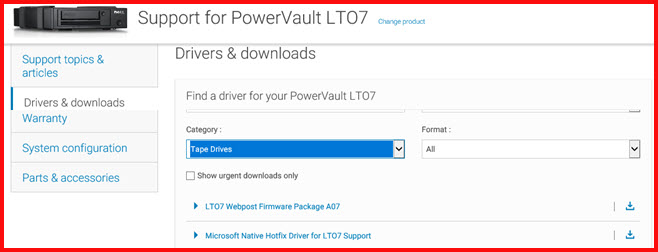
2. How-To Update Tape Drive Firmware
Steps:
- Launch your Internet browser and connect to the ML6000 web management interface using its IP address.
- Enter the login and the password (by default: Admin and password)
- Once on the main window, click Tools and then on Drive Operations. (See image below.)
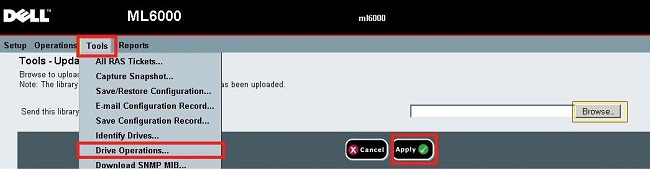
Figure 1: Drive Operations
- Select Update tape drive firmware using a firmware image file and click Next.
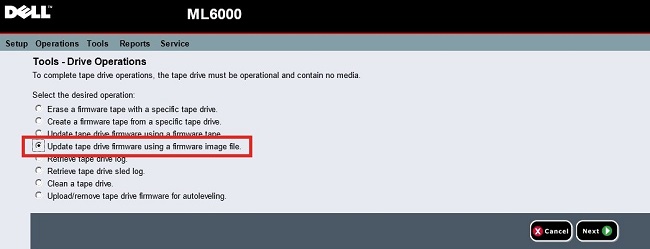
Figure 2: Choose update by firmware image
- If the ML6000 has several types of tape drives, choose the one to update and click Next (in this case LTO3 is selected).
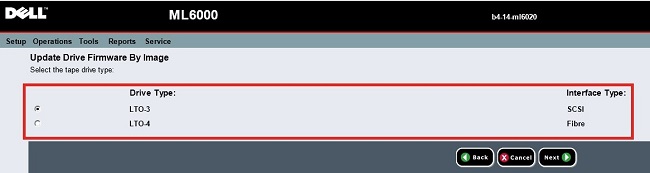
Figure 3: Choose drive type
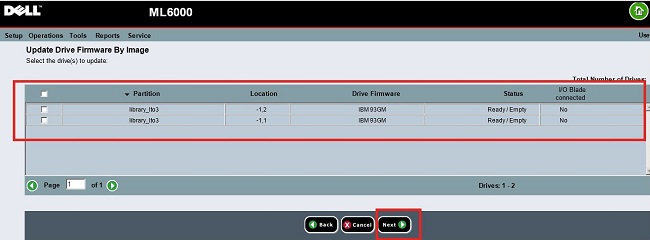
Figure 4: Choose drive to update
- Select the update file by clicking Browse.

Figure 5: Select update package
- In the extracted file, open folder Drive and then select the type of tape drive (here LTO3).
- Click Apply to start the tape drive update.
- A confirmation message is displayed once the update is done.
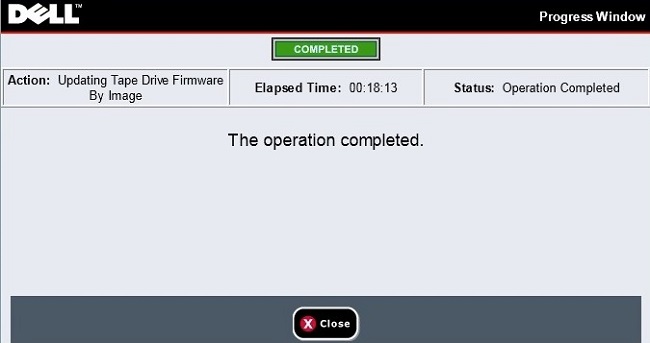
Figure 6: Confirmation message